> ## Documentation Index
> Fetch the complete documentation index at: https://help.kajabi.com/llms.txt
> Use this file to discover all available pages before exploring further.
# Change a site language
> Configure Language Settings to automatically translate auto-generated text on a Kajabi site.
Kajabi supports multiple languages for auto-generated text across your site, such as checkout forms, customer settings, and success messages. Content in custom text blocks must be translated manually.
## Set your language settings
Configure your Language Settings to auto-translate the automated text on your site.
With Kajabi, you can change your Language Settings to:
* Danish
* German
* English
* Spanish
* Finnish
* French
* Hungarian
* Italian
* Japanese
* Dutch
* Norwegian
* Polish
* Portuguese
* Russian
* Swedish
* Turkish
### Auto-translate automated text
1. From the Dashboard, click **Settings.**
2. Click **Site Details**.
3. Select your preferred language from the **Language** dropdown menu.
4. Click **Save** to keep your changes.
**Note:** [Custom text blocks](https://help.kajabi.com/articles/website/pages/how-to-add-a-text-block-to-your-page) on your site pages are not automated text and will not auto-translate when you change your Language Settings. To translate custom text blocks, manually update the content in each block to your preferred language.
**Tip:** If your audience speaks multiple languages, create separate [landing pages](https://help.kajabi.com/articles/website/pages/landing-page-templates-overview) for each language and manually translate the custom text blocks on each page.
## Automatic translations
Changing your Language Settings will automatically translate the automated text throughout your site.
**Looking to update the customizable text on your Course Product (e.g. course completion message)?**
Build your Course Product to fit your language and brand by customizing your Product template. [Learn more](/articles/products/courses/course-templates)
**Tip:** System-generated emails can be translated from the **Email Templates** section under your **Settings** tab. Learn to [edit the automated emails sent by your site](/articles/account-settings/notifications/edit-automated-email-notifications).
### Updating Language Settings for a site will translate
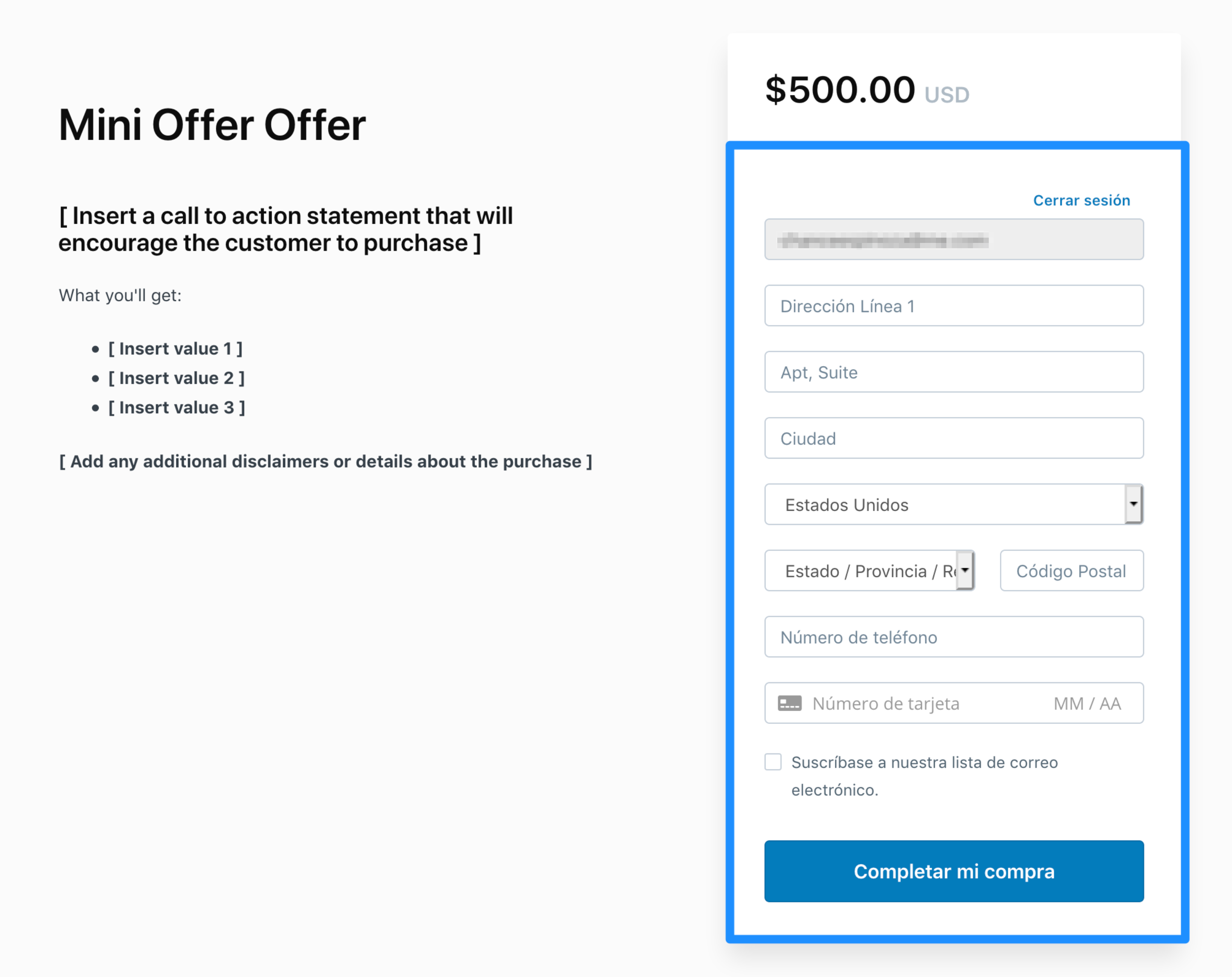
#### Checkout settings
Checkout settings refers to any text in a Checkout Page that is directly related to Checkout. In other words, the form text in the Checkout Page:
 #### Customer settings
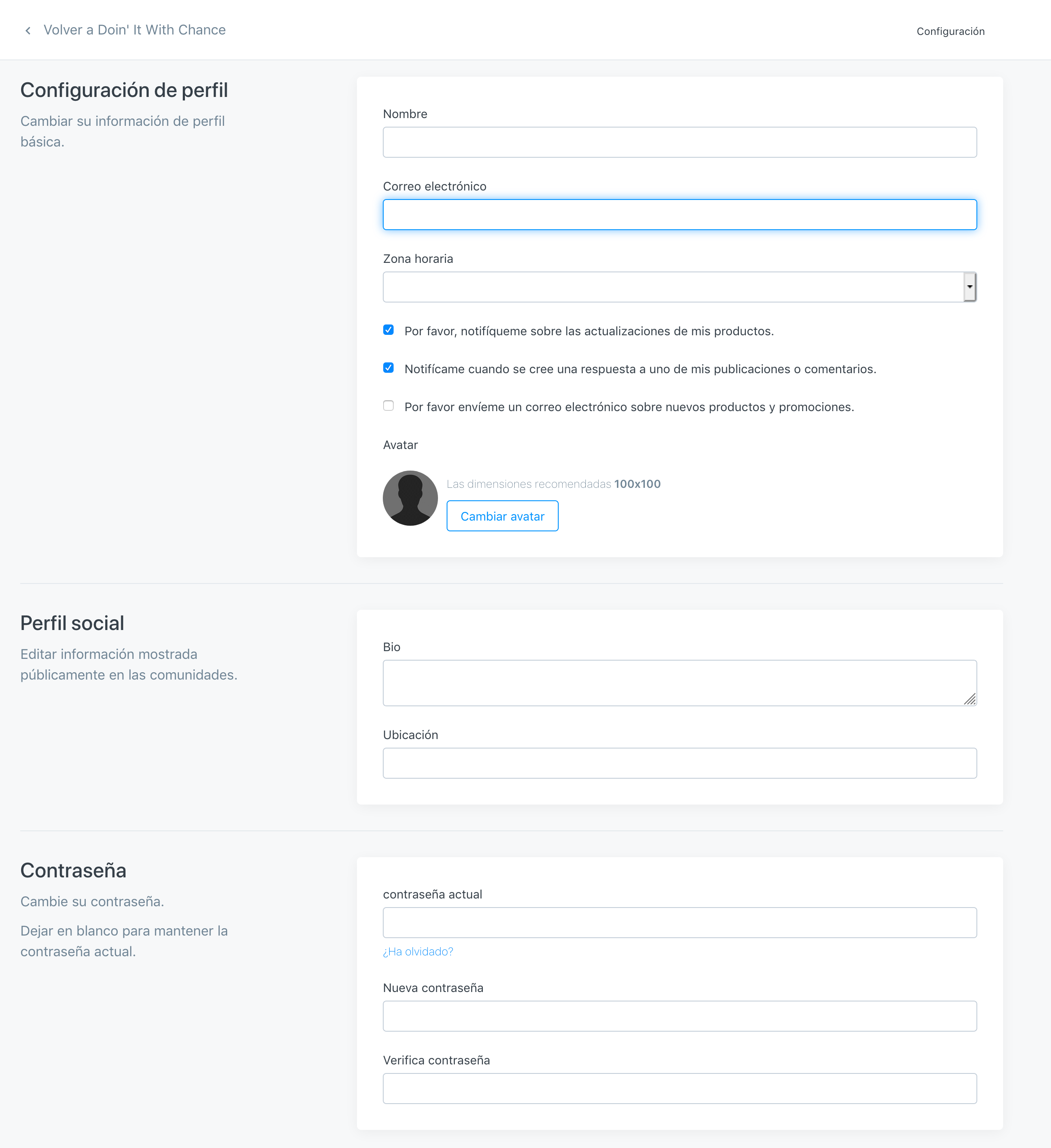
This refers to the Settings in your user's own account. They get here by clicking the Avatar that lives in the top right corner of the page:
#### Customer settings
This refers to the Settings in your user's own account. They get here by clicking the Avatar that lives in the top right corner of the page:
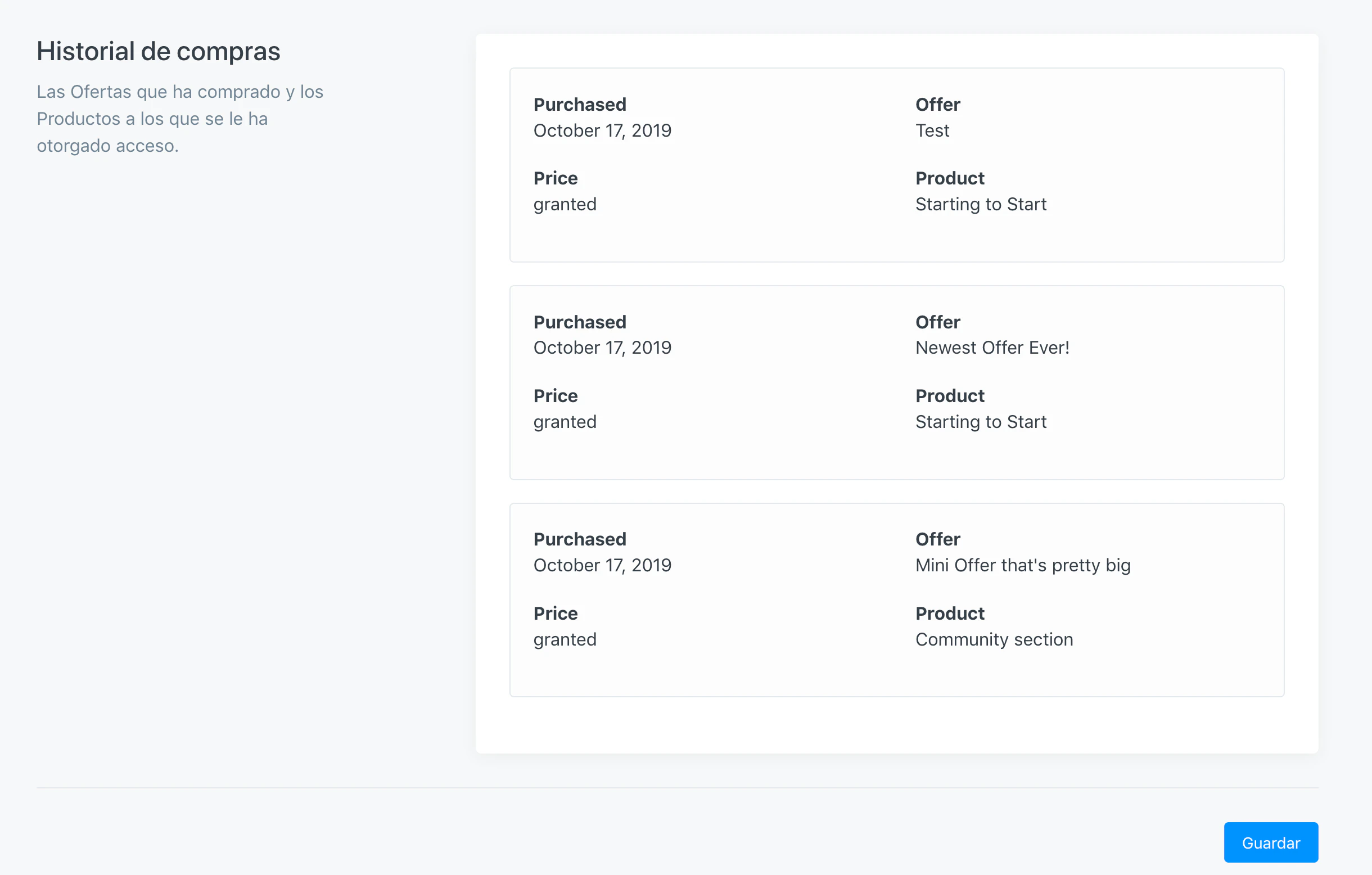
 Terms such as "Purchased, Granted, Offer, and Product" aren't currently translated, but all other fields and directions are:
 #### Success/Alert messages
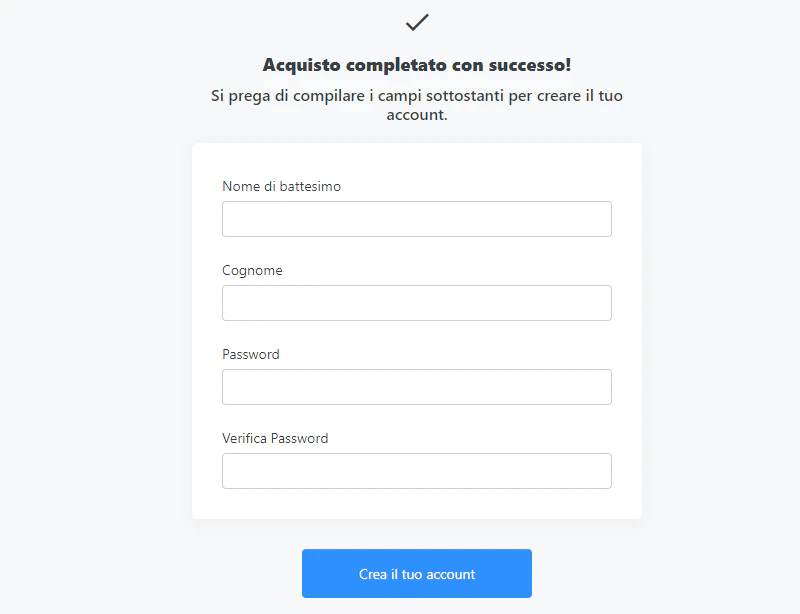
These are popup messages that appear after a successful purchase:
#### Success/Alert messages
These are popup messages that appear after a successful purchase: