> ## Documentation Index
> Fetch the complete documentation index at: https://help.kajabi.com/llms.txt
> Use this file to discover all available pages before exploring further.
# Apply filters to the Contacts tab
> Narrow your contact list with filter Categories, stack up to 10 filters at once, and save the result as a Segment.
**Filters** on the **Contacts** tab narrow your list down to the people you actually want to look at — everyone who bought a particular Offer, everyone who hasn't opened an email in 90 days, everyone carrying a specific Tag.
Every filter is built from three parts:
* **Category**: The area of Kajabi you're filtering on, such as Email Activity or Tags
* **Conditional**: The requirement within that Category, such as 'Was opened' or 'Has all'
* **Value**: The specific thing you're matching against, such as a date range or a Tag name
Filters are also how you build Segments, so a filter you use often can be saved and reused.
[Learn more about Segments](/articles/contacts/manage-your-contacts/segment-your-contacts).
## Apply a filter
1. From your Dashboard, open the **Contacts** tab.
2. Click **Filters**.
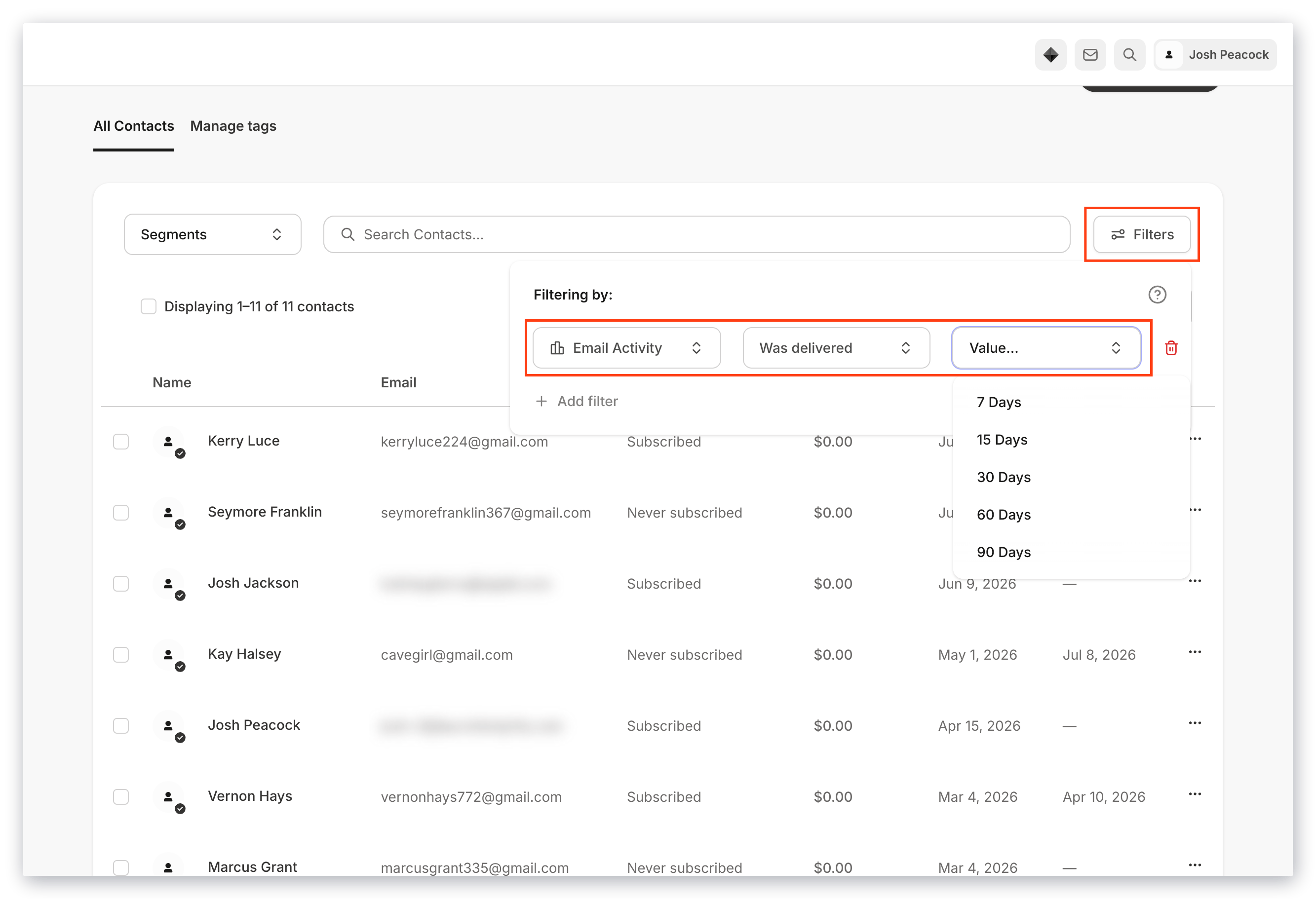
3. Select a **Category**, a **Conditional**, and a **Value**:
 4. To narrow your results further, click **Add filter** and build another one.
5. Click **Apply Filters**.
**Note:** You can apply up to 10 Contact filters at a time.
## Combine filters accurately
### Duplicate Categories and Conditionals
Only one filter per Conditional applies. If you add two filters with the same Category and Conditional, only the last one you added counts — no matter how the Values differ.
4. To narrow your results further, click **Add filter** and build another one.
5. Click **Apply Filters**.
**Note:** You can apply up to 10 Contact filters at a time.
## Combine filters accurately
### Duplicate Categories and Conditionals
Only one filter per Conditional applies. If you add two filters with the same Category and Conditional, only the last one you added counts — no matter how the Values differ.
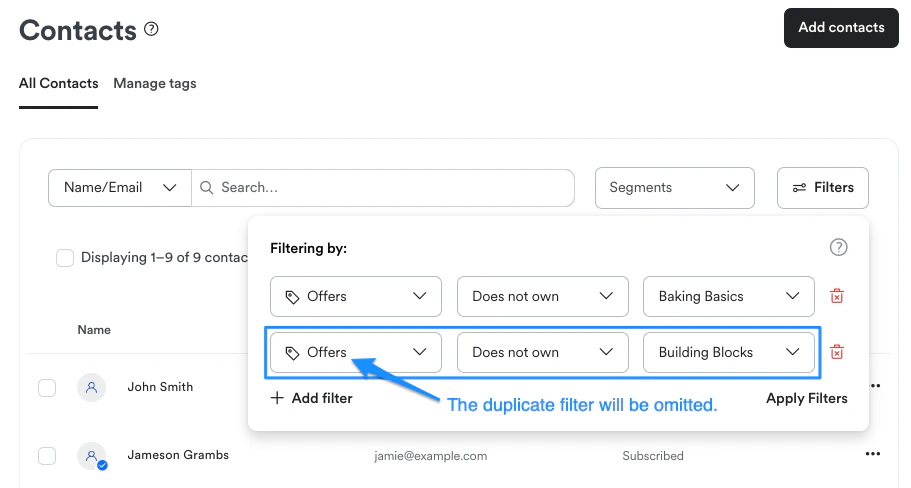 Instead, use a Category that lets you [select several Values in one filter](#categories-that-accept-several-values).
### Categories that accept several Values
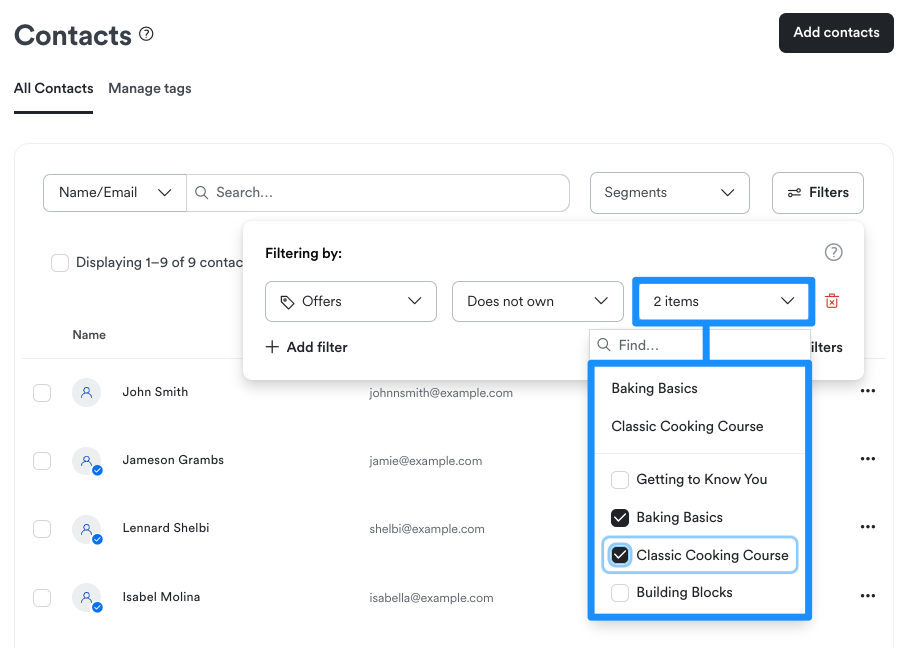
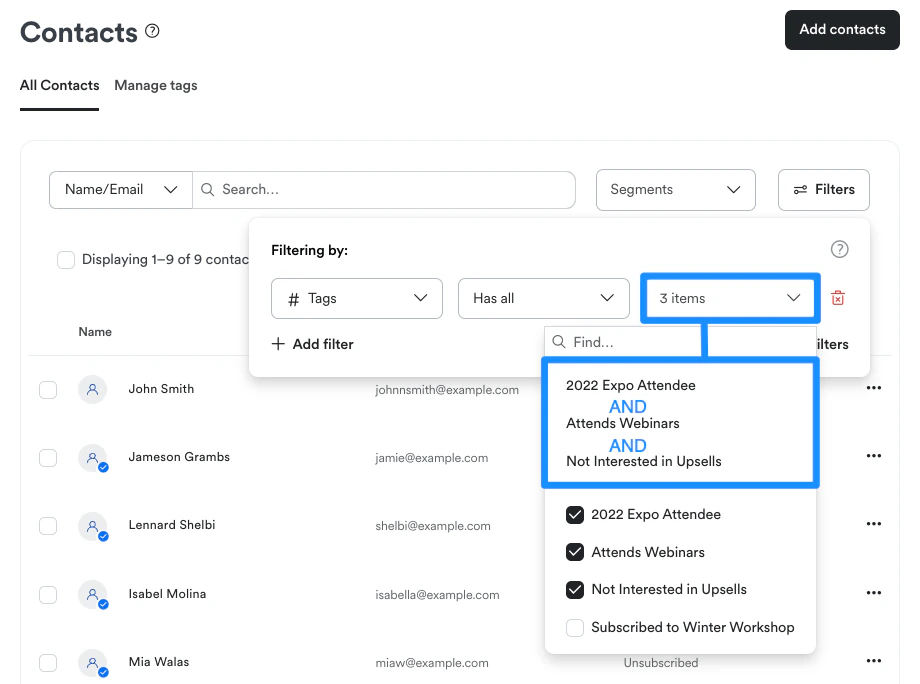
Some Categories let you pick more than one Value, so a single filter can cover several things at once. **Offers** and **Tags** both work this way.
Instead, use a Category that lets you [select several Values in one filter](#categories-that-accept-several-values).
### Categories that accept several Values
Some Categories let you pick more than one Value, so a single filter can cover several things at once. **Offers** and **Tags** both work this way.
 ### How several Values combine
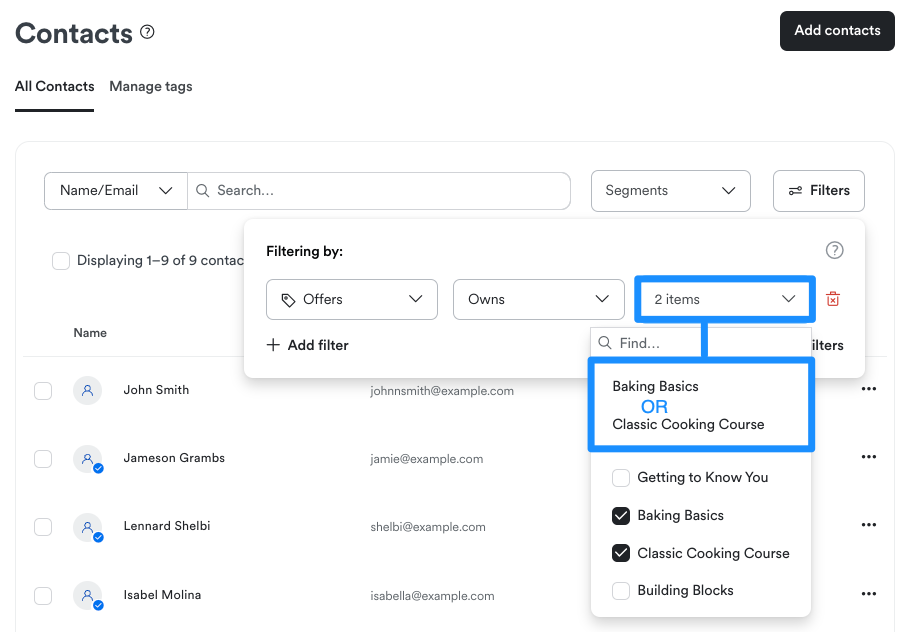
When one filter holds several Values, the Conditional decides whether a contact has to match one of them or all of them:
* **Offers** with **Owns** matches a contact who owns *any* of the Offers you picked
* **Tags** with **Has any** matches a contact carrying *at least one* of the Tags you picked
* **Tags** with **Has all** matches only contacts carrying *every* Tag you picked
### How several Values combine
When one filter holds several Values, the Conditional decides whether a contact has to match one of them or all of them:
* **Offers** with **Owns** matches a contact who owns *any* of the Offers you picked
* **Tags** with **Has any** matches a contact carrying *at least one* of the Tags you picked
* **Tags** with **Has all** matches only contacts carrying *every* Tag you picked
 ## Remove filters
To remove a single filter, click **Filters**, then click the trash icon to the right of the filter you want gone. It disappears immediately. Click **Apply Filters** to update your list.
To drop every filter at once, click **Clear Filters** — the X beside the filter count above your contact list.
## Save filters as a Segment
Once your filters are applied, **Save as Segment** appears above your contact list, next to the filter count. Click it to save the current set of filters and reuse it later. [Learn more about Segments](/articles/contacts/manage-your-contacts/segment-your-contacts).
If you open an existing Segment and haven't changed its filters yet, the button in the Filters panel reads **Duplicate Segment** instead of **Apply Filters**. Use it to make a copy you can adjust without touching the original.
## Filter categories
**Note:** The Categories and Conditionals available to you depend on your account's settings, so your list may not match this one exactly.
### Assessment
Filter by how contacts performed on an Assessment. [Learn more about Assessments](/articles/contacts/create-manage-and-share-assessments/create-and-customize-assessments).
**Conditionals:** Completed, Passed, Failed
**Value:** Any Assessment you've created.
[Learn how to enable automatic grading](/articles/contacts/create-manage-and-share-assessments/create-and-customize-assessments#h_32f6706b-f7a5-48b9-aa9b-bc145daacdcf).
### Contacts
Filter by when a contact was added, or whether they're hidden. [Learn more about the Contacts tab](/articles/contacts/manage-your-contacts/contacts-tab-overview).
**Conditionals:** Contact was added, Contact was not added, [Is hidden](/articles/contacts/manage-your-contacts/hiding-your-contacts)
**Value:** 7, 15, 30, 60, or 90 Days for the two Contact was added Conditionals. Yes or No for Is hidden.
### Coupon
Filter by Coupon use. The Conditional is Coupon used. [Learn more about creating Coupons](/articles/sales/coupons/how-to-create-a-coupon).
**Value:** any Coupon you've created.
### Customers
Filter by customer activity and join date. [Learn more about customers](/articles/contacts/manage-your-contacts/contacts-tab-overview#customers).
**Conditionals:** [Customer was active](/articles/contacts/manage-your-contacts/contacts-tab-overview#what-is-considered-an-active-member), Customer was not active, Customer joined in last, Is Customer
**Value:** 7, 15, 30, 60, or 90 Days, or All time. Customer joined in last does not offer All time. Is Customer takes Yes or No.
### Custom Fields
Filter on the custom Form fields you've built. [Learn how to create Form fields.](/articles/marketing/forms/how-to-add-and-edit-fields-on-a-form)
**Conditionals:** Any custom field created on your site.
**Value:** The text you want that field to contain.
### Default Fields
Filter on the standard fields on a Contact record. [Learn more about Form fields.](/articles/marketing/forms/how-to-add-and-edit-fields-on-a-form)
**Conditionals:** Name contains, Email contains, SMS Mobile Phone Number contains, Address contains, Address line 2 contains, City contains, State contains, Country contains, Zip code contains, Phone number contains
**Value:** The text you want that field to contain. A contact's country may be stored as a two-letter code such as `US` or as a full country name, so if Country contains returns nothing, try the other form.
### Email Activity
Filter by how contacts have engaged with your email overall. [Learn more about email deliverability](/articles/marketing/email-campaigns/demystifying-email-deliverability).
**Conditionals:** Was delivered, Was not sent, Was opened, Was not opened, [Was clicked](/articles/marketing/email-campaigns/email-metrics-overview#h_01EDPQC3J9TEWVG6AKKY7C6CDY), Was not clicked, Has a hard bounced delivery
**Value:** 7, 15, 30, 60, or 90 Days. Has a hard bounced delivery takes Yes or No.
### Email Broadcast
Filter by how contacts responded to a specific email.
**Conditionals:** Was sent, Was not sent, [Was opened](/articles/marketing/email-campaigns/email-metrics-overview#h_01EDPQC3J9TEWVG6AKKY7C6CDY), Was not opened, [Has clicked](/articles/marketing/email-campaigns/email-metrics-overview#h_01EDPQC3J9TEWVG6AKKY7C6CDY), Has not clicked, [Has bounced](/articles/contacts/manage-your-contacts/how-auto-unsubscribe-helps-you-maintain-a-healthy-mailing-list), Has not [bounced](/articles/marketing/email-campaigns/email-metrics-overview#h_01EDPQC3J9TEWVG6AKKY7C6CDY), [Has dropped](/articles/marketing/email-campaigns/email-metrics-overview#h_01EDPQCE5WM1WJFFEBRC0AFNXG), Has not dropped
**Value:** Any broadcast email you've sent.
### Email Engagement
Filter by how engaged a contact is with your email overall. [Learn best practices for growing and maintaining a healthy contact list](/articles/marketing/email-campaigns/best-practices-for-growing-and-maintaining-your-contact-lists).
**Conditionals:** Healthy Contacts, Passive Contacts, Unengaged Contacts, Inactive Contacts
**Value:** Include email open data or Exclude email open data.
### Email Sequence
**Conditionals:** Subscribed to, Not subscribed to
**Value:** Any Email Sequence you've created.
### Events
Filter by Event registration. [Learn more about Events](/articles/marketing/events/event-overview).
**Conditionals:** Registered to, Not registered to
**Value:** Any Event you've created.
### Forms
Filter by Form submission. [Learn more about Forms](/articles/marketing/forms/create-and-build-your-form).
**Conditionals:** Submitted, Not submitted
**Value:** Any Form you've created.
### Lifetime Value
Filter by how much a contact has spent with you in total.
**Conditionals:** Greater than, Less than, Equal to
**Value:** A dollar amount.
### Email Marketing Status
Filter by a contact's marketing email subscription status.
## Remove filters
To remove a single filter, click **Filters**, then click the trash icon to the right of the filter you want gone. It disappears immediately. Click **Apply Filters** to update your list.
To drop every filter at once, click **Clear Filters** — the X beside the filter count above your contact list.
## Save filters as a Segment
Once your filters are applied, **Save as Segment** appears above your contact list, next to the filter count. Click it to save the current set of filters and reuse it later. [Learn more about Segments](/articles/contacts/manage-your-contacts/segment-your-contacts).
If you open an existing Segment and haven't changed its filters yet, the button in the Filters panel reads **Duplicate Segment** instead of **Apply Filters**. Use it to make a copy you can adjust without touching the original.
## Filter categories
**Note:** The Categories and Conditionals available to you depend on your account's settings, so your list may not match this one exactly.
### Assessment
Filter by how contacts performed on an Assessment. [Learn more about Assessments](/articles/contacts/create-manage-and-share-assessments/create-and-customize-assessments).
**Conditionals:** Completed, Passed, Failed
**Value:** Any Assessment you've created.
[Learn how to enable automatic grading](/articles/contacts/create-manage-and-share-assessments/create-and-customize-assessments#h_32f6706b-f7a5-48b9-aa9b-bc145daacdcf).
### Contacts
Filter by when a contact was added, or whether they're hidden. [Learn more about the Contacts tab](/articles/contacts/manage-your-contacts/contacts-tab-overview).
**Conditionals:** Contact was added, Contact was not added, [Is hidden](/articles/contacts/manage-your-contacts/hiding-your-contacts)
**Value:** 7, 15, 30, 60, or 90 Days for the two Contact was added Conditionals. Yes or No for Is hidden.
### Coupon
Filter by Coupon use. The Conditional is Coupon used. [Learn more about creating Coupons](/articles/sales/coupons/how-to-create-a-coupon).
**Value:** any Coupon you've created.
### Customers
Filter by customer activity and join date. [Learn more about customers](/articles/contacts/manage-your-contacts/contacts-tab-overview#customers).
**Conditionals:** [Customer was active](/articles/contacts/manage-your-contacts/contacts-tab-overview#what-is-considered-an-active-member), Customer was not active, Customer joined in last, Is Customer
**Value:** 7, 15, 30, 60, or 90 Days, or All time. Customer joined in last does not offer All time. Is Customer takes Yes or No.
### Custom Fields
Filter on the custom Form fields you've built. [Learn how to create Form fields.](/articles/marketing/forms/how-to-add-and-edit-fields-on-a-form)
**Conditionals:** Any custom field created on your site.
**Value:** The text you want that field to contain.
### Default Fields
Filter on the standard fields on a Contact record. [Learn more about Form fields.](/articles/marketing/forms/how-to-add-and-edit-fields-on-a-form)
**Conditionals:** Name contains, Email contains, SMS Mobile Phone Number contains, Address contains, Address line 2 contains, City contains, State contains, Country contains, Zip code contains, Phone number contains
**Value:** The text you want that field to contain. A contact's country may be stored as a two-letter code such as `US` or as a full country name, so if Country contains returns nothing, try the other form.
### Email Activity
Filter by how contacts have engaged with your email overall. [Learn more about email deliverability](/articles/marketing/email-campaigns/demystifying-email-deliverability).
**Conditionals:** Was delivered, Was not sent, Was opened, Was not opened, [Was clicked](/articles/marketing/email-campaigns/email-metrics-overview#h_01EDPQC3J9TEWVG6AKKY7C6CDY), Was not clicked, Has a hard bounced delivery
**Value:** 7, 15, 30, 60, or 90 Days. Has a hard bounced delivery takes Yes or No.
### Email Broadcast
Filter by how contacts responded to a specific email.
**Conditionals:** Was sent, Was not sent, [Was opened](/articles/marketing/email-campaigns/email-metrics-overview#h_01EDPQC3J9TEWVG6AKKY7C6CDY), Was not opened, [Has clicked](/articles/marketing/email-campaigns/email-metrics-overview#h_01EDPQC3J9TEWVG6AKKY7C6CDY), Has not clicked, [Has bounced](/articles/contacts/manage-your-contacts/how-auto-unsubscribe-helps-you-maintain-a-healthy-mailing-list), Has not [bounced](/articles/marketing/email-campaigns/email-metrics-overview#h_01EDPQC3J9TEWVG6AKKY7C6CDY), [Has dropped](/articles/marketing/email-campaigns/email-metrics-overview#h_01EDPQCE5WM1WJFFEBRC0AFNXG), Has not dropped
**Value:** Any broadcast email you've sent.
### Email Engagement
Filter by how engaged a contact is with your email overall. [Learn best practices for growing and maintaining a healthy contact list](/articles/marketing/email-campaigns/best-practices-for-growing-and-maintaining-your-contact-lists).
**Conditionals:** Healthy Contacts, Passive Contacts, Unengaged Contacts, Inactive Contacts
**Value:** Include email open data or Exclude email open data.
### Email Sequence
**Conditionals:** Subscribed to, Not subscribed to
**Value:** Any Email Sequence you've created.
### Events
Filter by Event registration. [Learn more about Events](/articles/marketing/events/event-overview).
**Conditionals:** Registered to, Not registered to
**Value:** Any Event you've created.
### Forms
Filter by Form submission. [Learn more about Forms](/articles/marketing/forms/create-and-build-your-form).
**Conditionals:** Submitted, Not submitted
**Value:** Any Form you've created.
### Lifetime Value
Filter by how much a contact has spent with you in total.
**Conditionals:** Greater than, Less than, Equal to
**Value:** A dollar amount.
### Email Marketing Status
Filter by a contact's marketing email subscription status.
**Conditionals:** Subscribed, Never subscribed, Unsubscribed, Manually unsubscribed, Opted out, Hard bounced, Marked spam
**Value:** 7, 15, 30, 60, or 90 Days, or All time. Subscribed takes a day range or Yes or No. Never subscribed takes Yes or No.
### Newsletter
Filter by Newsletter subscription.
**Conditionals:** Subscribed to, Not subscribed to
**Value:** Any Newsletter you've created.
### Offers
Filter by Offer ownership. [Learn more about Offers](/articles/sales/offers/offers-overview).
**Conditionals:** Owns, Does not own, Previously owned, Canceling
**Value:** Any Offer you've created. Select several to match a contact who owns any of them.
### Products
Filter by Product access. [Learn how to create digital Products](/articles/products/courses/courses-overview).
**Conditionals:** Has, Does not have, Previously owned
**Value:** Any Product you've created.
### Tags
Filter by the Tags on a contact. [Learn how to use Tags](/articles/contacts/manage-your-contacts/tags-overview).
**Conditionals:** Has any, Has all, Does not have
**Value:** Any Tag you've created. Select several and the Conditional decides whether a contact needs one of them or all of them.
## FAQs
### Does applying a filter change or delete my contacts?
No. A filter only changes which contacts appear in your list. Nothing about the contacts themselves is edited or removed.
### Why don't I see a Category or Conditional listed here?
The filters available to you depend on your account's settings and which features are turned on, so your dropdown may be slightly shorter or longer than this list.
### Can I reuse the same set of filters later?
Yes. Apply your filters, then click **Save as Segment** above your contact list. The Segment keeps that filter set so you can return to it without rebuilding it. [Learn more about Segments](/articles/contacts/manage-your-contacts/segment-your-contacts).