> ## Documentation Index
> Fetch the complete documentation index at: https://help.kajabi.com/llms.txt
> Use this file to discover all available pages before exploring further.
# Test send emails
> Send test emails to yourself to review and edit email campaigns before sending them to recipients.
**Email campaigns** are crucial for communicating with your contacts. Sending test emails to yourself allows you to review and edit email campaigns before sending them to your list.
## Preview email
Previewing your email campaign can provide you with a quick sneak peek as to the look and feel of your campaign.
However, we highly recommend testing your email campaign to get the most accurate feel for the delivery and appearance of your emails when your contacts subscribe to your list.
**Note:** Sending a preview email from your admin account may not include all personalized content such as event names, dates, times, and locations. Various links may also be inactive, including the View in Web Browser link.
**Tip:** For the most accurate test of your email's content and links, skip to [Test Email](#test-email) instead.
1. From the Dashboard, click **Marketing.**
2. Click **Email Campaigns.**
3. Select your **Email Broadcast** or **Email Sequence** you want to preview.
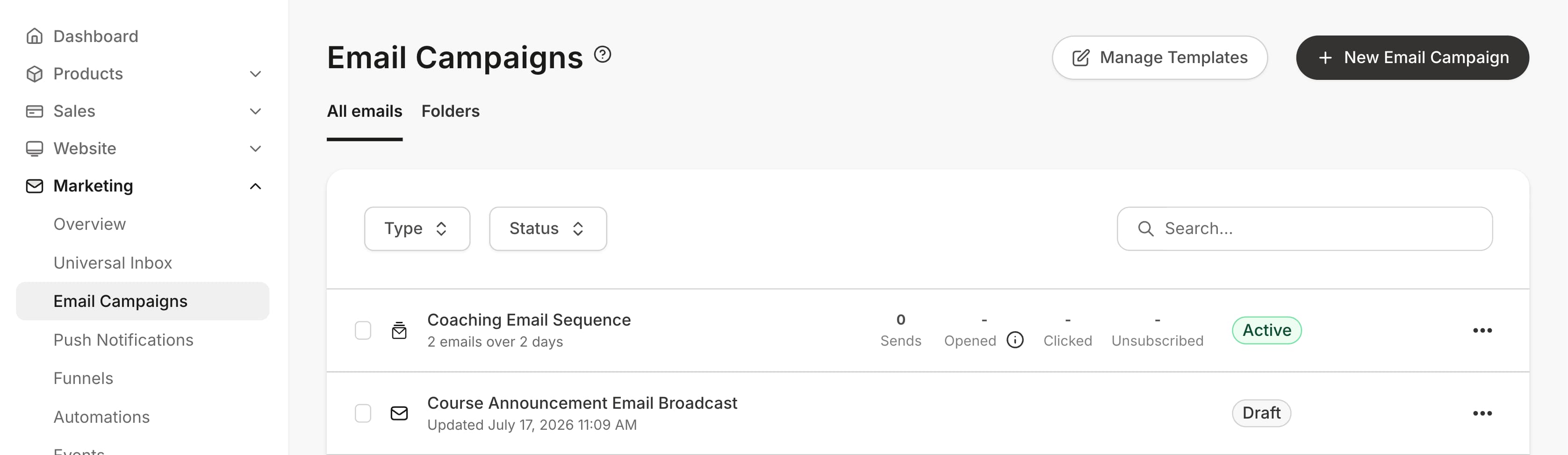 Learn more about [email broadcasts and email sequences](/articles/marketing/email-campaigns/email-campaigns-overview).
### Email Broadcast
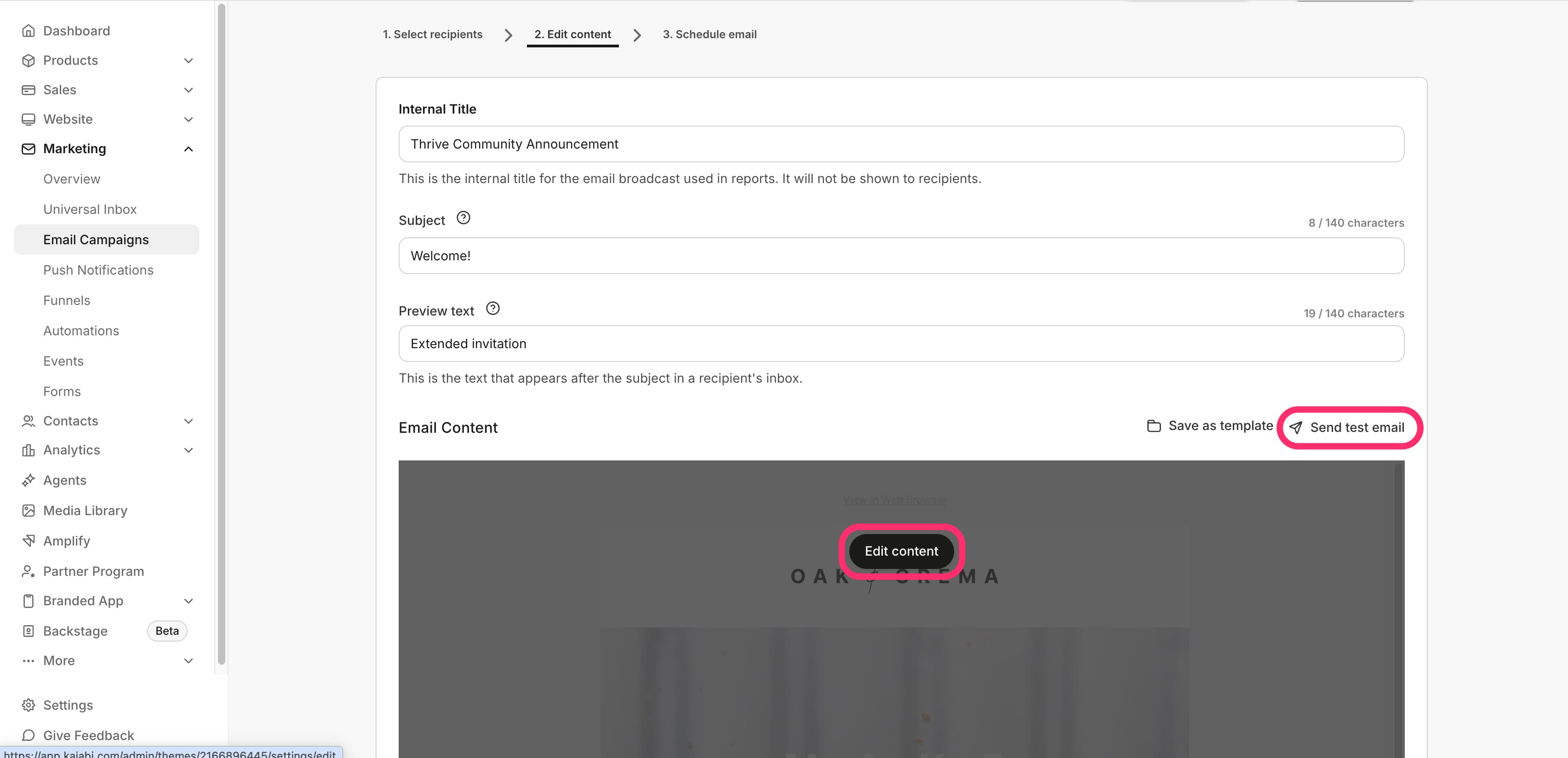
To edit and preview an Email Broadcast:
1. Hover over the email preview design and click **Edit content** to use the **Visual Editor.**
2. After customizing your email broadcast, you can **send a test email** to preview the broadcast from your customer's perspective.
3. To send a test, click **Send Test Email**.
4. Confirm the email address you would like your test email to be sent to or enter your desired test email address.
5. Click **Send Preview**.
Learn more about [email broadcasts and email sequences](/articles/marketing/email-campaigns/email-campaigns-overview).
### Email Broadcast
To edit and preview an Email Broadcast:
1. Hover over the email preview design and click **Edit content** to use the **Visual Editor.**
2. After customizing your email broadcast, you can **send a test email** to preview the broadcast from your customer's perspective.
3. To send a test, click **Send Test Email**.
4. Confirm the email address you would like your test email to be sent to or enter your desired test email address.
5. Click **Send Preview**.
 ### Email Sequence
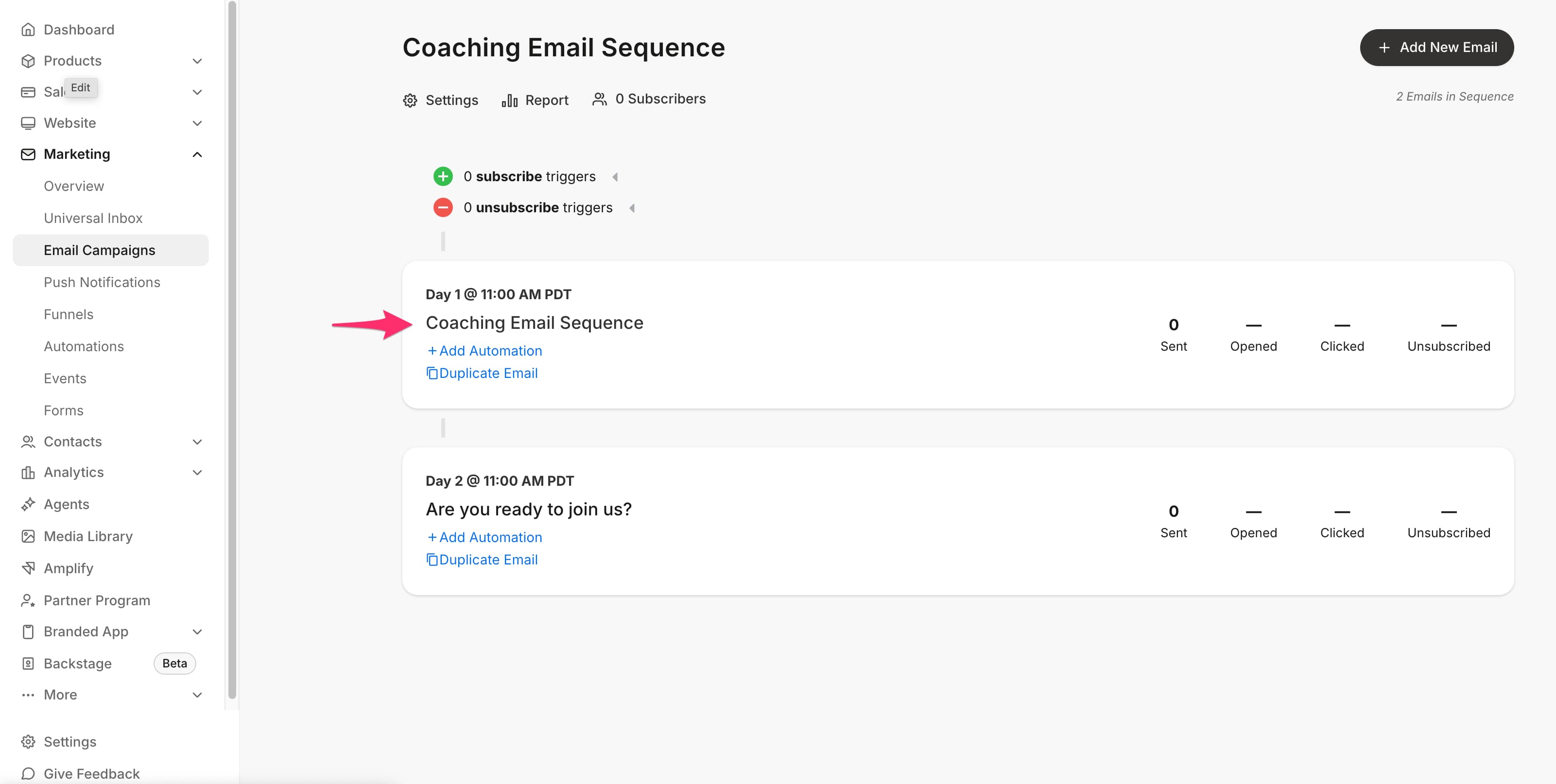
To edit and preview an Email Sequence:
1. Click on the email title of the sequence to preview and edit.
2. Hover over the email preview design and click **Edit content** to use the **Visual Editor.**
3. After customizing your email broadcast, you can **send a test email** to preview the broadcast from your customer's perspective.
4. To send a test, click **Send Test Email**.
5. Confirm the email address you would like your test email to be sent to or enter your desired test email address.
6. Click **Send Preview**.
### Email Sequence
To edit and preview an Email Sequence:
1. Click on the email title of the sequence to preview and edit.
2. Hover over the email preview design and click **Edit content** to use the **Visual Editor.**
3. After customizing your email broadcast, you can **send a test email** to preview the broadcast from your customer's perspective.
4. To send a test, click **Send Test Email**.
5. Confirm the email address you would like your test email to be sent to or enter your desired test email address.
6. Click **Send Preview**.
 ## Test email from a form
If your email recipients are subscribed to your email campaigns through different methods (such as automations you set up with the completion of courses, offers purchased, and more) simply follow the steps your visitors will experience leading up to receiving your emails.
For this example, test your email for those submitting a form to subscribe to your list:
1. From the Dashboard, click **Website.**
2. Click the **Page** containing your opt-in form to subscribe your visitors to your email campaign.
3. Click the **more actions (...)** icon to the right of your page title.
4. Select **Copy URL** to copy the link for the page containing your opt-in form.
## Test email from a form
If your email recipients are subscribed to your email campaigns through different methods (such as automations you set up with the completion of courses, offers purchased, and more) simply follow the steps your visitors will experience leading up to receiving your emails.
For this example, test your email for those submitting a form to subscribe to your list:
1. From the Dashboard, click **Website.**
2. Click the **Page** containing your opt-in form to subscribe your visitors to your email campaign.
3. Click the **more actions (...)** icon to the right of your page title.
4. Select **Copy URL** to copy the link for the page containing your opt-in form.
5. Open an incognito window in Chrome or a Private window in Safari or clear your cache and cookies.
6. Paste your page link into the address bar.
7. Enter a different email address to complete your opt-in form.
8. Navigate to your email inbox and take a look at your tested email.
**Tip:** To test without creating a new email account, add a "+" symbol to your existing email address (for example, [johndoe@gmail.com](mailto:johndoe@gmail.com) becomes [johndoe+test@gmail.com](mailto:johndoe+test@gmail.com)). This sends the test to your normal inbox. If you don't see the test email, make sure the address you used is subscribed to your email list. If you are using Double Opt-In, confirm the subscription by clicking the link in the confirmation email first.
## Troubleshoot email sequences not sending
If your test email or sequence is not delivering as expected, check the following:
1. **Contact is not subscribed to marketing emails.** Email Sequences only send to contacts with an active subscription status. If a contact is unsubscribed, opted out, or not confirmed, they will not receive sequence emails. Check the contact's subscription status in the **Contacts** tab.[ Learn more about subscription statuses.](https://help.kajabi.com/articles/contacts/manage-your-contacts/what-is-the-difference-between-a-customer-contact-and-a-subscriber)
2. **No automation is triggering the sequence.** Contacts must be subscribed to the sequence through a Form submission, Automation, or manual action. If no trigger is set up, contacts will never enter the sequence. [Learn how to set up automations](https://help.kajabi.com/articles/marketing/automations/understanding-automation-components).
3. **Email was added to the sequence retroactively.** If you add a new email to an active sequence, contacts who have already passed that send day will not receive it. Only new subscribers entering the sequence after the email was added will receive it.
4. **Emails are landing in spam.** Your emails may be delivering but going to the recipient's spam or promotions folder. Improve your sender reputation by connecting a custom email domain. [Learn how to improve email deliverability.](https://help.kajabi.com/articles/marketing/email-campaigns/best-practices-to-improve-deliverability-of-your-email-newsletters)
5. **Double opt-in confirmation not completed.** If your form uses Double Opt-In, the contact must click the confirmation link in their email before they are subscribed and can receive sequence emails.[ Learn more about subscription statuses](https://help.kajabi.com/articles/contacts/manage-your-contacts/what-is-the-difference-between-a-customer-contact-and-a-subscriber).
6. **Marketing Settings are incomplete.** Your From Name, From Email, and Marketing Contact Address must be filled out in your Marketing Settings. If the Marketing Contact Address is missing, your emails will not include a footer address as required by anti-spam laws, which can prevent delivery. From the Dashboard, click **Settings**, then click **Marketing Settings** to review and complete these fields. [Learn how to customize your Marketing Settings](https://help.kajabi.com/articles/marketing/email-campaigns/how-to-customize-your-marketing-settings).