> ## Documentation Index
> Fetch the complete documentation index at: https://help.kajabi.com/llms.txt
> Use this file to discover all available pages before exploring further.
# Manage Email marketing categories
> Give contacts the choice to opt out of specific email types instead of unsubscribing from everything.
**Email marketing categories** is an optional feature that lets you organize Email Broadcasts and Sequences into five distinct types. Once enabled, instead of a single all-or-nothing unsubscribe, contacts can opt out of specific email types while staying subscribed to the ones they want to receive.
When you create an Email Broadcast or Sequence, you select one of the following categories. Only contacts subscribed to that category receive the email.
| Category | What it includes |
| -------------------- | -------------------------------------------------------------------------------------------------------------------------------------- |
| General Marketing | Sales, discounts, promotions, and general updates on products you may be interested in |
| Product Information | Announcements and updates about products you have access to |
| Event Information | Announcements and reminders about events, webinars, and live sessions. Event emails are always assigned to this category automatically |
| Responsive Marketing | Follow-up emails based on actions you've taken (such as signing up for a free resource or expressing interest in a product) |
| Notifications | Reminders, check-ins, and other updates |
These five categories are the only available types and cannot be customized or renamed. Every Email Broadcast and Sequence you send must be assigned to one of these categories. They are not examples, they are the actual groups your contacts use to manage their email preferences.
Enabling Email Marketing Categories is an **account-level action** — it applies to all sites on the account simultaneously. It cannot be enabled for individual sites only.
**Warning:** This change is permanent and **cannot** be undone.
* All existing contacts subscribed to marketing emails will be automatically subscribed to all five categories.
* Existing scheduled Email Broadcasts and Sequences are assigned to the **General Marketing** category by default.
* Once an email has been sent, its category **cannot** be changed.
If you have multiple sites, you can switch between them before enabling to assign categories to existing unsent emails on each site. **Note:** the enable toggle itself is account-wide — switching between sites is only for pre-categorizing your existing emails, not for controlling which sites the feature is enabled on.
## Enable Email marketing categories
**Note:** If you created your account after this feature launched, **Email marketing categories** are already active — no action is needed.
Before enabling Email marketing categories, click **Assign categories to your existing emails** to re-categorize unsent Email Broadcasts, as well as currently running or unsent Email Sequences.
If you have multiple sites, you can switch between sites and apply your selections across all of them at once.
Any existing unsent emails left unchanged will default to **General Marketing.**
To enable Email marketing categories:
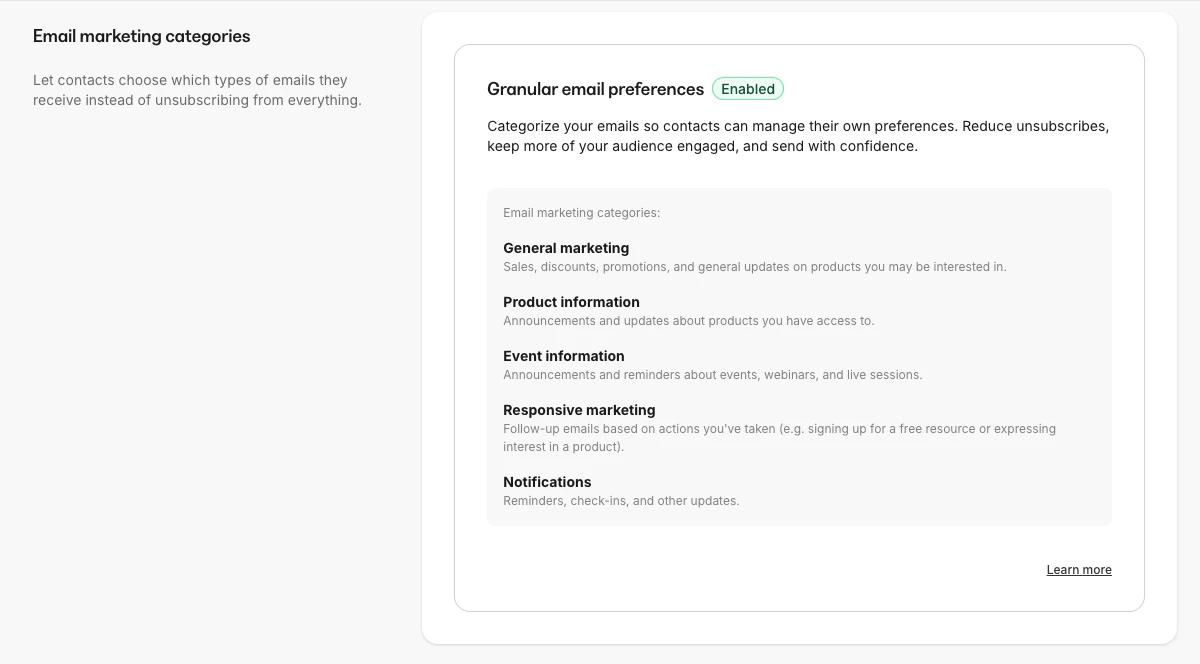
1. From the Dashboard, navigate to **Settings,** then click **Marketing settings**.
2. Locate the **Email marketing categories** section.
3. Review the description and click the **toggle** to enable.
 ## **Assign a category to an email**
### **Email Broadcasts**
1. From the Dashboard, navigate to Marketing, then click **Email Campaigns.**
2. Click **+ New Email Campaign** to create a new Email Broadcast or open an existing one.
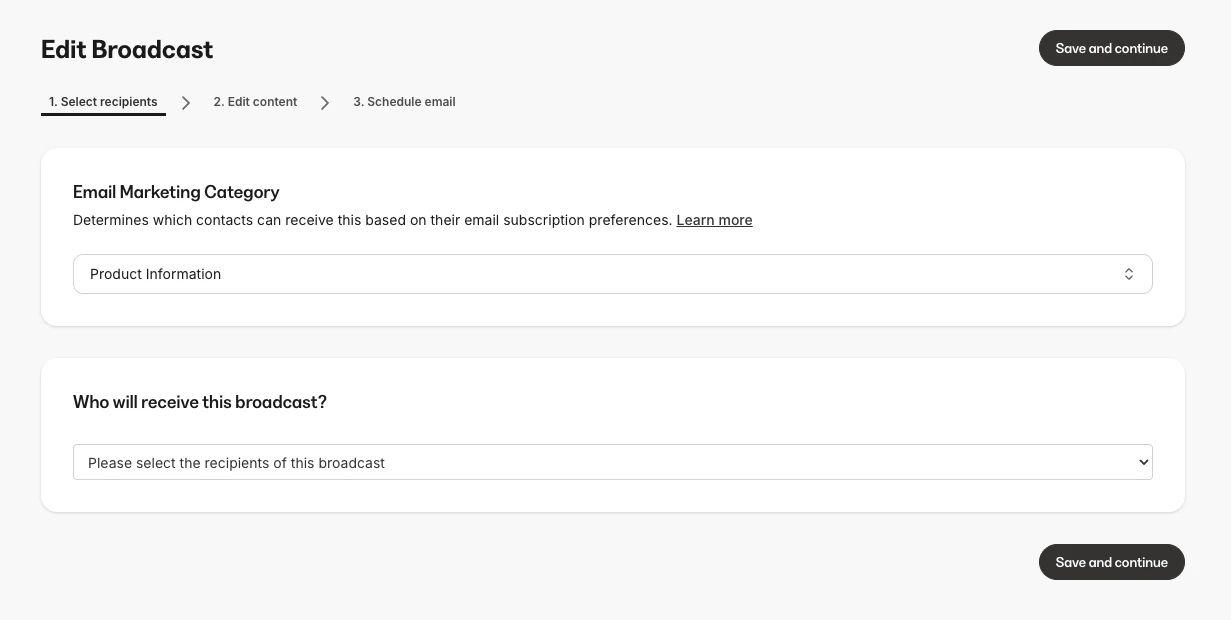
3. On the **Select recipients** screen, locate the **What type of email marketing is this?** section.
4. Select a category. **General Marketing** is selected by default.
5. The subscriber count updates to reflect only contacts subscribed to that category.
## **Assign a category to an email**
### **Email Broadcasts**
1. From the Dashboard, navigate to Marketing, then click **Email Campaigns.**
2. Click **+ New Email Campaign** to create a new Email Broadcast or open an existing one.
3. On the **Select recipients** screen, locate the **What type of email marketing is this?** section.
4. Select a category. **General Marketing** is selected by default.
5. The subscriber count updates to reflect only contacts subscribed to that category.
 **Note:** Once an Email Broadcast has been sent, its category is locked and cannot be changed.
### **Email Sequences**
1. From the Dashboard, navigate to **Marketing**, then click **Email Campaigns.**
2. Click **+ New Email Campaign** to create a new email sequence or open an existing one.
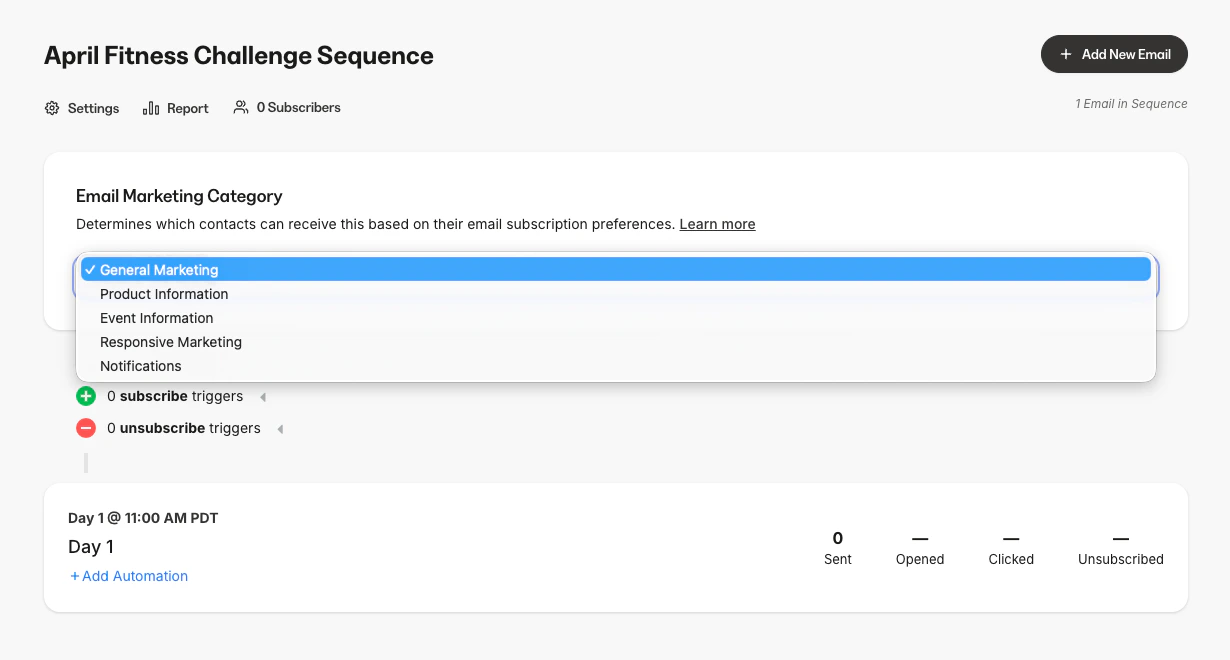
3. On the email sequence home page, locate the **What type of email marketing is this?** section. This section also appears on the **Subscribers** tab.
Select a category. **General Marketing** is selected by default.
**Note:** Once an Email Broadcast has been sent, its category is locked and cannot be changed.
### **Email Sequences**
1. From the Dashboard, navigate to **Marketing**, then click **Email Campaigns.**
2. Click **+ New Email Campaign** to create a new email sequence or open an existing one.
3. On the email sequence home page, locate the **What type of email marketing is this?** section. This section also appears on the **Subscribers** tab.
Select a category. **General Marketing** is selected by default.
 **Note:** The category can only be set before any email in the Sequence has been sent. After the first send, the category is locked.
## **How contacts manage their preferences**
### **Email footer link**
Marketing emails will contain either an **Unsubscribe** or a **Manage your email preferences** link in email footers depending on the editor used. When a contact clicks it, they see a preference page where they can:
* Toggle individual categories on or off
* See which category the email they clicked from belongs to
* Unsubscribe from the individual Email Sequence
* Unsubscribe from all marketing emails at once using the master toggle
**Note:** The category can only be set before any email in the Sequence has been sent. After the first send, the category is locked.
## **How contacts manage their preferences**
### **Email footer link**
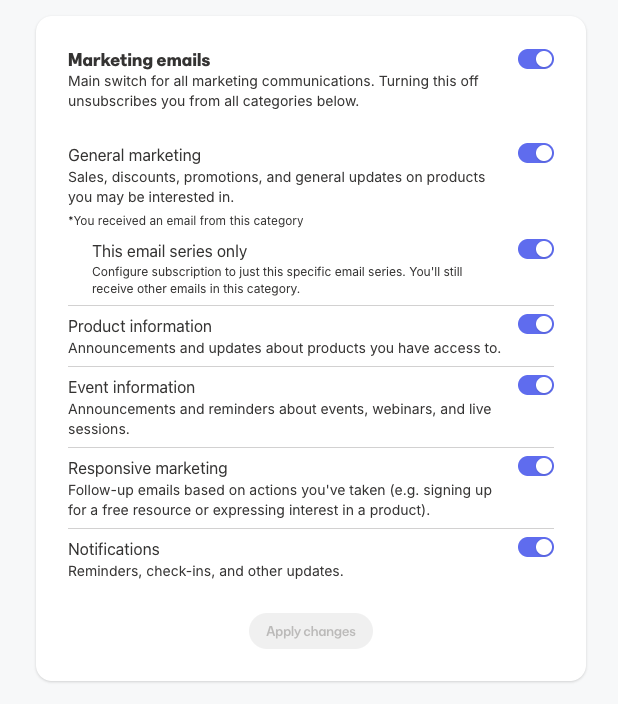
Marketing emails will contain either an **Unsubscribe** or a **Manage your email preferences** link in email footers depending on the editor used. When a contact clicks it, they see a preference page where they can:
* Toggle individual categories on or off
* See which category the email they clicked from belongs to
* Unsubscribe from the individual Email Sequence
* Unsubscribe from all marketing emails at once using the master toggle
 If a member returns to an email where they previously unsubscribed and clicks on the same link, they can modify their preferences again.
**Note: Unsubscribe** appears in emails that use the Visual Editor. Marketing emails that use the Classic Editor have a link that says **Manage your email preferences**.
### Member settings
The **Member settings** page, where contacts manage notification preferences, also includes the marketing email category toggles, giving contacts another way to manage their subscriptions.
**Note:** The notification preferences page is automatically translated to match the language your site is configured to use.
## **Contact profile and Marketing status changes**
### Marketing status
With **Email marketing categories** enabled, a contact's marketing status can display as:
| Status | Meaning |
| --------------------- | -------------------------------------------------- |
| Subscribed | Subscribed to all five categories |
| Partially subscribed | Subscribed to some categories but not all |
| Not subscribed | Unsubscribed from all five categories individually |
| Manually unsubscribed | Unsubscribed by an Admin |
| Unsubscribed | Contact unsubscribed themselves |
| Never subscribed | Contact has never been subscribed |
### Contact profile detail
To view a contact's category subscription status:
1. From the Dashboard, click **Contacts**, then click **All Contacts.**
2. Click the contact's name to open their profile.
3. In the **Info** section, each of the five categories is listed with its individual subscription status and the date the contact initially subscribed to marketing updates.
## **Filter and segment by category**
### **Contact segments**
The **Email Marketing Subscribed** segment includes both fully and partially subscribed contacts.
### **Contact filters**
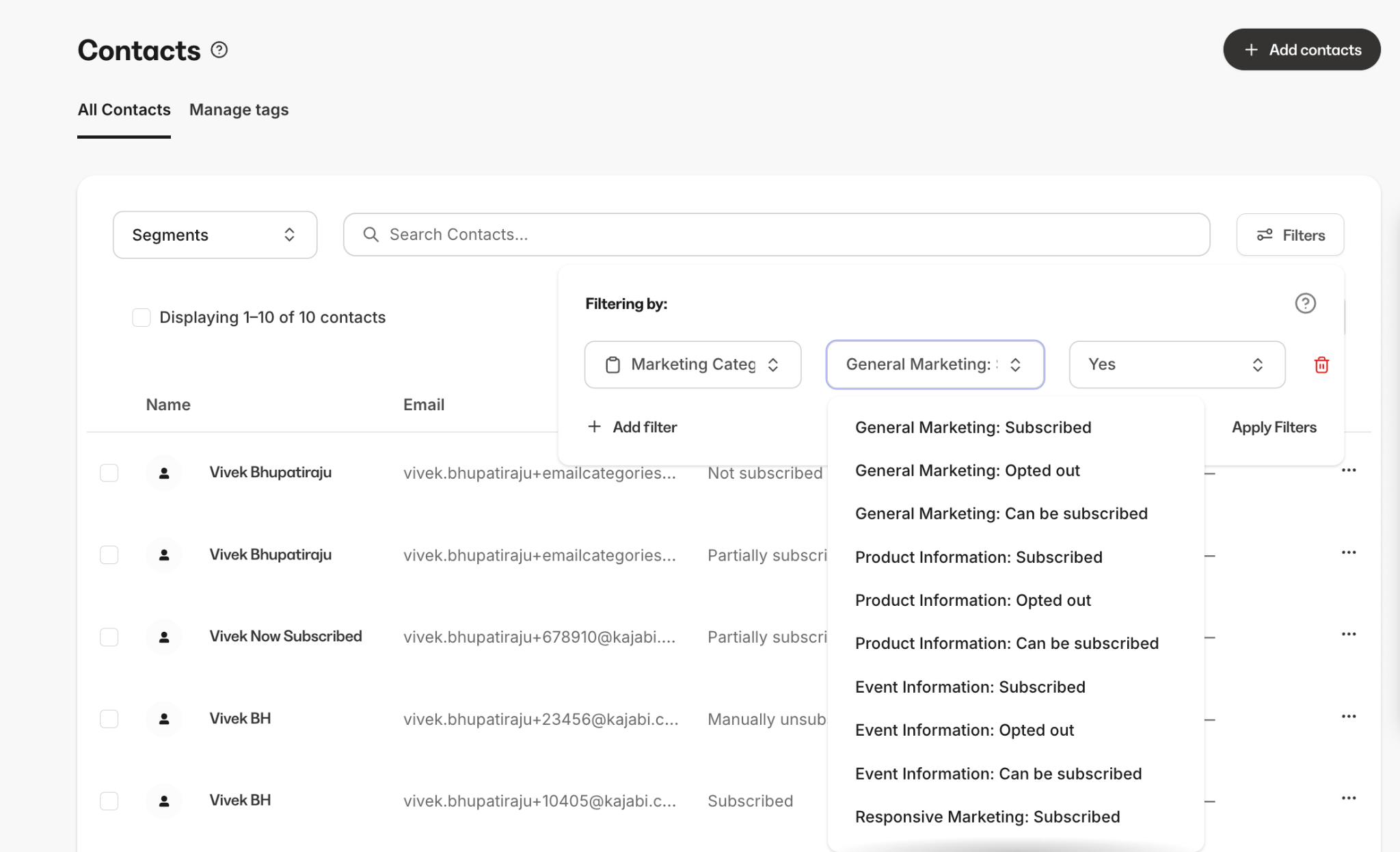
Filter by **Marketing Category Status** to see the contacts within a given category. The options per category are:
* **Subscribed:** Contacts currently subscribed or not subscribed to that category.
* **Opted out**: Contacts who opted out of that category within the selected time frame.
* **Can be subscribed:** Contacts who are eligible to be subscribed to that category.
If a member returns to an email where they previously unsubscribed and clicks on the same link, they can modify their preferences again.
**Note: Unsubscribe** appears in emails that use the Visual Editor. Marketing emails that use the Classic Editor have a link that says **Manage your email preferences**.
### Member settings
The **Member settings** page, where contacts manage notification preferences, also includes the marketing email category toggles, giving contacts another way to manage their subscriptions.
**Note:** The notification preferences page is automatically translated to match the language your site is configured to use.
## **Contact profile and Marketing status changes**
### Marketing status
With **Email marketing categories** enabled, a contact's marketing status can display as:
| Status | Meaning |
| --------------------- | -------------------------------------------------- |
| Subscribed | Subscribed to all five categories |
| Partially subscribed | Subscribed to some categories but not all |
| Not subscribed | Unsubscribed from all five categories individually |
| Manually unsubscribed | Unsubscribed by an Admin |
| Unsubscribed | Contact unsubscribed themselves |
| Never subscribed | Contact has never been subscribed |
### Contact profile detail
To view a contact's category subscription status:
1. From the Dashboard, click **Contacts**, then click **All Contacts.**
2. Click the contact's name to open their profile.
3. In the **Info** section, each of the five categories is listed with its individual subscription status and the date the contact initially subscribed to marketing updates.
## **Filter and segment by category**
### **Contact segments**
The **Email Marketing Subscribed** segment includes both fully and partially subscribed contacts.
### **Contact filters**
Filter by **Marketing Category Status** to see the contacts within a given category. The options per category are:
* **Subscribed:** Contacts currently subscribed or not subscribed to that category.
* **Opted out**: Contacts who opted out of that category within the selected time frame.
* **Can be subscribed:** Contacts who are eligible to be subscribed to that category.
 ## **Bulk actions for category unsubscribes**
1. From the Dashboard, click **Contacts**, then click **All Contacts.**
2. Select the contacts you want to update.
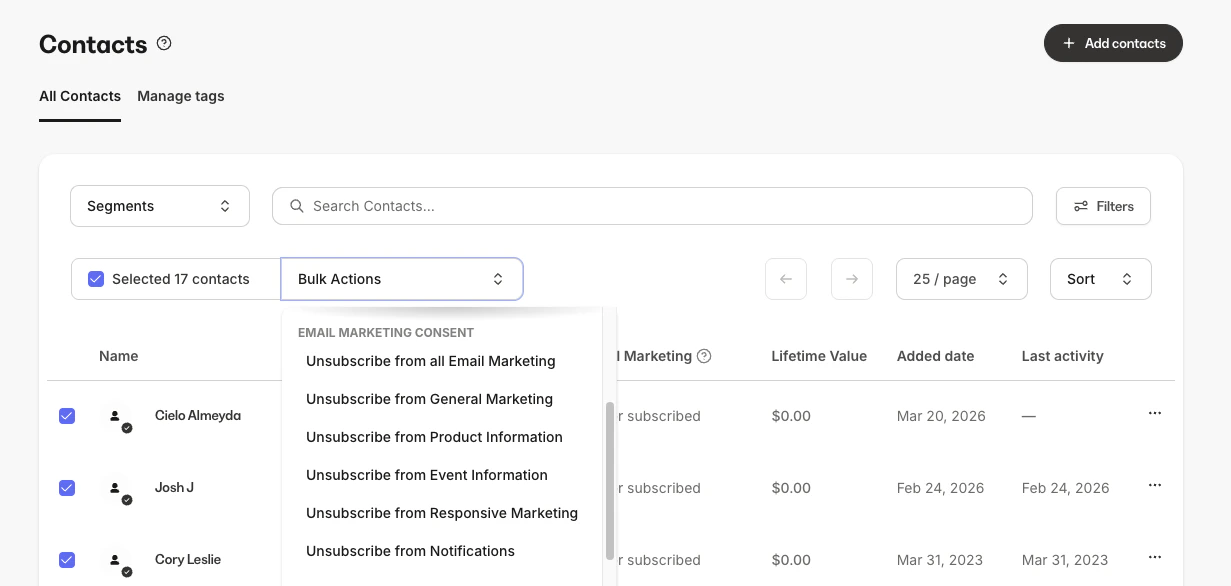
3. Open the **Bulk Actions** menu and locate the **Marketing Consents** section.
4. Select **Unsubscribe from \[category name]** for the desired category.
## **Bulk actions for category unsubscribes**
1. From the Dashboard, click **Contacts**, then click **All Contacts.**
2. Select the contacts you want to update.
3. Open the **Bulk Actions** menu and locate the **Marketing Consents** section.
4. Select **Unsubscribe from \[category name]** for the desired category.
 ### **Upload contacts with category preferences**
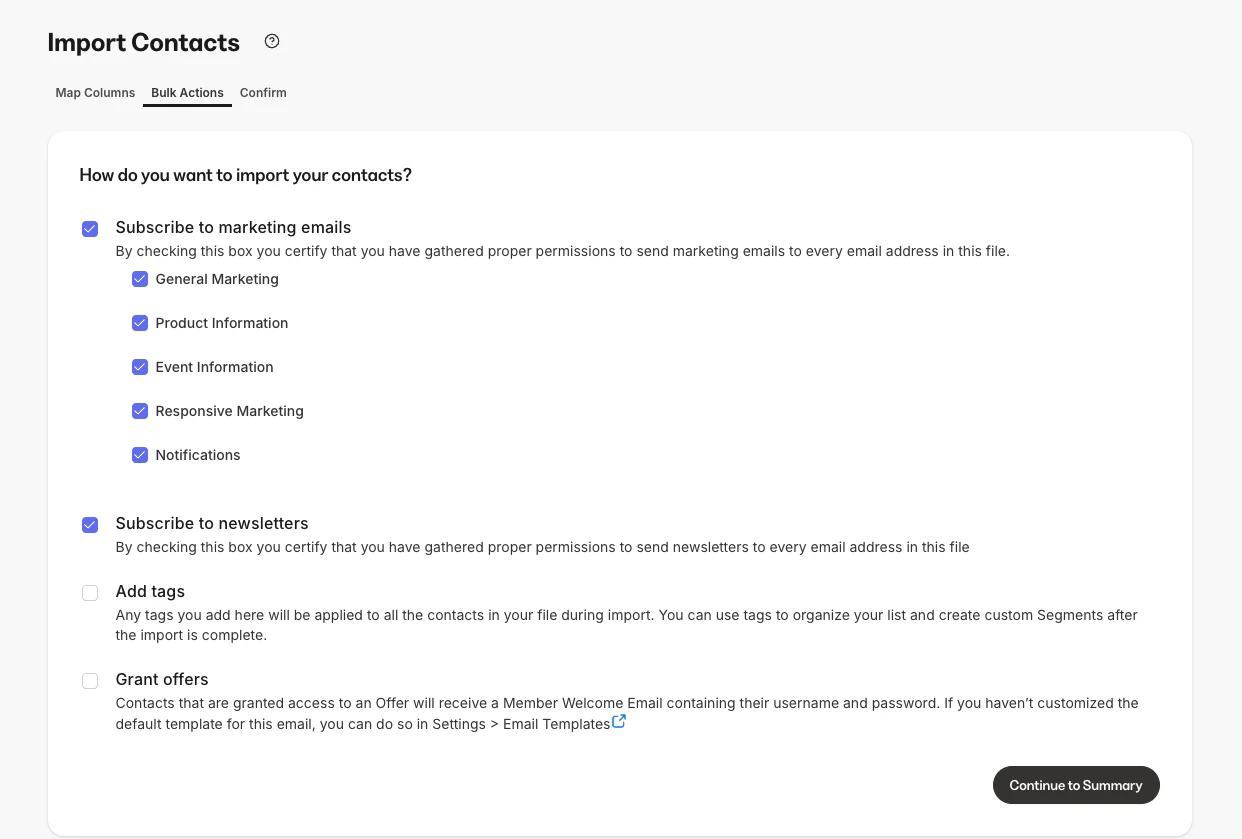
When uploading contacts via CSV, the upload flow includes subscription options for each of the five categories in addition to the overall marketing email subscription.
If the **Subscribe to marketing emails** checkbox is unchecked, all five category checkboxes are automatically unchecked and disabled.
### **Upload contacts with category preferences**
When uploading contacts via CSV, the upload flow includes subscription options for each of the five categories in addition to the overall marketing email subscription.
If the **Subscribe to marketing emails** checkbox is unchecked, all five category checkboxes are automatically unchecked and disabled.
 ### **Add a single contact with category preferences**
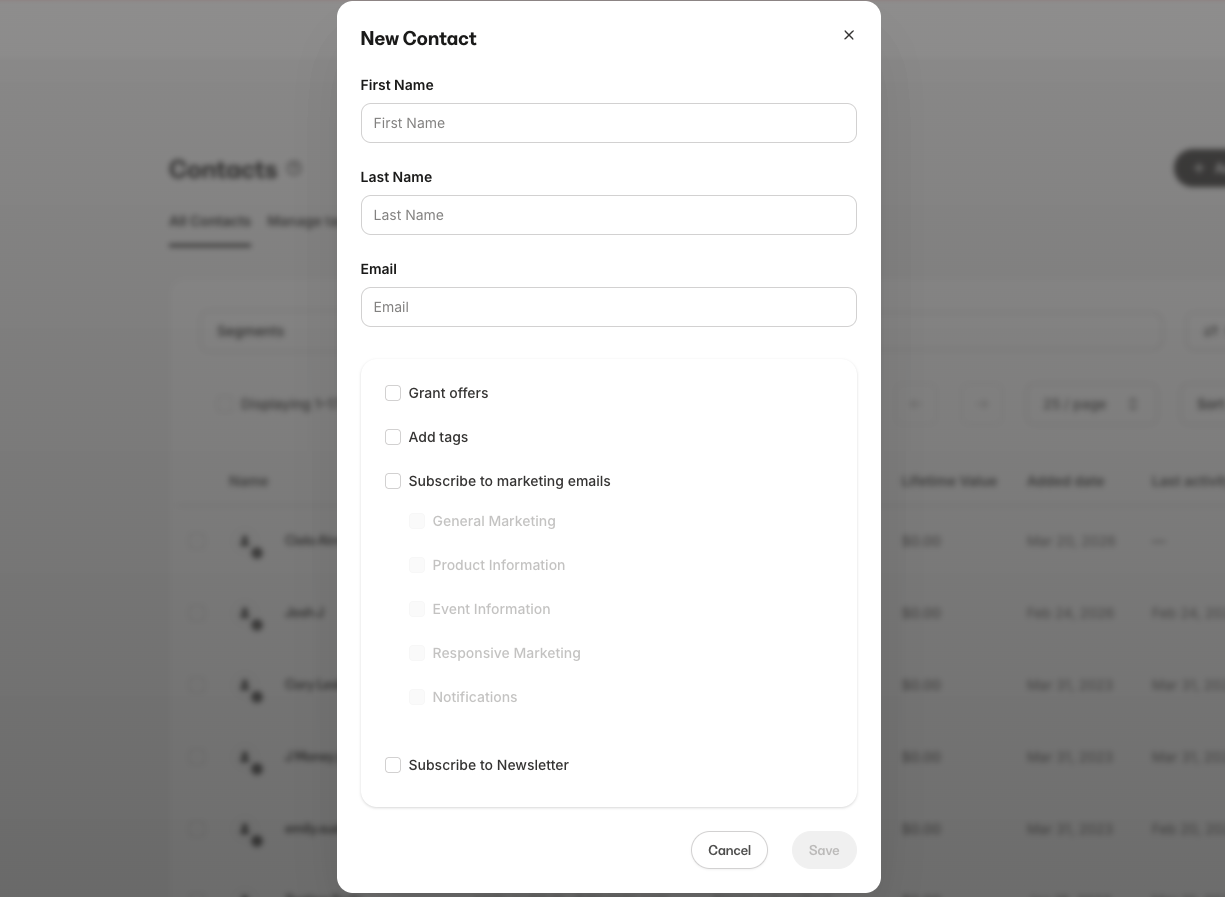
When adding a single contact from the **Contacts** page, you can set their subscription status for each of the five categories individually.
### **Add a single contact with category preferences**
When adding a single contact from the **Contacts** page, you can set their subscription status for each of the five categories individually.
 ## **FAQs**
### **Can I turn off Email marketing categories after enabling them?**
No. Enabling Email marketing categories is a one-way change. Reverting would require collapsing individual category preferences back into a single setting, which could result in contacts being unsubscribed from emails they still want to receive.
### **Do contacts choose categories when they subscribe?**
No. When a contact subscribes, they are automatically opted in to all five categories. Category-level preferences are managed through the preference page only.
### **Does this affect Newsletters?**
No. Newsletters have their own separate subscription management and are not part of email marketing categories.
### **Does this affect transactional emails?**
No. Transactional emails, such as receipts and app notifications, are not marketing emails and are not affected by this feature.
### **What happens when a contact subscribes to email marketing through an offer?**
When a contact subscribes to email marketing when purchasing an offer, they are automatically opted in to all five categories. There is no category-level section when going through an offer's checkout.
The contact can then update their email preferences in their Member settings page.
### Where should I categorize personal or relationship-building emails that aren't tied to a product or promotion?
Email marketing categories are built around marketing intent, so there is no dedicated category for purely personal updates or non-promotional check-ins with your audience. The closest fit is usually **Notifications**, since it covers general reminders and updates outside of sales or product content. If your personal update mentions or relates to a specific product you offer, **Product Information** may also apply.
If none of the five categories feel like an accurate fit for the kind of content you send, you can share feedback on the [Kajabi ideas portal](https://feedback.kajabi.com).
## **FAQs**
### **Can I turn off Email marketing categories after enabling them?**
No. Enabling Email marketing categories is a one-way change. Reverting would require collapsing individual category preferences back into a single setting, which could result in contacts being unsubscribed from emails they still want to receive.
### **Do contacts choose categories when they subscribe?**
No. When a contact subscribes, they are automatically opted in to all five categories. Category-level preferences are managed through the preference page only.
### **Does this affect Newsletters?**
No. Newsletters have their own separate subscription management and are not part of email marketing categories.
### **Does this affect transactional emails?**
No. Transactional emails, such as receipts and app notifications, are not marketing emails and are not affected by this feature.
### **What happens when a contact subscribes to email marketing through an offer?**
When a contact subscribes to email marketing when purchasing an offer, they are automatically opted in to all five categories. There is no category-level section when going through an offer's checkout.
The contact can then update their email preferences in their Member settings page.
### Where should I categorize personal or relationship-building emails that aren't tied to a product or promotion?
Email marketing categories are built around marketing intent, so there is no dedicated category for purely personal updates or non-promotional check-ins with your audience. The closest fit is usually **Notifications**, since it covers general reminders and updates outside of sales or product content. If your personal update mentions or relates to a specific product you offer, **Product Information** may also apply.
If none of the five categories feel like an accurate fit for the kind of content you send, you can share feedback on the [Kajabi ideas portal](https://feedback.kajabi.com).