> ## Documentation Index
> Fetch the complete documentation index at: https://help.kajabi.com/llms.txt
> Use this file to discover all available pages before exploring further.
# Add Coaching resources
> Share relevant files that can add to a client's Coaching experience.
**Coaching resources** let you share videos, files, links, and worksheets to enhance your client's experience in a Coaching program and act as supplementary materials for a session.
## Add Coaching resources
You can add resources to an individual client's session or to a session listed on a Coaching package outline.
## Add resources to an individual client Coaching session
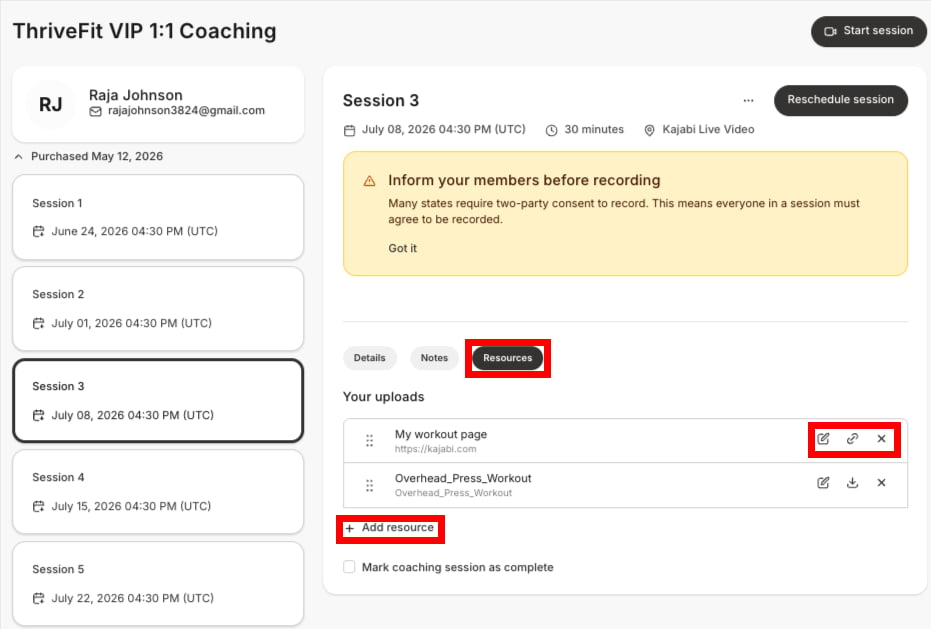 1. From the Dashboard, open **Products**.
2. Click **Coaching**.
3. On the Coaching Dashboard, click an individual client **session**.
4. Under the **Session Title** and scheduling details, click the **Resources** tab.
5. Click **+ Add resource**.
6. Select **Upload Resource** or **Link.**
7. For Upload Resource, select a current file, or click the **Upload** button and select to upload a specific file type. Or, you may select **Generate an image with AI** or **Start from Adobe stock** to [create images without leaving Kajabi using Adobe Express](https://help.kajabi.com/articles/media-library/media-library-overview#create-images-with-adobe-express).
8. Click **Select media** to attach the resource to the session.
9. If you selected Link, enter a **Name** for the resource and its **Link URL**. Click **Save** to attach it to the session.
10. To edit the resource Name or Link URL, click the **pencil icon**.
11. View the link for or download an attached resource by clicking their respective icons. Click X to remove it.
## Add resources to a session on a Coaching package outline
1. From the Dashboard, open **Products**.
2. Click **Coaching**.
3. On the Coaching Dashboard, click an individual client **session**.
4. Under the **Session Title** and scheduling details, click the **Resources** tab.
5. Click **+ Add resource**.
6. Select **Upload Resource** or **Link.**
7. For Upload Resource, select a current file, or click the **Upload** button and select to upload a specific file type. Or, you may select **Generate an image with AI** or **Start from Adobe stock** to [create images without leaving Kajabi using Adobe Express](https://help.kajabi.com/articles/media-library/media-library-overview#create-images-with-adobe-express).
8. Click **Select media** to attach the resource to the session.
9. If you selected Link, enter a **Name** for the resource and its **Link URL**. Click **Save** to attach it to the session.
10. To edit the resource Name or Link URL, click the **pencil icon**.
11. View the link for or download an attached resource by clicking their respective icons. Click X to remove it.
## Add resources to a session on a Coaching package outline
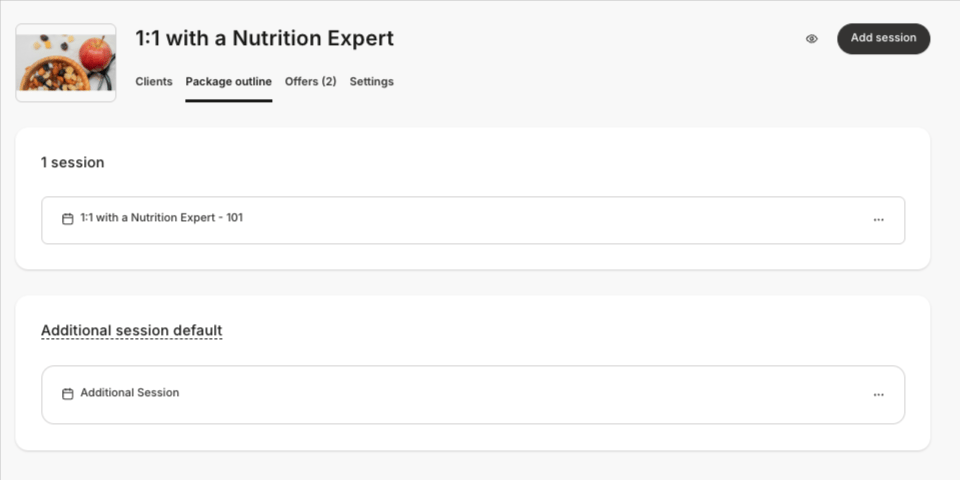 1. From the Dashboard, open **Products**.
2. Click **Coaching**.
3. From the Coaching Dashboard, click the **Programs** tab.
4. Click a **Program**. Then, select the **Package outline** tab.
5. Click an individual **Session** or an **Additional session**, or click the **more actions (...) icon** and select **Edit details**.
6. Scroll to the **Resources** section:
1. From the Dashboard, open **Products**.
2. Click **Coaching**.
3. From the Coaching Dashboard, click the **Programs** tab.
4. Click a **Program**. Then, select the **Package outline** tab.
5. Click an individual **Session** or an **Additional session**, or click the **more actions (...) icon** and select **Edit details**.
6. Scroll to the **Resources** section: 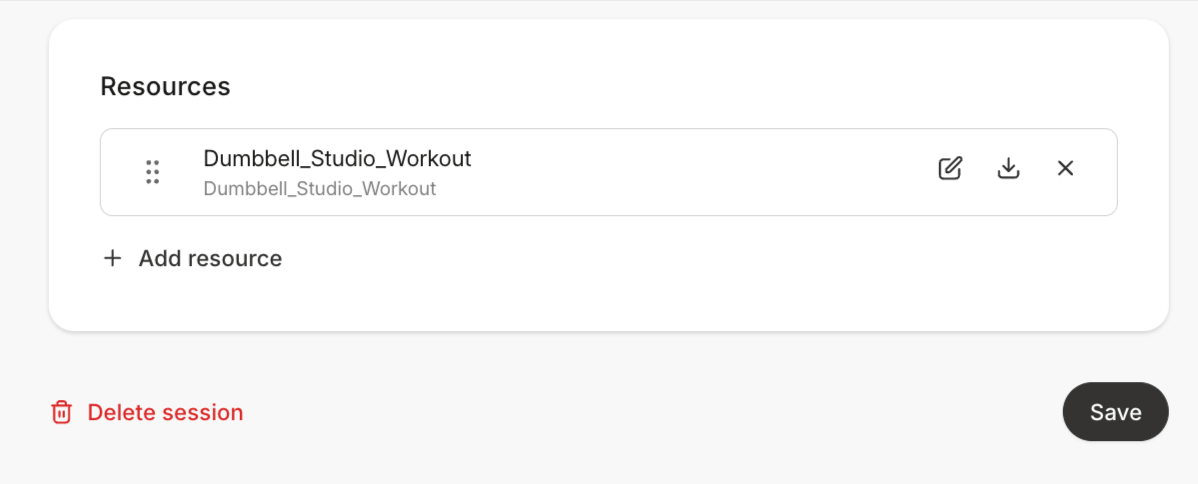 7. Click **+ Add resource**.
8. Select **File** or **Link.**
9. For File, select a current file, or click the **Upload** button and select to upload a specific file type. Or, you may select **Generate an image with AI** or **Start from Adobe stock** to [create images without leaving Kajabi using Adobe Express](https://help.kajabi.com/articles/media-library/media-library-overview#create-images-with-adobe-express).
10. Click **Select media** to attach the resource to the session.
11. If you selected Link, enter a **Name** for the resource and its **Link URL**. Click **Save** to attach it to the session.
12. To edit the resource Name or Link URL, click the **pencil icon**.
13. View the link for or download an attached resource by clicking their respective icons. Click X to remove it.
7. Click **+ Add resource**.
8. Select **File** or **Link.**
9. For File, select a current file, or click the **Upload** button and select to upload a specific file type. Or, you may select **Generate an image with AI** or **Start from Adobe stock** to [create images without leaving Kajabi using Adobe Express](https://help.kajabi.com/articles/media-library/media-library-overview#create-images-with-adobe-express).
10. Click **Select media** to attach the resource to the session.
11. If you selected Link, enter a **Name** for the resource and its **Link URL**. Click **Save** to attach it to the session.
12. To edit the resource Name or Link URL, click the **pencil icon**.
13. View the link for or download an attached resource by clicking their respective icons. Click X to remove it.