> ## Documentation Index
> Fetch the complete documentation index at: https://help.kajabi.com/llms.txt
> Use this file to discover all available pages before exploring further.
# Set up a Sales Agent
> Configure an Expert Agent that answers prospect questions and guides buyers to purchase from your Landing Pages.
A **Sales Agent** is a type of **Expert Agent** — an AI chat experience that lives on your Landing and Sales Pages and helps prospects learn about your Offers before they buy. Where a Teaching Assistant supports members who already own a Product, a Sales Agent works on the pre-purchase side of the journey: answering questions about pricing, what's included, and which Offer is the right fit, around the clock.
Setting up a Sales Agent takes a few minutes. You choose the Sales Assistant template, link it to the Offer or Landing Page it represents, customize a name and welcome message, and place the chat experience on a page using the Theme Editor.
Because a Sales Agent speaks to prospects rather than enrolled members, it can reference your Offer details and product descriptions without the visitor needing to own anything first.
## **Before you begin**
* You need at least one published Offer or Landing Page for the Sales Agent to represent.
* The Agent block is added through the [Theme Editor](/articles/website/pages/how-to-make-the-switch-to-the-new-website-builder), so the Landing Page you plan to attach the Agent to should be on an up-to-date theme.
**Note**: Builder 2.0 is required when adding an Expert Agent to a Page or Product. [Learn how to upgrade here](https://help.kajabi.com/articles/website/pages/whats-new-with-builder-20#how-to-upgrade).
**Note:**
Agents only work on themes built on the latest Encore and Premier site themes, and Premier and Momentum product themes: Encore Site 2.14.7, Encore Landing Page 2.14.7, Encore Offer 2.14.7, Encore Offer Upsell 2.14.7, Premier site 6.5.2, Premier Product 7.10.3, Momentum Product >=7.1.3 and above. Third-party templates can be updated to work with Agents.
## **Create a Sales Agent**
### **Open the Expert Agents area**
1. From the Dashboard, click **Agents**.
2. If you already have Agents listed, click **+ New chatbot** in the top right.
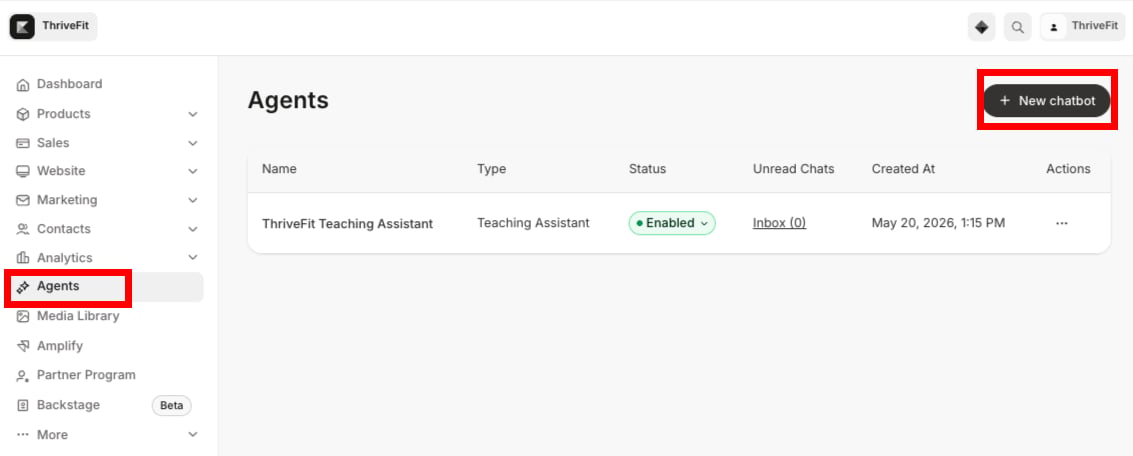 3. If you haven't created any Agents yet, click **Get started** from the empty state.
### **Choose a template**
The **Create chatbot** wizard opens to the **Choose a template** step.
1. Select the **Sales Assistant** template.
2. Click **Next**.
### **Configure a Sales Agent**
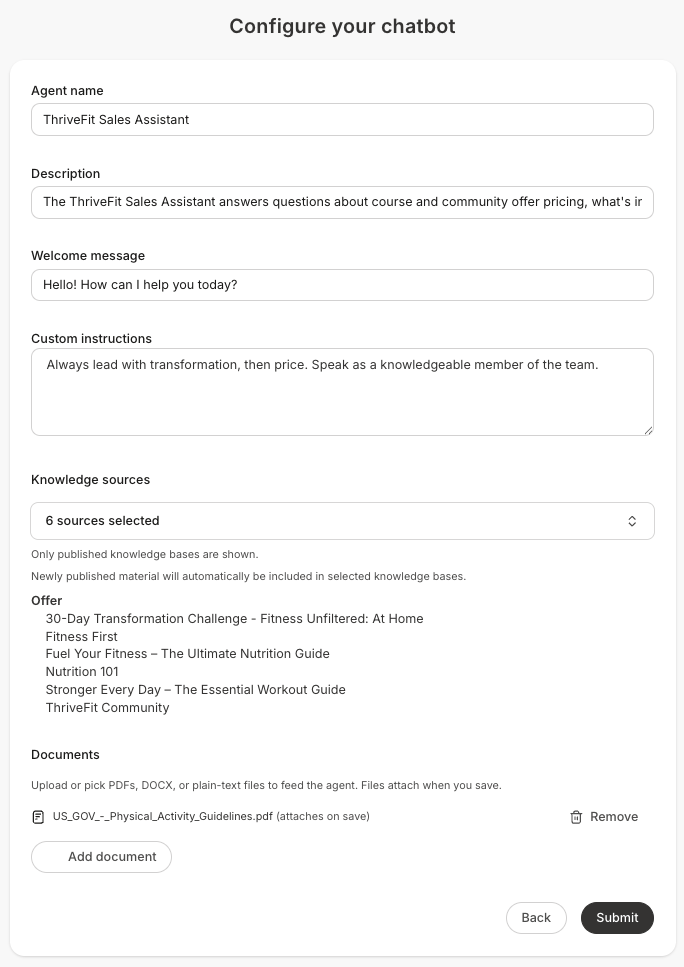
1. In the **Configure your chatbot** step, fill in the following fields:
* **Agent name** (required) — The name prospects see at the top of the chat
* **Description** (optional) — A short internal description. Prospects do not see this
* **Welcome message** (optional) — The first message shown when a visitor opens the chat
* **Knowledge sources** (required) — Link the Sales Agent to the Offer(s) or Landing Page(s) it represents so the Agent knows which Offer it's selling and what details it can reference
* **Custom instructions** (optional) — Give the Agent personality and focus, and shape how it communicates
3. If you haven't created any Agents yet, click **Get started** from the empty state.
### **Choose a template**
The **Create chatbot** wizard opens to the **Choose a template** step.
1. Select the **Sales Assistant** template.
2. Click **Next**.
### **Configure a Sales Agent**
1. In the **Configure your chatbot** step, fill in the following fields:
* **Agent name** (required) — The name prospects see at the top of the chat
* **Description** (optional) — A short internal description. Prospects do not see this
* **Welcome message** (optional) — The first message shown when a visitor opens the chat
* **Knowledge sources** (required) — Link the Sales Agent to the Offer(s) or Landing Page(s) it represents so the Agent knows which Offer it's selling and what details it can reference
* **Custom instructions** (optional) — Give the Agent personality and focus, and shape how it communicates
 **Custom instructions work well for:**
* Language — "Always respond in Spanish"
* Emphasis — "Lead with the transformation, then the price"
* Tone — "Adopt a warm, encouraging tone". The Agent is supportive, friendly, and concise by default; these instructions nudge from that baseline
* Persona framing — "Speak as a knowledgeable member of the team"
**What custom instructions can and cannot do:**
* Answers from your Offer details, product descriptions, and pricing — it won't invent products or pricing you haven't published
* Speaks as a representative of your business, never claims to be you
* Does not give medical, legal, financial, or other professional advice
* Does not perform account actions (purchase on a buyer's behalf, refund, change settings)
* Refuses off-topic questions, even when asked repeatedly
**Tip:** Keep your welcome message short and inviting. It sets the tone for every conversation and is the first thing prospects see when they open the chat.
2. When you finish, click **Submit**. A **Chatbot successfully created** message appears and you're returned to the list.
After you submit, the Agent begins syncing the details from the Offers and Landing Pages you linked. Open the Agent and check its **Knowledge sources**: each one moves from **Syncing** to **Synced** once it is ready. If a source shows **Partial** or **Failed**, the Agent still answers from whatever synced, but some details may be missing.
## **Add a Sales Agent to a Landing Page**
Creating a Sales Agent turns it on, but prospects can't reach it until you place it on a page using the [**Theme Editor**](/articles/website/pages/how-to-make-the-switch-to-the-new-website-builder).
### **Floating chat button**
A **floating chat button** is a small circular button that floats in the corner of every page where it's placed. Clicking it opens the chat in a panel. Use this for an always-available Agent that doesn't take up page real estate.
**Custom instructions work well for:**
* Language — "Always respond in Spanish"
* Emphasis — "Lead with the transformation, then the price"
* Tone — "Adopt a warm, encouraging tone". The Agent is supportive, friendly, and concise by default; these instructions nudge from that baseline
* Persona framing — "Speak as a knowledgeable member of the team"
**What custom instructions can and cannot do:**
* Answers from your Offer details, product descriptions, and pricing — it won't invent products or pricing you haven't published
* Speaks as a representative of your business, never claims to be you
* Does not give medical, legal, financial, or other professional advice
* Does not perform account actions (purchase on a buyer's behalf, refund, change settings)
* Refuses off-topic questions, even when asked repeatedly
**Tip:** Keep your welcome message short and inviting. It sets the tone for every conversation and is the first thing prospects see when they open the chat.
2. When you finish, click **Submit**. A **Chatbot successfully created** message appears and you're returned to the list.
After you submit, the Agent begins syncing the details from the Offers and Landing Pages you linked. Open the Agent and check its **Knowledge sources**: each one moves from **Syncing** to **Synced** once it is ready. If a source shows **Partial** or **Failed**, the Agent still answers from whatever synced, but some details may be missing.
## **Add a Sales Agent to a Landing Page**
Creating a Sales Agent turns it on, but prospects can't reach it until you place it on a page using the [**Theme Editor**](/articles/website/pages/how-to-make-the-switch-to-the-new-website-builder).
### **Floating chat button**
A **floating chat button** is a small circular button that floats in the corner of every page where it's placed. Clicking it opens the chat in a panel. Use this for an always-available Agent that doesn't take up page real estate.
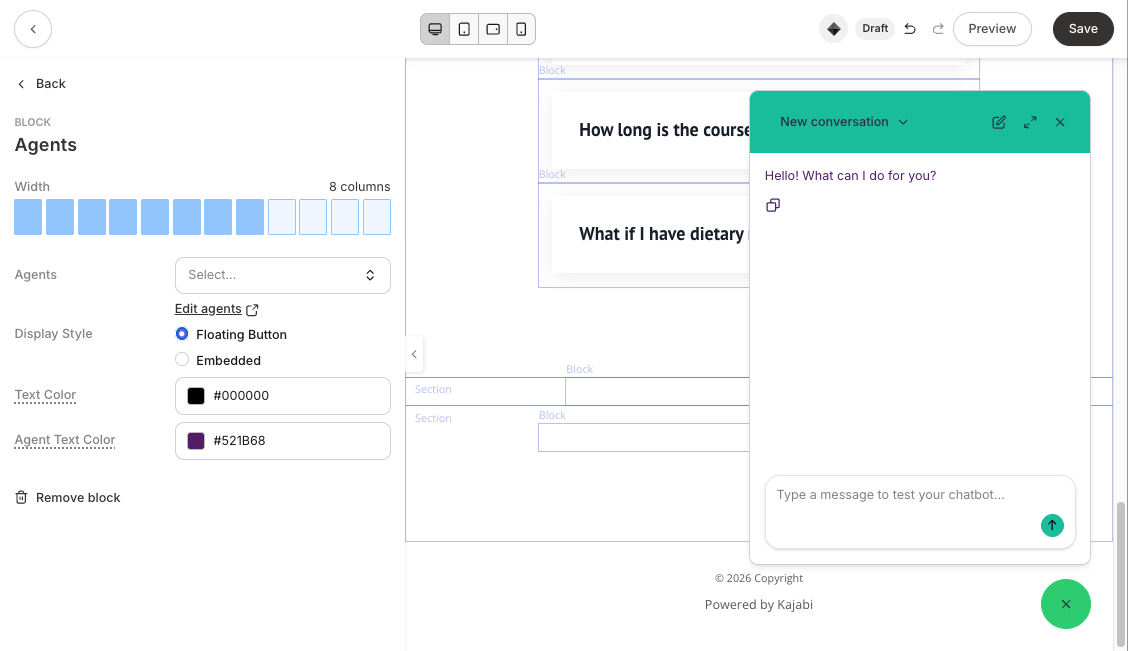 1. From the Dashboard, click **Website**, then **Landing Pages**, and select the page you want to edit.
2. Open the page in the **Theme Editor**.
3. Click **+ Add section** and select **Agents** at the end of the list. Click **Add**.
4. Select the Sales Agent under **Agents**.
5. Select **Floating button**, and choose a **Text Color** and **Agent Text Color.**
6. Click **Save**.
7. Publish the page by clicking the **more options (...) menu** to the right of the Landing Page and select **Edit Details**.
1. From the Dashboard, click **Website**, then **Landing Pages**, and select the page you want to edit.
2. Open the page in the **Theme Editor**.
3. Click **+ Add section** and select **Agents** at the end of the list. Click **Add**.
4. Select the Sales Agent under **Agents**.
5. Select **Floating button**, and choose a **Text Color** and **Agent Text Color.**
6. Click **Save**.
7. Publish the page by clicking the **more options (...) menu** to the right of the Landing Page and select **Edit Details**.
.png?fit=max&auto=format&n=smWY9W4hXXSW9BJS&q=85&s=1fc872990053192623039b69d875cb02) 8. In the **Page visibility** section, select **Publish**.
9. Click **Save** in the lower right corner to apply your changes.
10. After publishing, you can also return to the page to configure more color and layout attributes, including **Agent Icon Color** and **Window Frame Color**.
### **Embedded chat block**
An **embedded chat block (Agent)** is an inline chat panel that lives directly inside a page section. Use this when you want the Agent to be visually prominent — for example, alongside your Offer details on a Sales Page.
8. In the **Page visibility** section, select **Publish**.
9. Click **Save** in the lower right corner to apply your changes.
10. After publishing, you can also return to the page to configure more color and layout attributes, including **Agent Icon Color** and **Window Frame Color**.
### **Embedded chat block**
An **embedded chat block (Agent)** is an inline chat panel that lives directly inside a page section. Use this when you want the Agent to be visually prominent — for example, alongside your Offer details on a Sales Page.
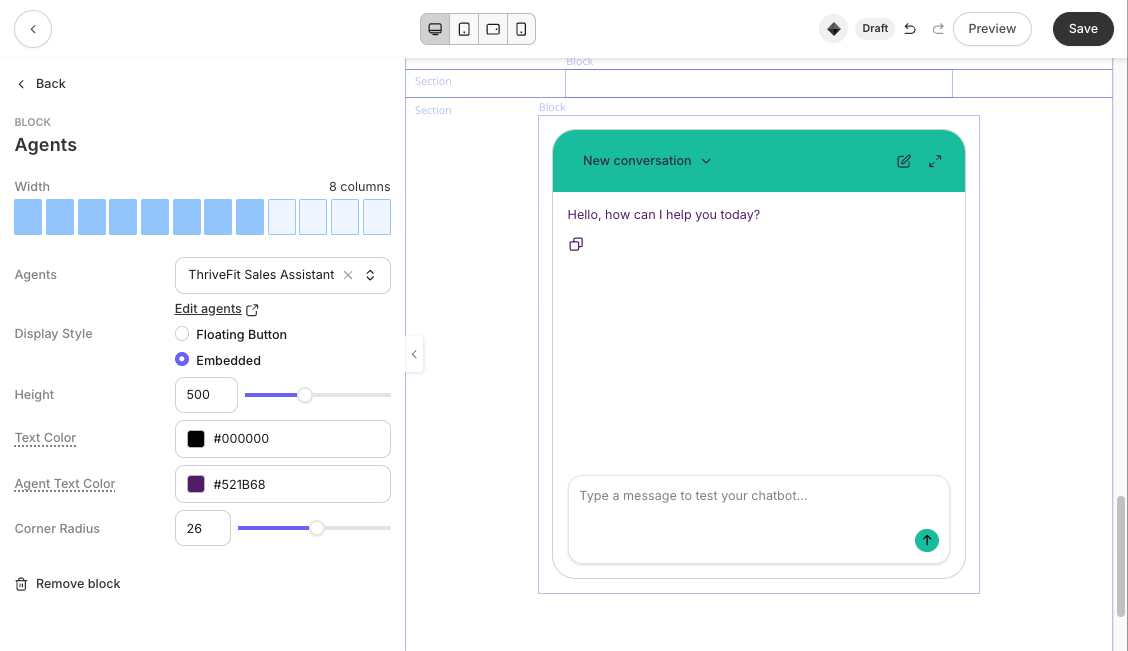 1. In the **Theme Editor** for your Landing Page, click **+ Add section** and select **Agents** at the end of the list. Click **Add**.
2. Select the Sales Agent under **Agents**.
3. Select **Embedded**, and configure a block **Height** and **Corner Radius** to round the block corners if desired.
4. Choose a **Text Color** and **Agent Text Color.**
5. Click **Save** and publish the page as described above.
6. Once it's published, you can return to the **Agent** block in the page and edit the **Window Frame Color**.
**Note:** The embedded Agent block needs enough vertical space to render the chat comfortably. The Theme Editor enforces a minimum height when the block is placed.
## Visitor ratings for Agent responses
Turn on **Response ratings** to show a thumbs up and thumbs down under each of your Agent's replies. Visitors select one to tell you whether a response was helpful, so you can see where your Agent performs well and where it needs better content or instructions.
**Note**: Response ratings are off by default for Sales Agents. Turn them on when you want feedback.
### Turn on response ratings
1. Edit your Agent and find the **Response ratings** toggle.
2. Turn it on to show **👍** and **👎** buttons under your Agent's replies.
3. **Save** your changes.
1. In the **Theme Editor** for your Landing Page, click **+ Add section** and select **Agents** at the end of the list. Click **Add**.
2. Select the Sales Agent under **Agents**.
3. Select **Embedded**, and configure a block **Height** and **Corner Radius** to round the block corners if desired.
4. Choose a **Text Color** and **Agent Text Color.**
5. Click **Save** and publish the page as described above.
6. Once it's published, you can return to the **Agent** block in the page and edit the **Window Frame Color**.
**Note:** The embedded Agent block needs enough vertical space to render the chat comfortably. The Theme Editor enforces a minimum height when the block is placed.
## Visitor ratings for Agent responses
Turn on **Response ratings** to show a thumbs up and thumbs down under each of your Agent's replies. Visitors select one to tell you whether a response was helpful, so you can see where your Agent performs well and where it needs better content or instructions.
**Note**: Response ratings are off by default for Sales Agents. Turn them on when you want feedback.
### Turn on response ratings
1. Edit your Agent and find the **Response ratings** toggle.
2. Turn it on to show **👍** and **👎** buttons under your Agent's replies.
3. **Save** your changes.
 ### See how visitors rated responses
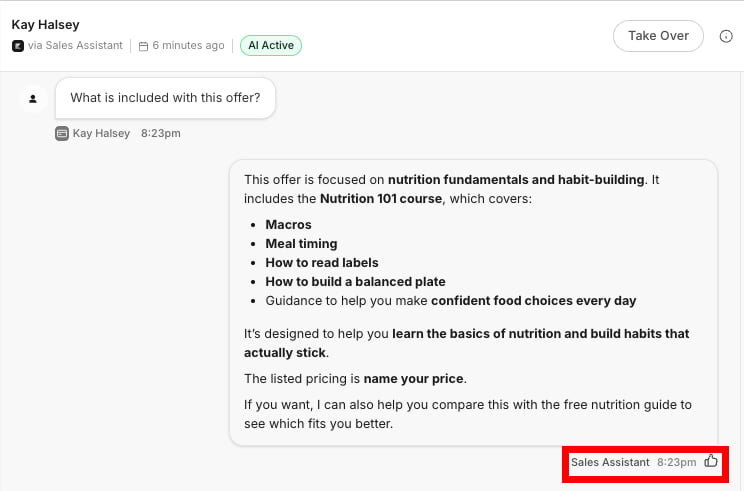
Open a conversation in your [Inbox](/articles/marketing/universal-inbox/universal-inbox) to see which replies visitors marked **Helpful** or **Unhelpful**. Ratings appear next to each agent reply.
For a summary across every conversation, open the Agent to see its ratings on the analytics dashboard. See [Manage a Sales Agent](/articles/products/products-overview/manage-a-sales-agent#view-analytics) for the full breakdown.
### See how visitors rated responses
Open a conversation in your [Inbox](/articles/marketing/universal-inbox/universal-inbox) to see which replies visitors marked **Helpful** or **Unhelpful**. Ratings appear next to each agent reply.
For a summary across every conversation, open the Agent to see its ratings on the analytics dashboard. See [Manage a Sales Agent](/articles/products/products-overview/manage-a-sales-agent#view-analytics) for the full breakdown.
 ## **FAQs**
### **How is a Sales Agent different from a Teaching Assistant?**
A [Teaching Assistant](/articles/products/products-overview/set-up-a-teaching-assistant) lives inside a Product and answers questions for members using content they already have access to. A Sales Agent lives on your Landing and Sales Pages and helps prospects before they buy, referencing your Offer details and product descriptions. Both are Expert Agents and share the same plan limit.
### **Can a Sales Agent talk to visitors who aren't members yet?**
Yes. The Sales Agent is built for the pre-purchase side of the journey, so it works for visitors on a Landing Page whether or not they have an account.
### **What language does the Sales Agent respond in?**
The Agent responds in the language a visitor writes in. You don't need to configure language separately, though you can add a custom instruction if you want the Agent to respond in a single language.
### **Can a visitor talk to the Sales Agent by voice?**
No. Sales Agents are text-only at launch.
### **Can a Sales Agent be embedded on a non-Kajabi website?**
No. Sales Agents render only on Kajabi-hosted pages.
### **Are Sales Agents protected from spam and bots?**
Yes. Because Sales Agents sit on public pages, Kajabi runs an invisible bot check when someone starts a chat. There's nothing for you to turn on, and real visitors are not interrupted. Only traffic that looks automated may be asked to complete a quick verification step.
### **How are messages billed?**
Expert Agents are priced per agent, per month, and each agent includes 1,000 messages per month and 250 AI credits per month. There is no separate per-message charge for the messages included with your agent. See the [Expert Agents overview](/articles/products/products-overview/expert-agents-overview#pricing) for current per-agent rates. If usage terms change in the future, any update will be announced before it takes effect.
## **FAQs**
### **How is a Sales Agent different from a Teaching Assistant?**
A [Teaching Assistant](/articles/products/products-overview/set-up-a-teaching-assistant) lives inside a Product and answers questions for members using content they already have access to. A Sales Agent lives on your Landing and Sales Pages and helps prospects before they buy, referencing your Offer details and product descriptions. Both are Expert Agents and share the same plan limit.
### **Can a Sales Agent talk to visitors who aren't members yet?**
Yes. The Sales Agent is built for the pre-purchase side of the journey, so it works for visitors on a Landing Page whether or not they have an account.
### **What language does the Sales Agent respond in?**
The Agent responds in the language a visitor writes in. You don't need to configure language separately, though you can add a custom instruction if you want the Agent to respond in a single language.
### **Can a visitor talk to the Sales Agent by voice?**
No. Sales Agents are text-only at launch.
### **Can a Sales Agent be embedded on a non-Kajabi website?**
No. Sales Agents render only on Kajabi-hosted pages.
### **Are Sales Agents protected from spam and bots?**
Yes. Because Sales Agents sit on public pages, Kajabi runs an invisible bot check when someone starts a chat. There's nothing for you to turn on, and real visitors are not interrupted. Only traffic that looks automated may be asked to complete a quick verification step.
### **How are messages billed?**
Expert Agents are priced per agent, per month, and each agent includes 1,000 messages per month and 250 AI credits per month. There is no separate per-message charge for the messages included with your agent. See the [Expert Agents overview](/articles/products/products-overview/expert-agents-overview#pricing) for current per-agent rates. If usage terms change in the future, any update will be announced before it takes effect.