> ## Documentation Index
> Fetch the complete documentation index at: https://help.kajabi.com/llms.txt
> Use this file to discover all available pages before exploring further.
# Create a test purchase in Kajabi
> Walk through your entire buying experience end to end, from the checkout page through order bumps, upsells, account setup, and the post-purchase summary, without creating a real order.
**Beta:** Test Checkout is currently in beta. For questions, contact [support@kajabi.com](mailto:support@kajabi.com).
**Test Checkout** lets you move through your live checkout exactly as a customer would, without processing a real transaction. Nothing is charged, no member or contact is created, and no emails, automations, or webhooks fire. When you reach the end, Kajabi shows you a summary of everything that would have happened, with shortcuts to the relevant settings so you can make adjustments as needed.
## Start a test
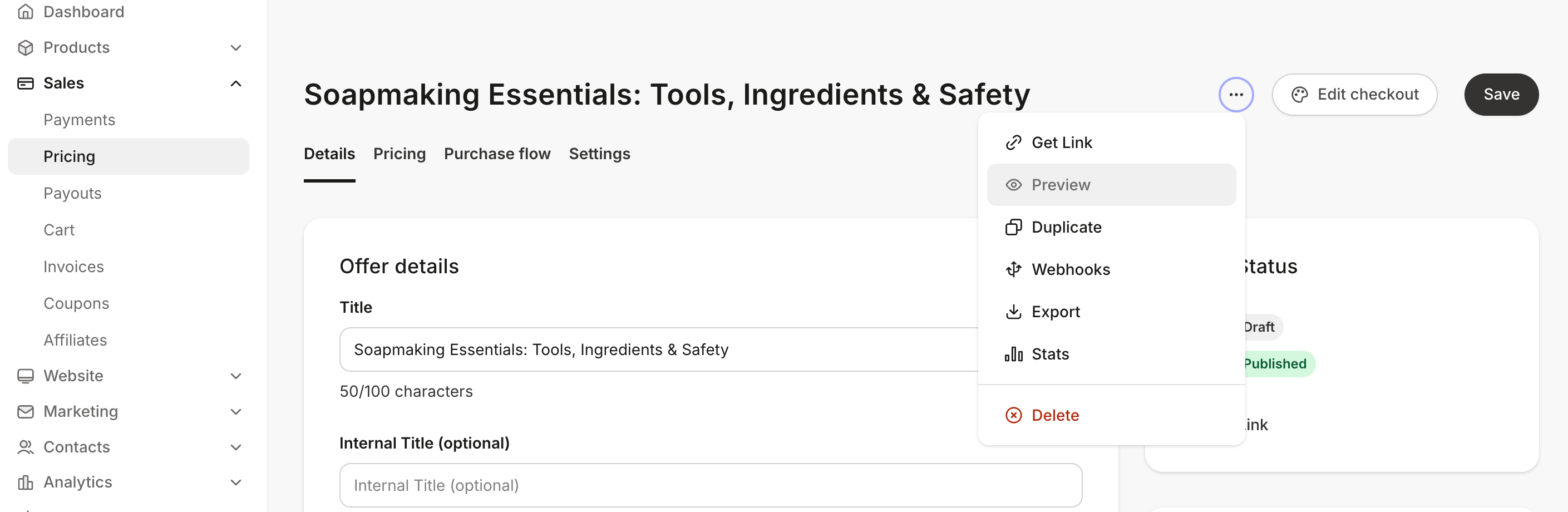
To start a test, go to **Sales** > **Pricing**, open the actions (•••) menu on the offer you want to test, then click **Preview**. This opens the offer's real checkout page in test mode.
 ## About Test Checkout
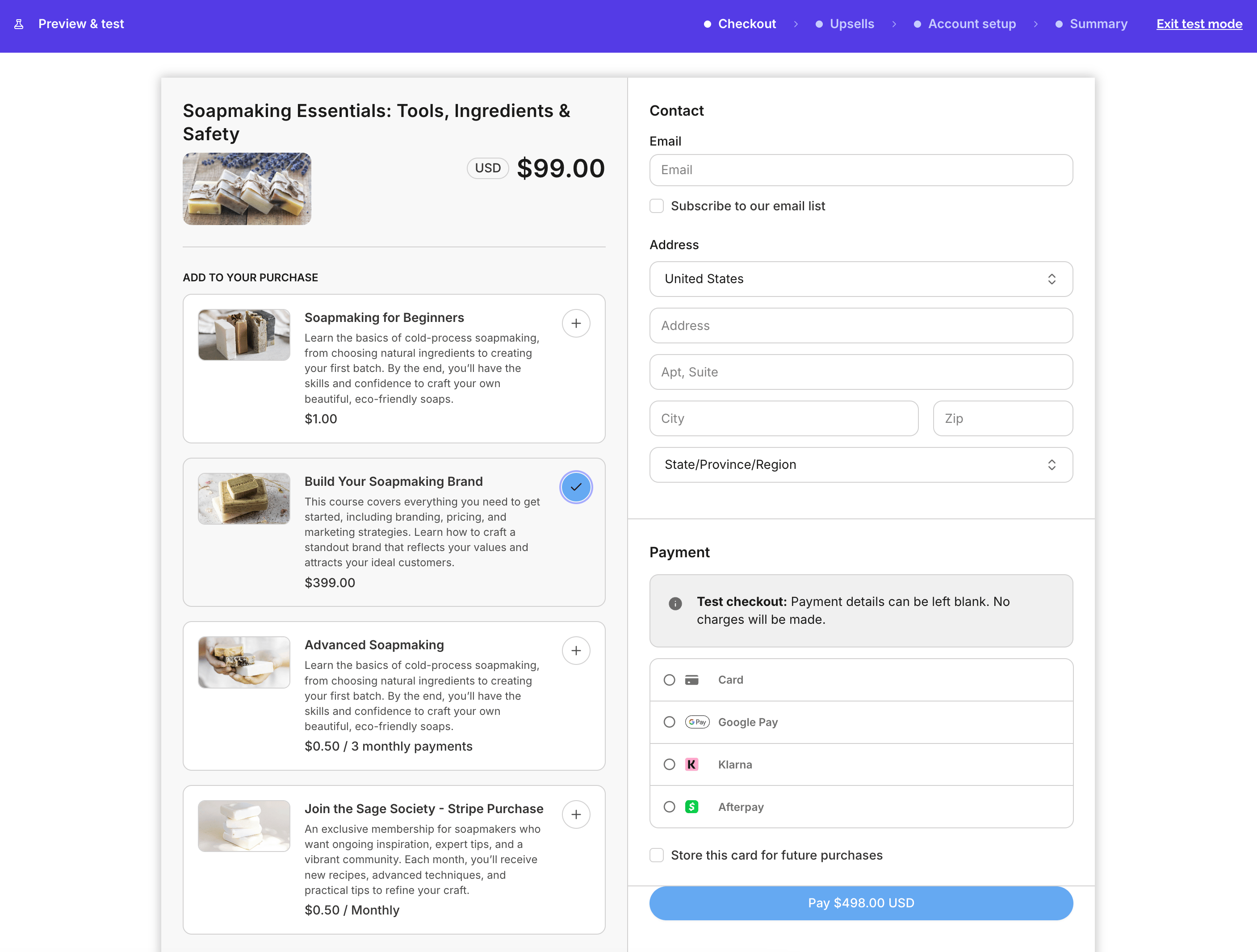
Once you're in test mode, a purple **Preview & test** bar appears at the top of every page in the flow. It shows your progress through the flow: Checkout, Upsells, Account setup, and Summary. The toolbar replaces the standard admin preview bar for the duration of the test.
## About Test Checkout
Once you're in test mode, a purple **Preview & test** bar appears at the top of every page in the flow. It shows your progress through the flow: Checkout, Upsells, Account setup, and Summary. The toolbar replaces the standard admin preview bar for the duration of the test.
 Because nothing is processed, a test checkout gives you a safe way to see exactly what a real purchase would set in motion. When you finish the flow, the summary reports every action the purchase would have triggered:
* The order bumps and upsells that were accepted or declined
* The offers the customer would get access to, and when access starts
* The confirmation, gift, and receipt emails that would be sent
* The automations that would run
* The outbound webhooks that would fire, and where they'd send
You'll see your real checkout page, using the template you're testing. Everything on the page behaves normally, so you can:
* Fill in contact information and any custom fields
* Apply a coupon code
* Select order bumps
* Change quantity
* Purchase as a gift, if the offer is giftable
## Summary
The summary is broken into five sections. Every row links to the setting that produced it, so you can jump straight to the offer, upsell, workflow, or settings page:
Because nothing is processed, a test checkout gives you a safe way to see exactly what a real purchase would set in motion. When you finish the flow, the summary reports every action the purchase would have triggered:
* The order bumps and upsells that were accepted or declined
* The offers the customer would get access to, and when access starts
* The confirmation, gift, and receipt emails that would be sent
* The automations that would run
* The outbound webhooks that would fire, and where they'd send
You'll see your real checkout page, using the template you're testing. Everything on the page behaves normally, so you can:
* Fill in contact information and any custom fields
* Apply a coupon code
* Select order bumps
* Change quantity
* Purchase as a gift, if the offer is giftable
## Summary
The summary is broken into five sections. Every row links to the setting that produced it, so you can jump straight to the offer, upsell, workflow, or settings page:
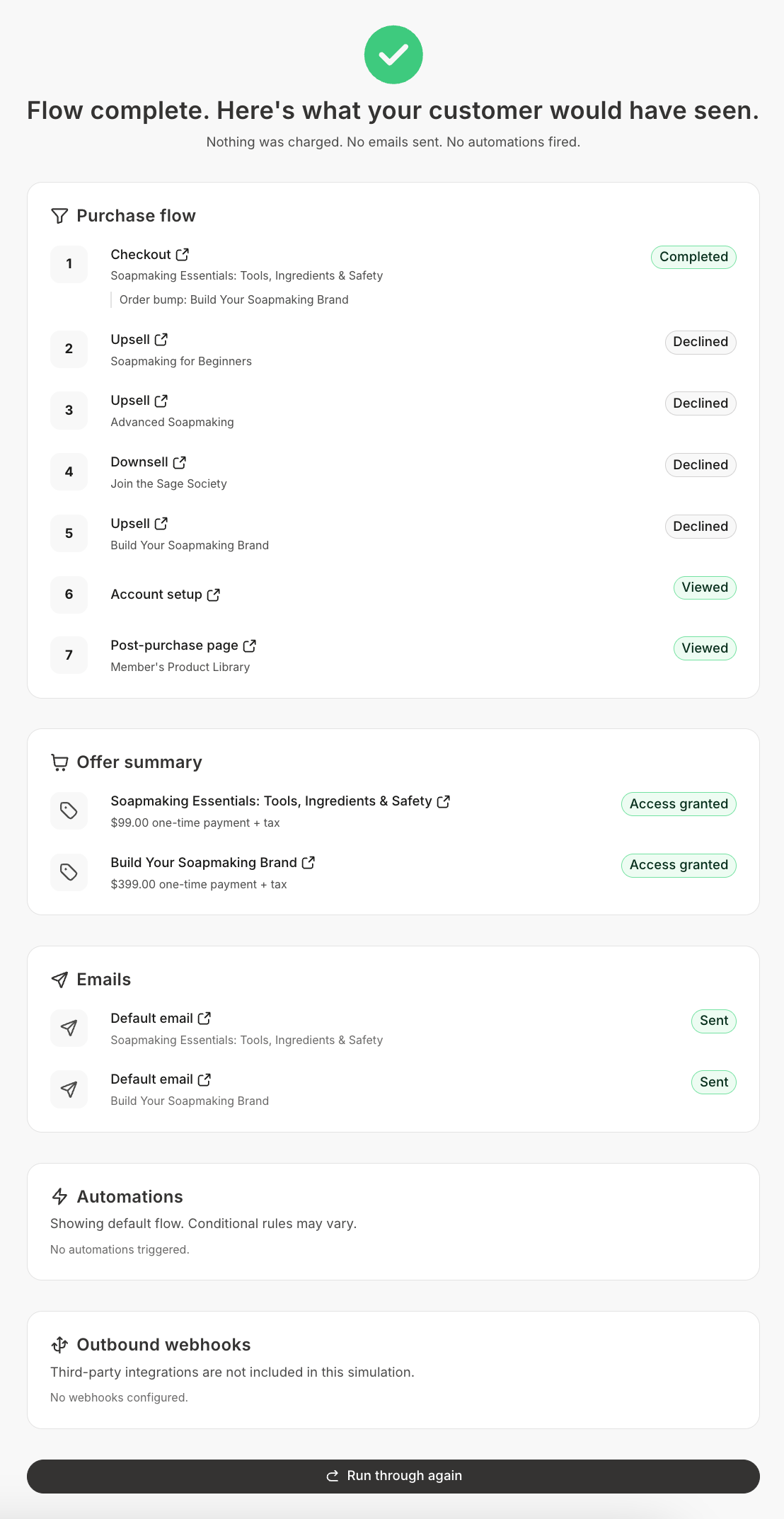 * **Purchase flow** is a numbered replay of the experience: the checkout step with the offer, any order bumps you selected, and a **Purchased as gift** tag if it applies; each upsell or downsell with an **Accepted** or **Declined** indicator; the account setup step; and the post-purchase page the customer would land on
* **Offer summary** lists every offer the customer would get access to, including the primary offer, any order bumps, and any upsells you accepted. Each row shows the price the checkout page displayed, any coupon that was applied, and whether access is granted immediately (**Access granted**) or on a future date (**Access on** a date)
* **Emails** shows the purchase confirmation emails that would be sent for each offer granted. Offers with confirmation emails turned off are omitted. For gift purchases you'll see the gift email instead, with its send date if the gift was scheduled
* **Automations** lists the published automations that would be triggered by this purchase, per offer. This section shows the default flow, so conditional rules inside a workflow may change what actually runs
* **Outbound webhooks** lists the offer-level and site-level webhooks that would fire, including the destination URL and whether it's configured on the offer or the site. Third-party integrations are not included in the simulation
At the bottom, **Run through again** restarts the test from the checkout page.
## Run a real test purchase
Test Checkout simulates the flow without processing a transaction. If you'd rather run a real test purchase, or find that you need to, here's how.
1. Open the **Sales** tab from your Dashboard
2. Click **Pricing** and select the offer you want to test
3. In the Offer Status card, click **Get Link**
4. Open a private or incognito window, or a different browser where you are not signed in to Kajabi, and paste the link
5. Go through checkout the way a customer would and submit payment, or sign up if the offer is free
6. Check the inbox for the email address you entered. It contains a login link to access the product
**Tip:** To avoid charging your card, either edit the offer price to be free before testing, or create a coupon that brings the price to \$0.00. An error occurs if the final price lands between \$0.01 and \$0.49.
A few best practices for a real test purchase:
* Use the offer link, not a preview link
* Always use a different browser or an incognito or private window. Do not test while signed in as an admin of your Kajabi account
* Use a different email address than the one on your Kajabi account
* **Purchase flow** is a numbered replay of the experience: the checkout step with the offer, any order bumps you selected, and a **Purchased as gift** tag if it applies; each upsell or downsell with an **Accepted** or **Declined** indicator; the account setup step; and the post-purchase page the customer would land on
* **Offer summary** lists every offer the customer would get access to, including the primary offer, any order bumps, and any upsells you accepted. Each row shows the price the checkout page displayed, any coupon that was applied, and whether access is granted immediately (**Access granted**) or on a future date (**Access on** a date)
* **Emails** shows the purchase confirmation emails that would be sent for each offer granted. Offers with confirmation emails turned off are omitted. For gift purchases you'll see the gift email instead, with its send date if the gift was scheduled
* **Automations** lists the published automations that would be triggered by this purchase, per offer. This section shows the default flow, so conditional rules inside a workflow may change what actually runs
* **Outbound webhooks** lists the offer-level and site-level webhooks that would fire, including the destination URL and whether it's configured on the offer or the site. Third-party integrations are not included in the simulation
At the bottom, **Run through again** restarts the test from the checkout page.
## Run a real test purchase
Test Checkout simulates the flow without processing a transaction. If you'd rather run a real test purchase, or find that you need to, here's how.
1. Open the **Sales** tab from your Dashboard
2. Click **Pricing** and select the offer you want to test
3. In the Offer Status card, click **Get Link**
4. Open a private or incognito window, or a different browser where you are not signed in to Kajabi, and paste the link
5. Go through checkout the way a customer would and submit payment, or sign up if the offer is free
6. Check the inbox for the email address you entered. It contains a login link to access the product
**Tip:** To avoid charging your card, either edit the offer price to be free before testing, or create a coupon that brings the price to \$0.00. An error occurs if the final price lands between \$0.01 and \$0.49.
A few best practices for a real test purchase:
* Use the offer link, not a preview link
* Always use a different browser or an incognito or private window. Do not test while signed in as an admin of your Kajabi account
* Use a different email address than the one on your Kajabi account