

View video stats using the Media Library
- From the Dashboard, click Media Library.
- Click a video Title.
- On the Analytics card, choose the stats you want to see using three filters. The filters read as a sentence — a metric across a location in a time span, i.e. Total plays across All locations in Last 30 days.
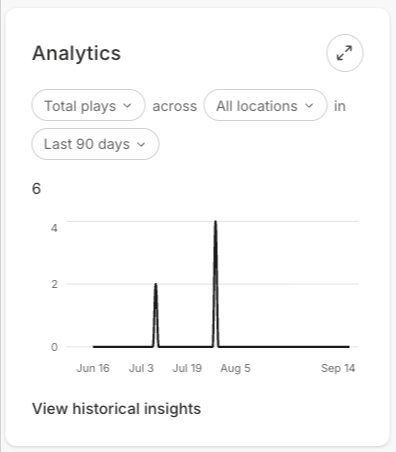
- Metric — Total plays, Unique plays, Unique viewers, Play rate, Engagement rate, or Hours watched
- Location — All locations, or a single Page or lesson the video is embedded on
- Time span — Last 7 days, Last 30 days, or Last 90 days
View historical insights
Click View historical insights within the Analytics chart to open a detailed window covering the life of the video: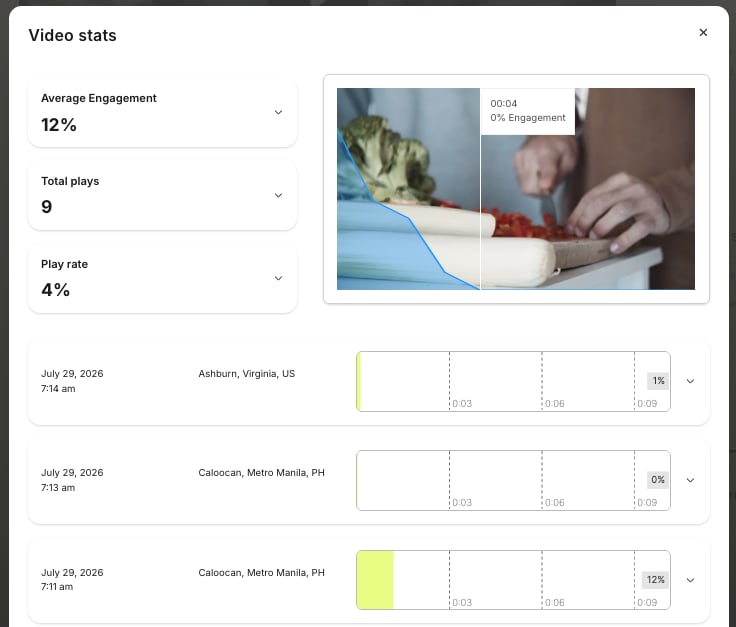
- Summary stats — Average Engagement, Total plays, and Play rate, each expandable for the definition and the calculation behind it
- Engagement graph — an interactive preview of the video; hover across it to find the exact second viewers lost interest
- Individual sessions — one entry per viewing session with location, device, and a heat map of what that viewer watched
Reach video stats from a Page or lesson
You can also reach video stats from an individual Website Page, Landing Page, or Funnel page, as well as within a Course lesson.To view stats for a video on a Website Page or Landing Page:
- From the Dashboard, go to Website > Website Pages or Landing Pages.
- Open the page containing your video, and click Customize to open the page editor.
- In the sidebar, click the section, then click the block that contains your video.
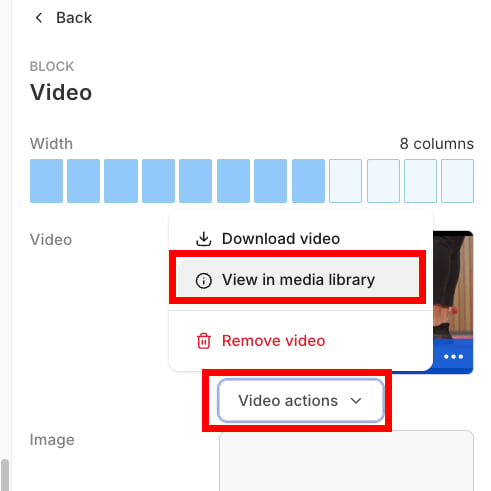
- Click Video actions beneath the video preview.
- Select View in Media Library.
- Filter stats on the Analytics card.
To view stats for a video on a Funnel page:
- From the Dashboard, go to Marketing > Funnels.
- Click the Funnel, then select the page containing the video.
- If the page is a Landing Page, in the sidebar, click the section, then click the block that contains your video. If the page is a Checkout Page, you must first click Edit checkout, then the section and block.
- Click Video actions beneath the video preview.
- Select View in Media Library.
- Filter stats on the Analytics card.
To view stats for a video in a lesson:
- From the Dashboard, go to Products > Courses.
- Click a Course Title and select the lesson containing the video.
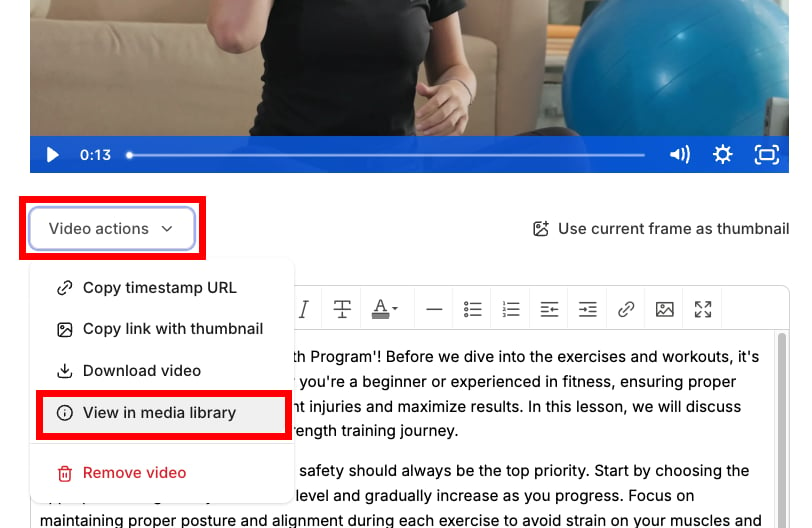
- Click Video actions beneath the video.
- Select View in Media Library.
- Filter stats on the Analytics card.
What Video stats shows
Video stats opens in three parts:- Summary stats — Average Engagement, Total plays, and Play rate, each expandable for the definition and the calculation behind it
- Engagement graph — An interactive preview of the video; hover across it to find the exact second viewers lost interest
- Individual sessions — One entry per viewing session with location, device, and a heat map of what that viewer watched