

What types of deep links are supported?
Community links
Posts & Discussions- Direct links to individual community posts
- Links to posts within a specific channel
- Links to channel/circle pages
- Community home page
- Meetups and events
- Individual meetup pages
- Resources
- Live events
- Leaderboards
- Challenges
- Community mention notifications
- Reply notifications
- Direct message notifications
Course & product links
Universal links are supported for:- Direct links to specific courses or products in the user’s library
- Direct links to individual lessons within a course
Where universal links work
Universal links work across the following surfaces:- Email clients (Gmail, Apple Mail, Outlook, etc.)
- SMS/text messages
- Other apps that render clickable URLs
- Safari and Chrome mobile browsers
- Push notifications (when the link is included in the payload)
Enable universal links for an iOS Branded App
Open Apple Developer identifiers
- Log in to the Apple Developer account
- Visit: https://developer.apple.com/account/resources/identifiers/list
- You’ll see a list of all app identifiers
Select the app
- Click the Identifiers tab
- Select the app from the list to open its capability settings
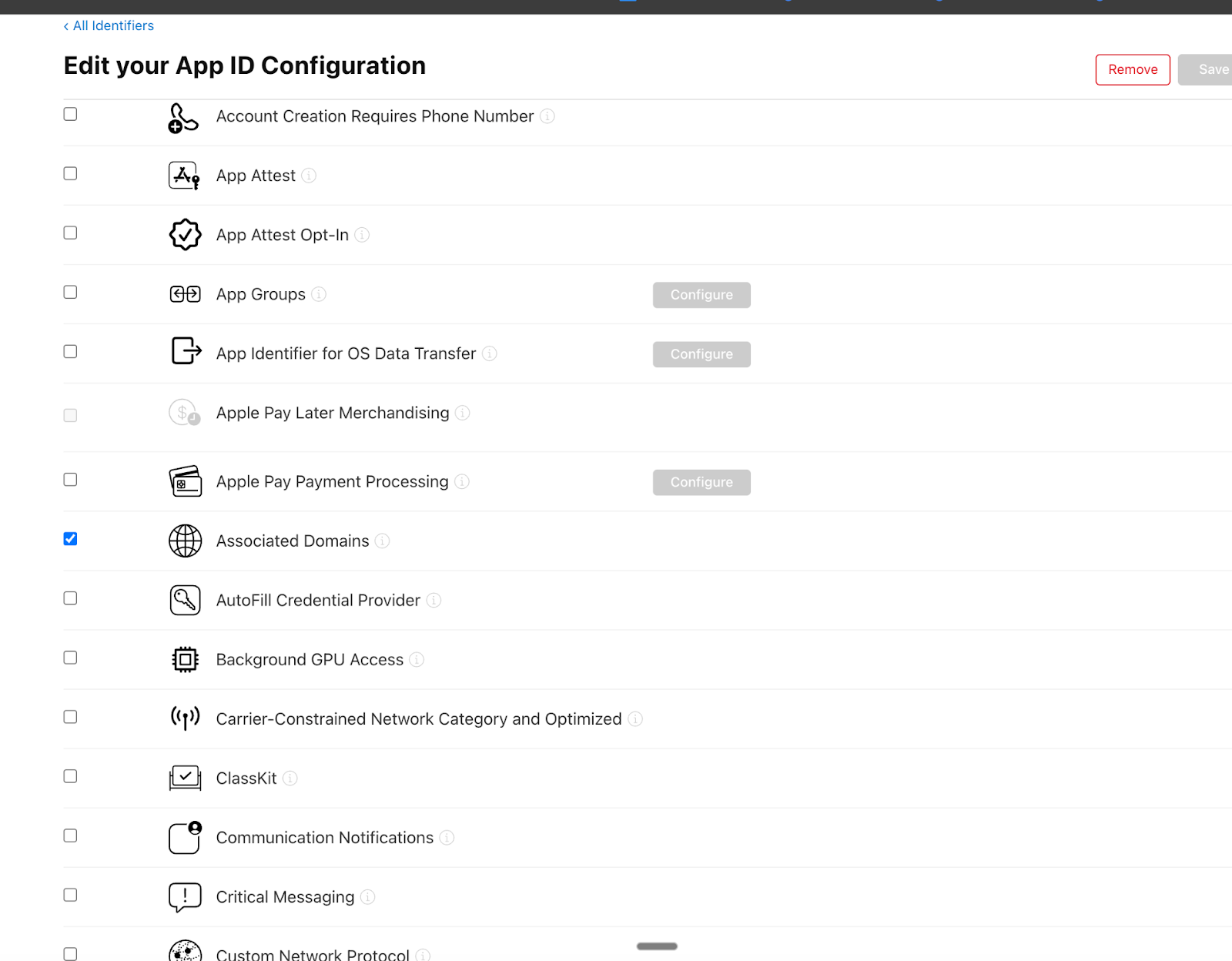
Enable Associated Domains
- Scroll through the list of capabilities
- Locate Associated Domains
- Toggle it on
- Click Save to apply the changes
Update Kajabi Branded App settings
- Return to the Kajabi dashboard
- Go to Settings > Branded App Settings
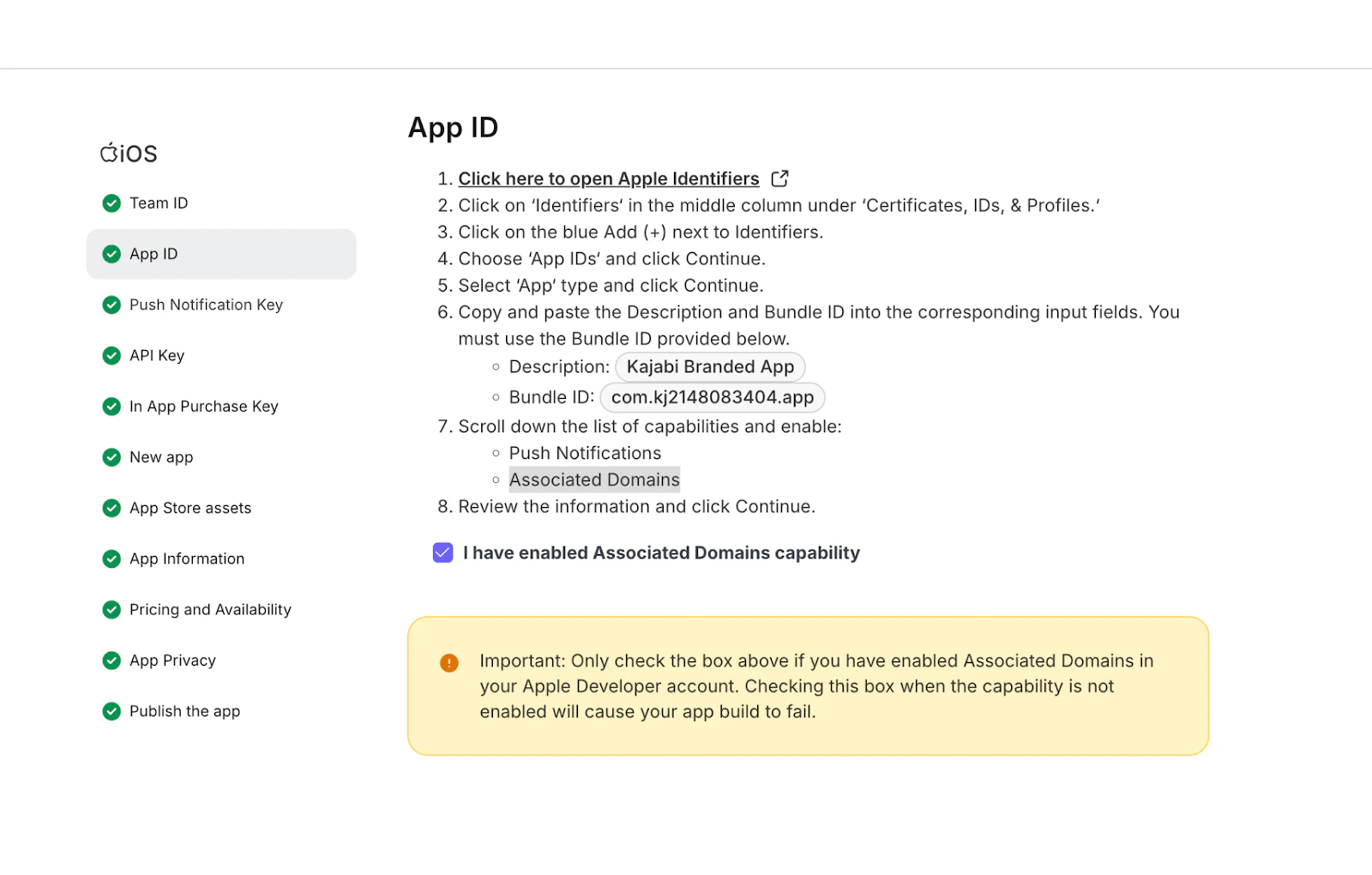
- Click Revisit Apple, then navigate to the App ID section
Confirm the capability is enabled
- Check the box confirming you have enabled the Associated Domains capability in Apple
- Click Continue and save the changes throughout the flow
Trigger a build update
After this has been enabled, you need to submit a build update to the respective app stores for approval. Learn how to update the Branded App in the Apple App Store and Google Play Store.Use universal links in Email Campaigns (iOS)
If you have a Branded Mobile App and include universal links in your Kajabi Email Campaigns, those links may open in Safari on iOS instead of deep-linking directly into your app. This breaks the experience for your members. Follow the steps below to disable Kajabi’s click tracking and allow iOS to handle the link as a true universal link and open it in your Branded Mobile App.Important: This workaround applies only to Heroes with a Branded Mobile App who include universal links in Email Campaigns and it only affects iOS.Applying disable-tracking=“true” will disable click tracking for any link where it is used.
- Open the Marketing tab and click Email Campaigns from the Dashboard.
- Select the email you would like to edit.
- Navigate to the email’s text field.
- Click the Source Code button inside the toolbar.
- Locate the <a> tag for the universal link. It will look similar to:
- Add disable-tracking=“true” inside the <a> tag, like this:
- Click Ok to save your changes.