

Add a file
- Go to Products > Courses and click on a Course
- Click the lesson you want to edit to open the lesson editor page
- Scroll down to locate the Downloads section within the lesson editor
- Click Add Files to open the upload interface
- Upload your file(s) using the upload modal
Rename a file
- Open a lesson
- Click the Edit icon to rename the uploaded file in the Downloads section
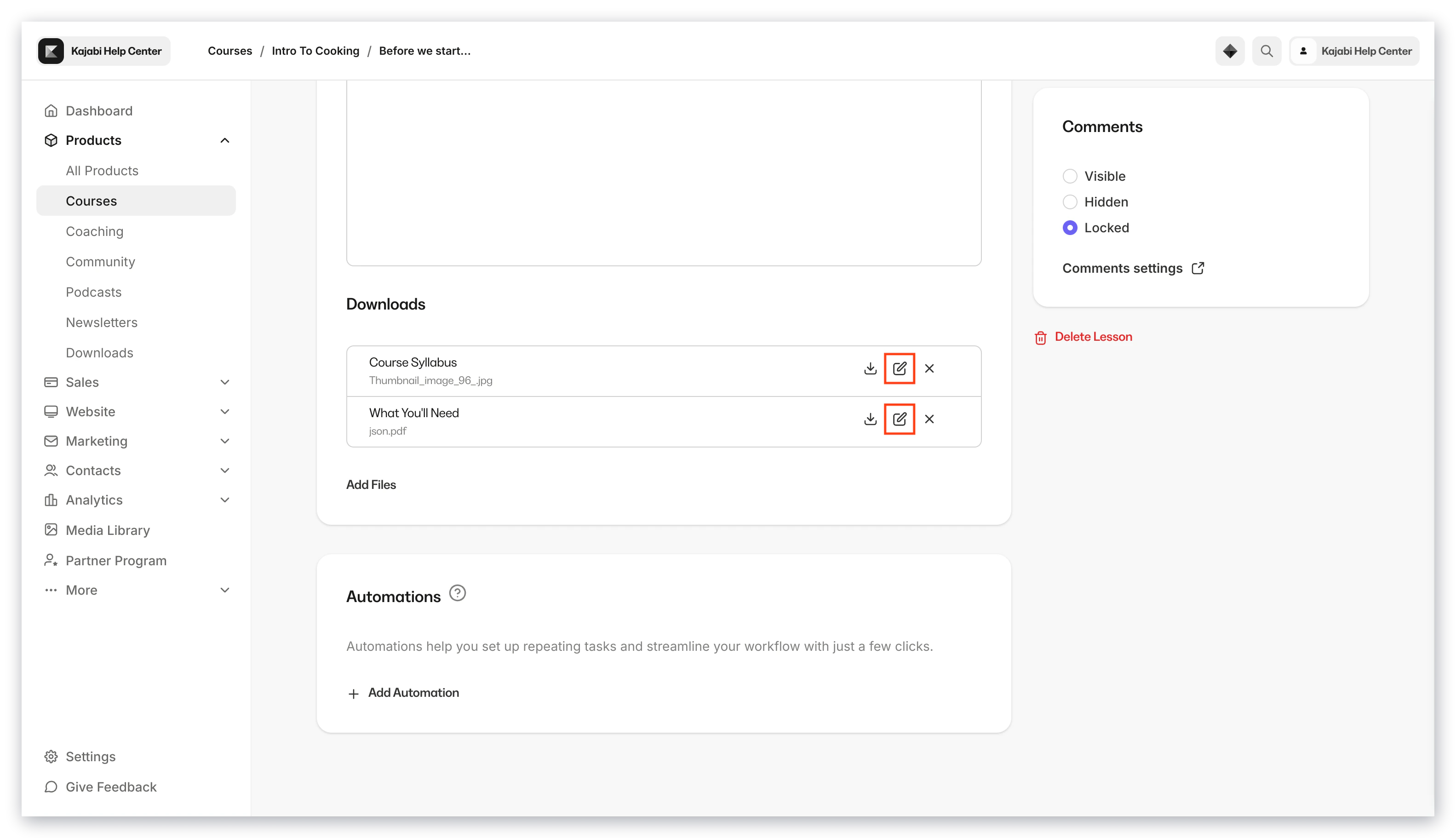
- Enter a new display name for the file and click Save to complete the rename step
Download a file
- Open a lesson
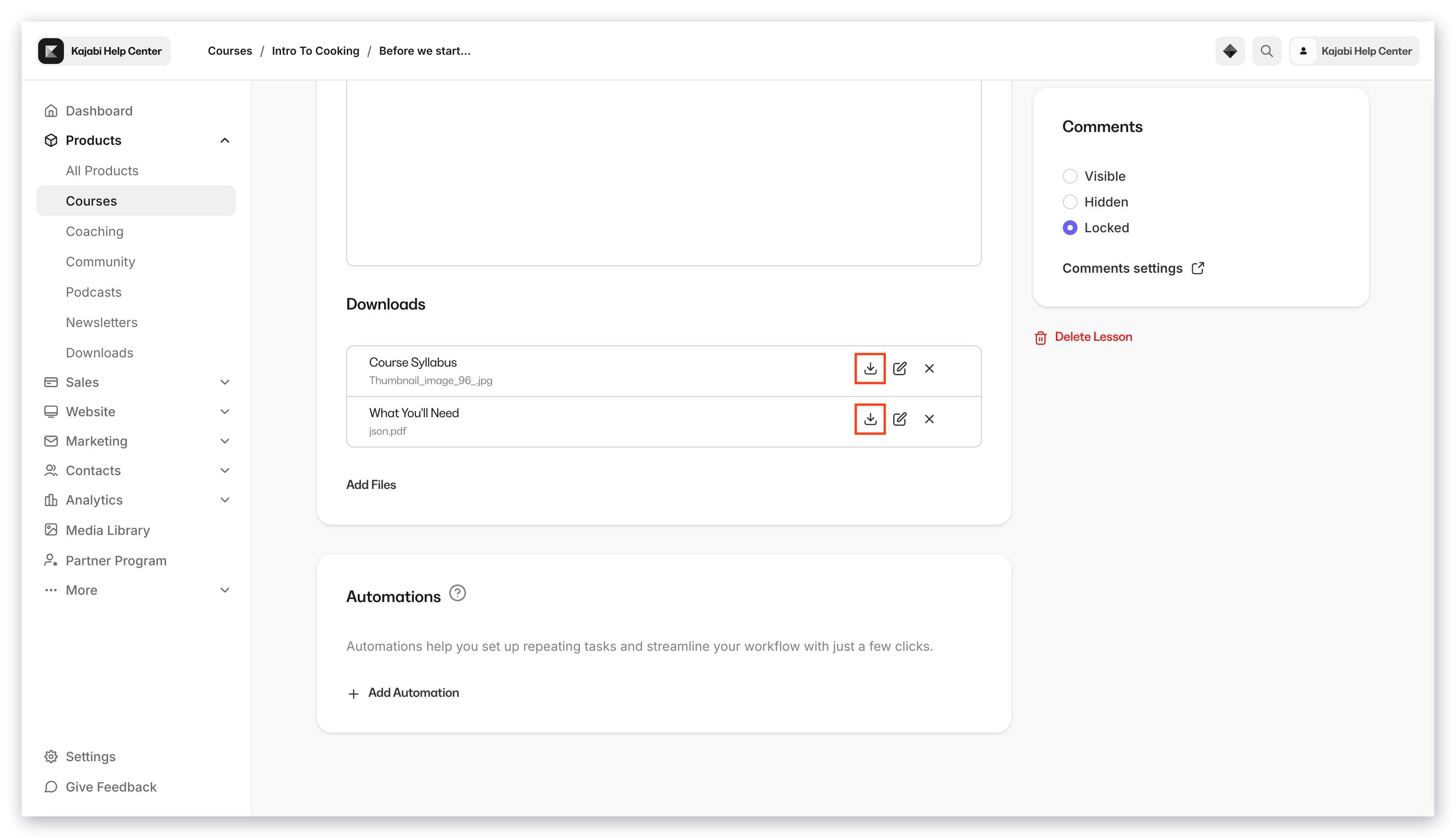
- Click the Download icon under the Downloads section
Delete a file
- Click the Delete icon in the Downloads section
- Click Delete again to confirm and remove the file
Notes:
- There is a 1GB file limit for a downloadable file within a course lesson.
- The following downloadable file types are allowed for course lessons:
- Video — MP4, MOV, AVI, WMV, FLV, MKV, 3GP, 3G2, M4V, MPG, OGV
- Audio — MP3
- Images — JPEG, PNG, GIF, WebP
- Documents — PDF, Word (.doc, .docx), Excel (.xls, .xlsx), PowerPoint (.ppt, .pptx), Keynote (.key), RTF, OpenDocument (.odt)
- Ebooks — EPUB, MOBI
- Other — CSV, TXT, ZIP, SRT (subtitles), TTF (fonts)