

Send a DM on the web app
To send a Community member a direct message (DM) from the Community web app:- From the Dashboard, click Products.
- Click Community.
- Click Go to Community.
- Start a new DM using one of the following methods:
- Click the paper airplane icon in the top right, then click the plus icon and search for the member you want to message.
Hover over any member’s name in the Community and click Direct message.
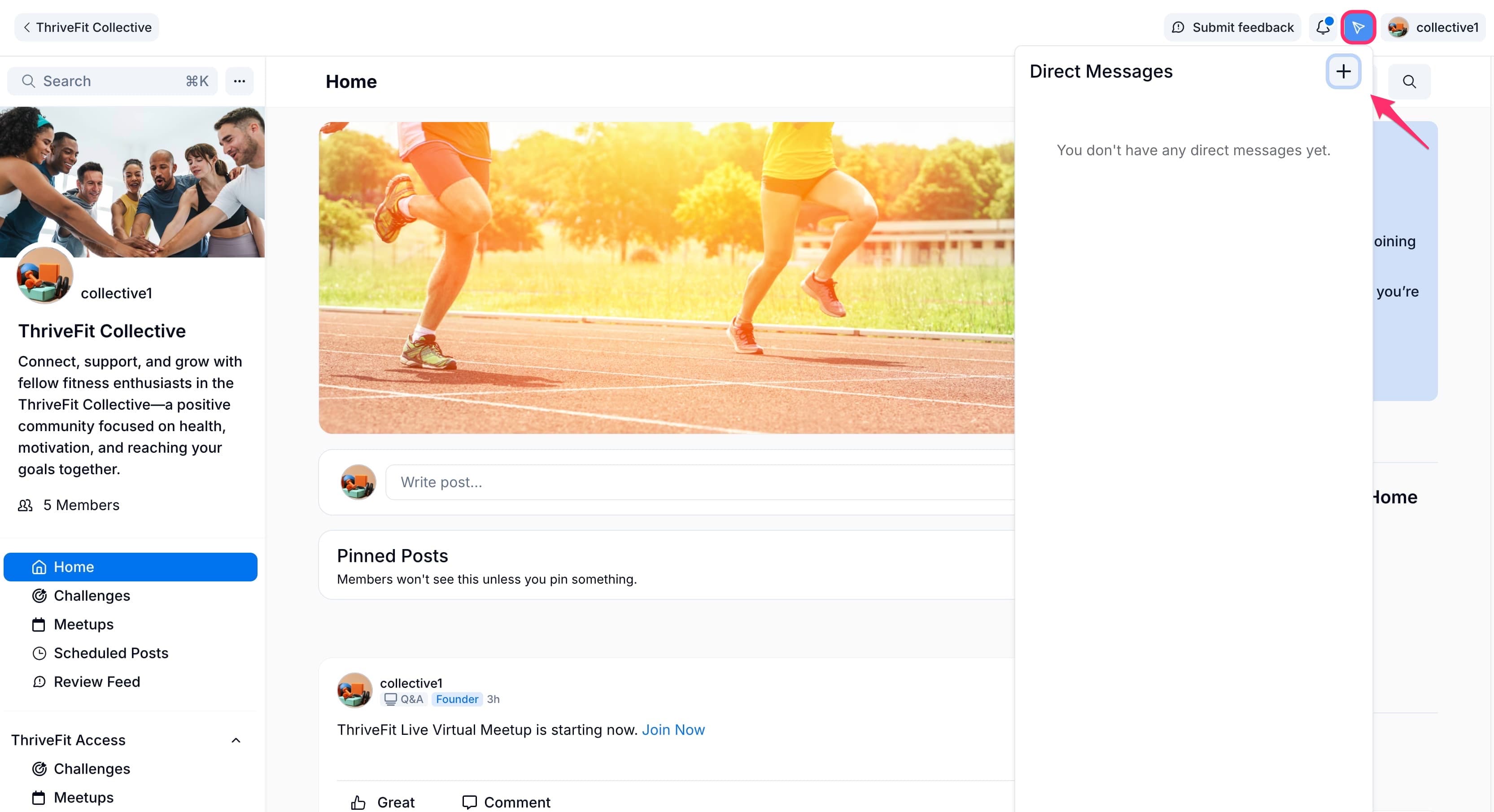
- Click the paper airplane icon in the top right, then click the plus icon and search for the member you want to message.
- Select the member you want to message. Use the search bar to find them by name if needed.
- Type your desired message into the text box. Optionally, click the plus (+) icon to attach a PDF, audio, image, or video file.
- Click the send icon or press the return/enter key on your keyboard.
Send a message to a group of members
Group DMs are not available in Kajabi Communities. Direct messages are one-on-one only. To message multiple members at once, you have two options:- Private Chat Channel: Create a private Channel using the Chat layout and invite specific members. This creates a shared group conversation. Learn how to create a Community Channel.
- Community DM Automation: Use the Send Community DM action in an Automation to send a message to a group of members when a trigger fires. Each member receives the message individually, not as a shared thread. Learn about Community Automations.
Audio messages
To send an audio message in a DM, click the plus (+) icon in the message input field and select an audio file from your device.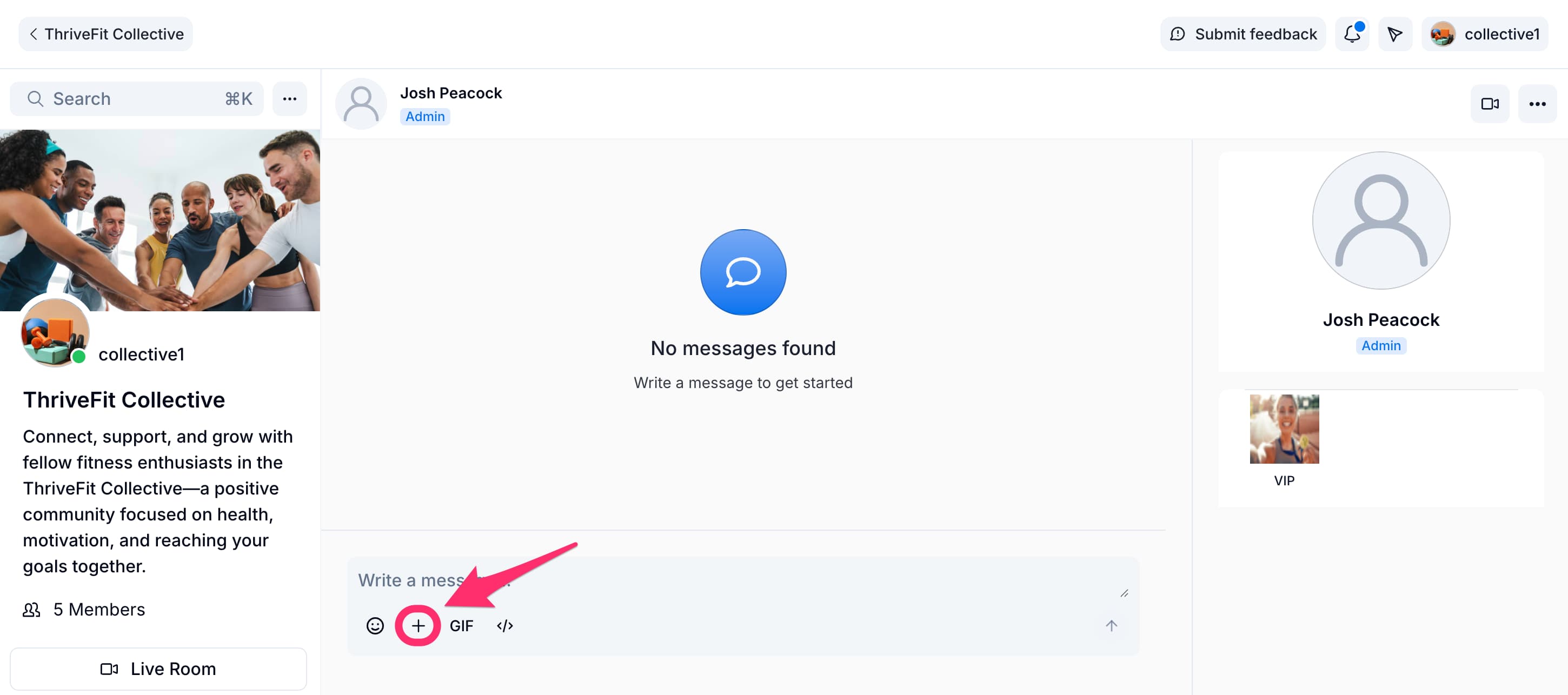
Note: Only one audio message plays at a time. Starting a second audio message automatically pauses the first.
Audio transcription
Kajabi automatically transcribes audio messages after they are sent. A “Transcribing…” status appears below the audio player while the transcription is in progress. Once complete, the full transcript text displays beneath the player. If transcription fails, the transcript area is hidden and the audio player continues to work normally.Video messages
To send a video in a DM, click the same plus (+) icon in the message input field (similar to how you would add an audio message) and select a video file from your device. Kajabi displays the video directly in the conversation with a built-in video player so the recipient can watch without leaving the chat.Note: Video files must meet Kajabi’s standard media upload requirements. For best results, use MP4 format.