

Export contacts
- From the Dashboard, click Contacts.
- Filter or Segment the contacts you wish to export.
- Select the contacts you wish to export or click Select All to export the entire Segment.
- Click open the Bulk Actions dropdown menu.
- Select Export.
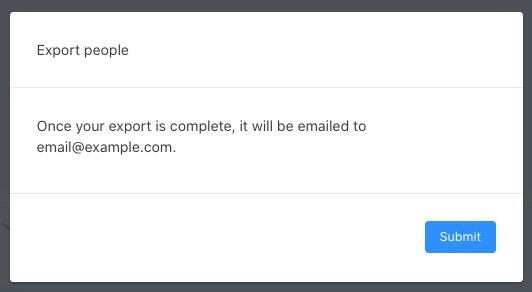
- Click Submit to confirm. Your exported list will be emailed to the email address associated with your Kajabi account.
- Click Submit to acknowledge the popup.
Download the exported list
Download the CSV from the email within 3 days of receiving it before the link expires. If you are unable to download the CSV within the 3 days of receiving the email, simply repeat the steps above to export your list.Note: Your exported list will be sent in an email with the subject line Contact export process completed. The download link expires after 3 days. If it expires, repeat the export steps above to receive a new link.
- Open the email inbox associated with your Kajabi account.
- Open the email and click download the CSV:
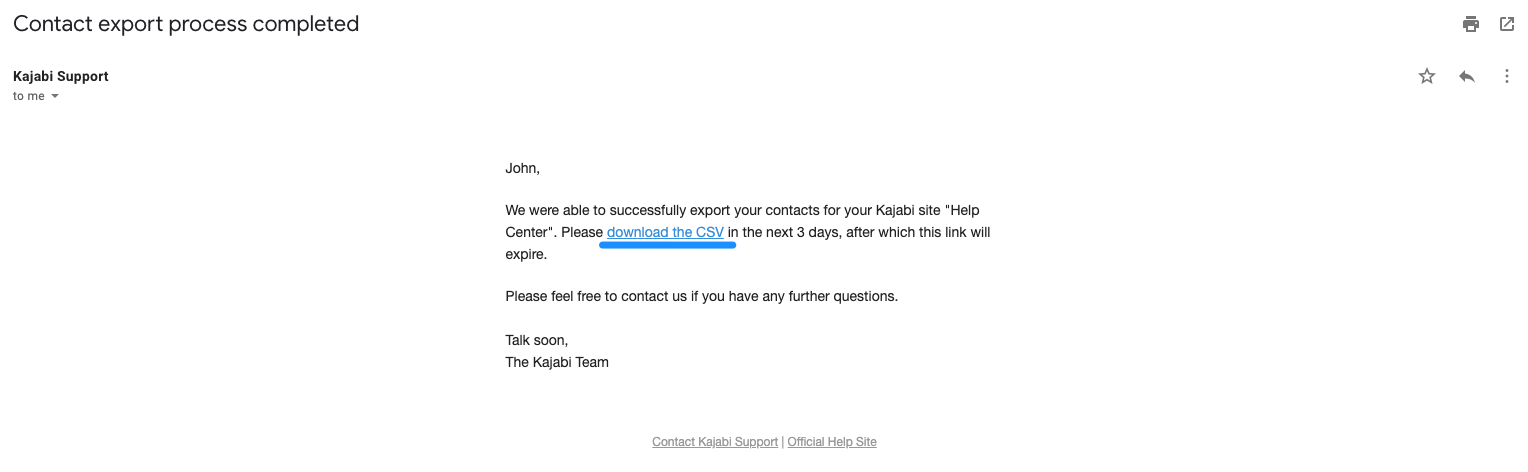
Note: Clicking the download link may open the CSV as raw text in your browser instead of saving it as a file. If this happens, right-click the link in the email and select Save link as to download it directly to your computer. Once downloaded, open the file in a spreadsheet application such as Microsoft Excel or Google Sheets.