

Find duplicate contacts
Kajabi uses email addresses to identify contacts, which helps prevent duplicates in most cases. As long as a contact uses the same email address when purchasing an Offer or submitting a Form, their information is stored in a single contact record. However, if a contact uses different email addresses to purchase an Offer, submit a Form, or is added manually with a different email address, they appear as separate contact records. To check for a duplicate:- From the Dashboard, click Contacts.
- Click the search bar and enter the contact’s name.
- Press Enter to search.
Note: Kajabi does not currently have a bulk duplicate detection feature. Duplicates can only be identified by searching for a specific contact by name. As a workaround, export your contact list as a CSV and use a spreadsheet application such as Excel or Google Sheets to identify duplicate names or email addresses across your list. Learn how to export your contacts.
How merging works
Note: With the merging tool, you can merge up to two contacts at once.
What happens when I merge two contacts?
Merging contacts will combine, disassociate, or delete information from the Secondary Contact to merge into the Primary Contact.Combined
- Offers: Paid, Free, Granted, Revoked, Inactive and Active Offers will transfer to the Primary Contact, unless the Active Offer is an Active Subscription payment. Revoked or deactivated Offers are not granted or reactivated upon Merge.
- Form Submissions: Submission data is not directly added to the Primary Contact’s Customer Info. The Form Submission ID carries over, and the data associated with the submission can be viewed by clicking on the Form.
- Purchase History: All purchases, refunds, failed payments, and cancellations carry over and remain viewable within the Primary Contact.
- Unique Product Progress: If combined Products are unique (not duplicates), then Product Progress for the Secondary Contact is kept for all Products.
Disassociated
- Email Records: Opens, clicks, and unsubscribes are not destroyed and continue to count toward general analytics, but neither the Primary nor Secondary Contact remains associated with these records.
Deleted
- Email Notification Settings: The email notification settings associated with the Secondary Contact are disregarded and deleted.
- Duplicate Product Progress: If combined Products are duplicates, Product Progress for the Primary Contact is kept, and Product Progress for the Secondary Contact is deleted.
What will not happen when I merge contacts?
- Automations are not triggered based on a merge action.
- A Secondary Contact with an active subscription cannot be merged.
- Tags are not merged, to avoid future complications.
- Email statistics and settings associated with the Secondary Contact are not associated with the Primary Contact, though the stats remain available for general reporting purposes.
Note: You can merge up to two contacts at a time. To combine more than two duplicate records, repeat the merge process, merging one additional contact into the Primary Contact each time.
Identify the primary account
Before merging, identify which contact will be the Primary Contact and remain after the duplicate, or Secondary Contact, is merged. Choosing a Primary Contact overwrites all of the Secondary Contact’s info, so select the correct contact carefully. See How merging works for a full breakdown of what transfers, disassociates, or is deleted.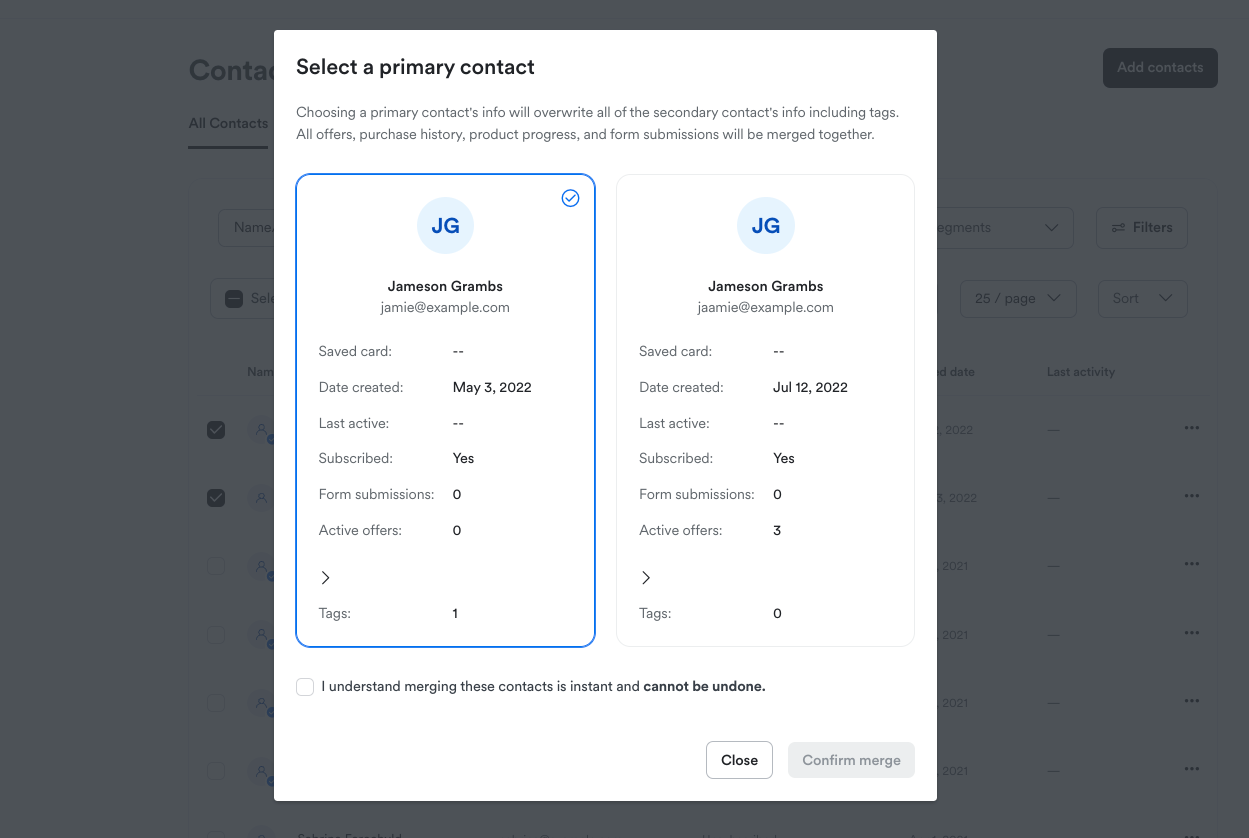
Merge accounts
After identifying your primary contact, use the merge contacts feature in your Contacts tab:- From the Dashboard, click Contacts.
- Select any two contacts you want to merge.
- Open the more octions (…) menu.
- Select Merge contacts.
- Select the Primary Contact.
- Click Confirm merge to combine your contacts into the Primary Contact.
Note: The Merge contacts option only appears in the more options (…) menu when two applicable contacts are selected.