Why duplicate an Offer?
Duplicating an Offer can provide customers with multiple options for purchasing, from creating multiple pricing tiers with different Product packages to building unique sales pages specific to your business. Here are a few examples of how you can use duplicated Offers:- Create “Choose what you pay” or “Donate” sales pages
- Provide different currency options
- Give your customers different pricing options
Duplicate an Offer
- Open the Sales tab from your Dashboard
- Then, click Pricing
- Locate the Offer you want to duplicate and click the
…icon - Select Duplicate
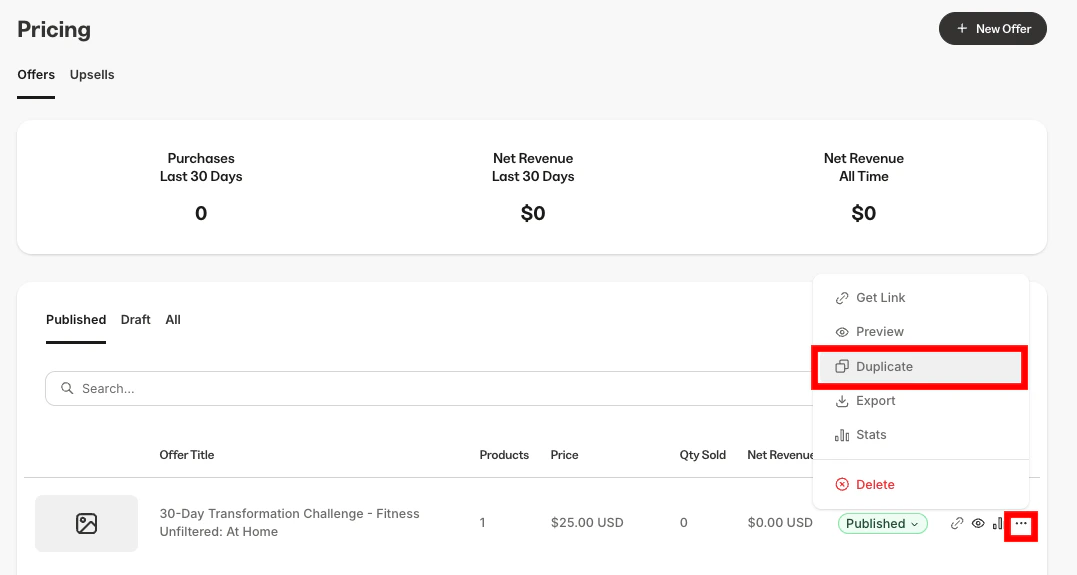
- After duplicating, click the Offer title to edit its details, Products, and other settings
- Be sure to click Save to keep your changes
Note: If the original Offer is attached to a coupon, your duplicated Offer will also be connected to the coupon.
Duplicate an Offer with Automations and Add-ons
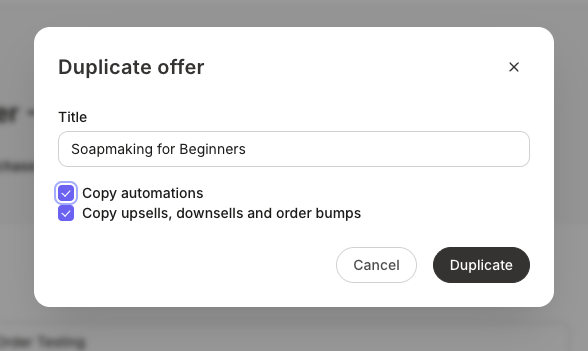
When you duplicate an Offer, the Duplicate offer window lets you choose how much of the original Offer’s setup the new Offer starts with.- Copy automations: gives the new Offer the same Automations as the original, such as granting access to a Product, adding a tag, subscribing a customer to an Email Sequence, or issuing a coupon, along with any conditions on them. They run when the new Offer is purchased. The new Offer gets its own set, so editing or deleting an Automation on one Offer does not change the other, but they still act on the same Products, tags, Email Sequences, and coupons.
- Copy upsells, downsells and order bumps gives the new Offer the same purchase flow as the original: the same order bumps at checkout, in the same order and with the same title, description, and image, and the same Upsells after checkout, in the same sequence.
- Open the Sales tab from your Dashboard
- Then, click Pricing
- Locate the Offer you want to clone and click the
…icon - Select Duplicate
- Click the checkbox for the items you want to copy
- Press Duplicate