Note: Customer self-pause is available for subscriptions paid through Kajabi Payments and Stripe. Subscriptions paid through PayPal cannot be paused by the customer. Customer self-pause also applies to subscriptions only, not to payment plans.
What a pause looks like
When customer self-pause is enabled, a customer opens their Billing page, chooses Pause subscription, and picks how long to pause for.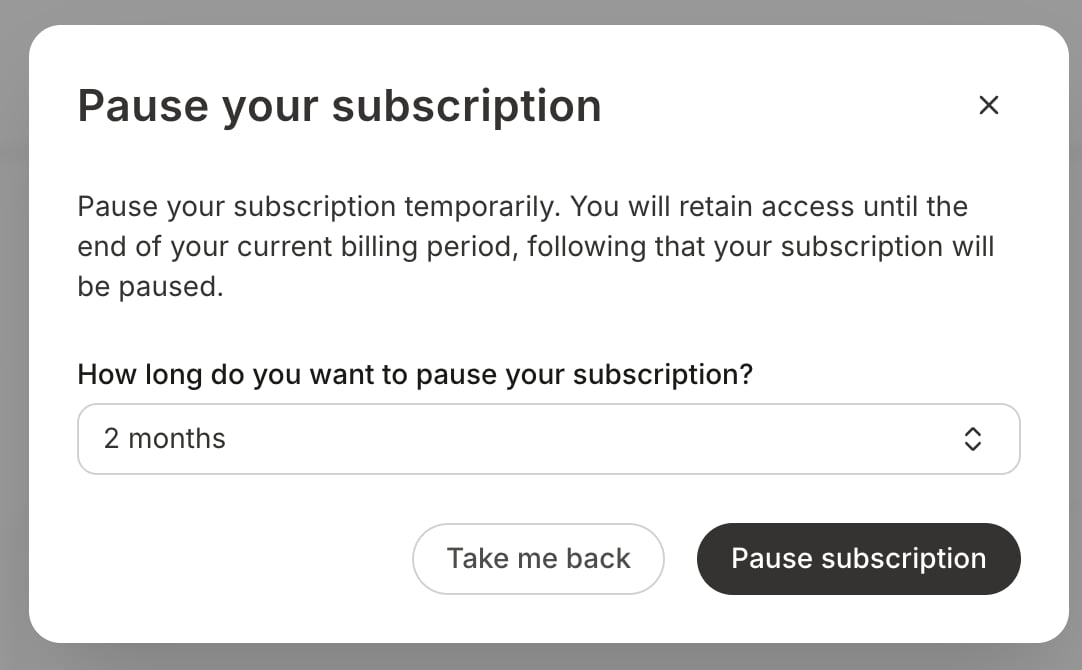
What pausing means for your revenue and your customers’ access
Payments scheduled during a pause are skipped. During a pause a customer is not billed and does not make up missed payments when they return. Pausing reduces the revenue you collect from that subscription for the length of the pause. Access stops when billing stops. A paused customer cannot access the products in that subscription while the pause is active. Access returns when the subscription resumes. Pause length is counted in billing intervals. A customer on a monthly subscription pauses in months, a weekly subscription in weeks, an annual subscription in years. If you allow a maximum pause of 2, that means two months for a monthly subscriber and two years for an annual subscriber. Pause settings apply to your entire site. You cannot enable pausing for some offers and not others, and the limits you set apply to every eligible subscription you sell. If you sell subscriptions on more than one billing interval, choose your limits with the longest interval in mind.Enable customer self-pause
- Open the Settings tab from your Dashboard.
- Click Customer Payments under the Site Settings header.
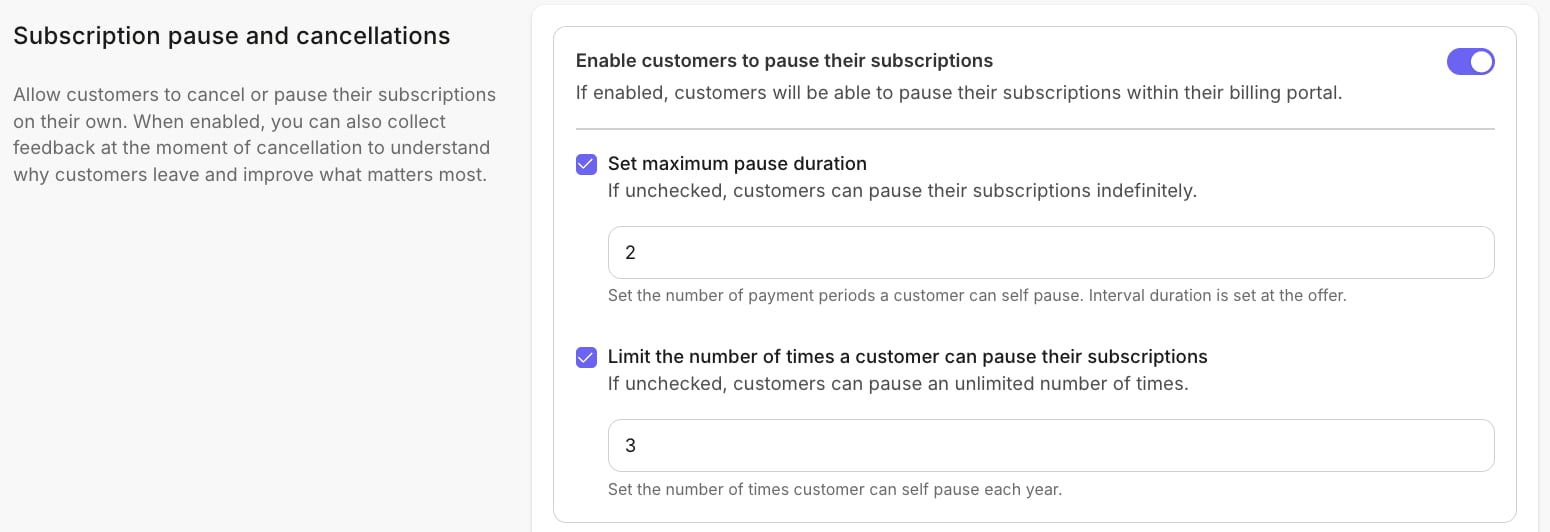
- Check the box labeled Enable customers to pause their subscriptions.
- Optional step: check Set maximum pause duration and enter the longest single pause you’ll allow, counted in billing intervals.
- Optional step: check Limit the number of times a customer can pause their subscription and enter how many pauses a customer can start in a year.
- Click Save to keep and apply your changes:
Where your customers pause
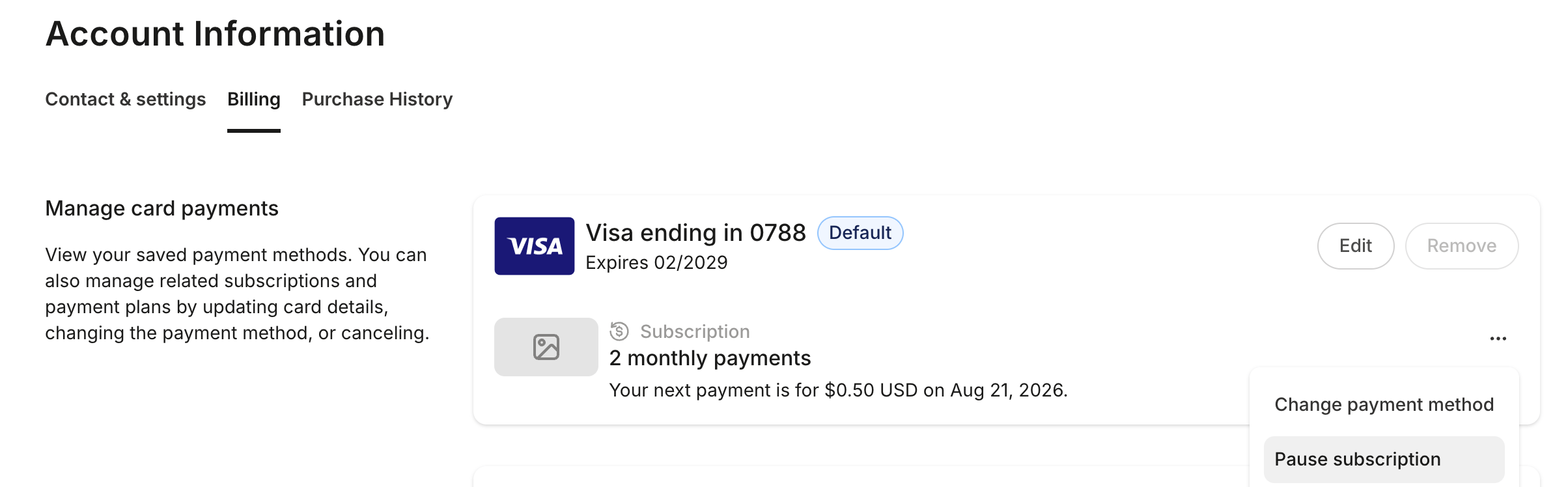
Once customer self-pause is enabled, customers can pause from two places:- Their Billing page. The subscription’s 3 dots […] menu includes Pause subscription.
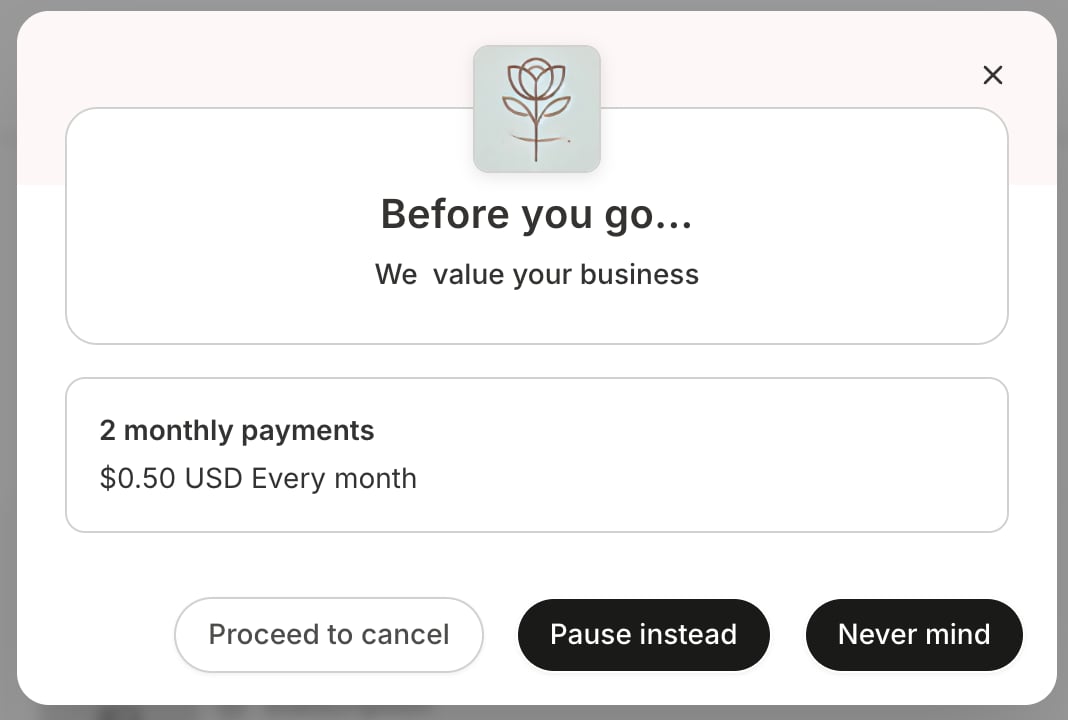
- The cancellation flow. If you also allow customers to self-cancel, Pause instead appears before the cancellation completes, so a customer who came to cancel is offered a break first. If you set a maximum pause duration, the customer chooses a length from a dropdown running from one interval up to your maximum.
What happens after a customer pauses
- The subscription shows Pausing on [Date]. The customer keeps full access until that date, and the payment that would have been due is skipped rather than charged.
- On that date the pause begins. Access ends, billing stops, and the subscription shows Paused, along with the resume date if the pause has one.
- Any payments scheduled during the pause are skipped.
Cancel a pause before it starts
A customer whose subscription still shows Pausing on [Date] can cancel the pending pause from their Billing page. The subscription returns to active, billing continues unchanged, and the customer is not charged at that moment.Resume a paused subscription
How a paused subscription comes back depends on how it was paused:- A pause with an end date resumes on its own. Access returns and billing continues on the customer’s original schedule.
- An open-ended pause stays paused until the customer resumes it from their Billing page. A customer can also resume early, before a scheduled pause has ended. Resuming early charges the customer immediately, restores access right away, and moves their billing date to the day they resumed. A pause that resumes on its own does not change the customer’s billing date.
Decide how much pausing to allow
Two optional limits shape how customers use pause. You can set both, one, or neither.
If you set a maximum pause duration, every customer pause has an end date and resumes on its own. If you leave maximum pause duration off, customer pauses are open-ended and stay paused until the customer resumes them.
If you limit how many times a customer can pause per year, a customer who reaches that limit no longer sees the pause option until the limit resets. Capping how long a pause lasts does not cap how often a customer pauses, so consider setting both.
How customer pauses differ from pauses you start
You can still pause a customer’s subscription yourself, and nothing about that has changed. The two work differently in one important way:- A pause you start as the site owner takes effect immediately.
- A pause your customer starts takes effect at the end of their current billing cycle. See Pause a customer’s subscription or payment plan for pausing a subscription yourself.
Emails and notifications
- A customer receives a confirmation email when they schedule a pause, including the pause date and the resume date if the pause has one.
- A customer receives a confirmation email if they cancel a pause before it starts.
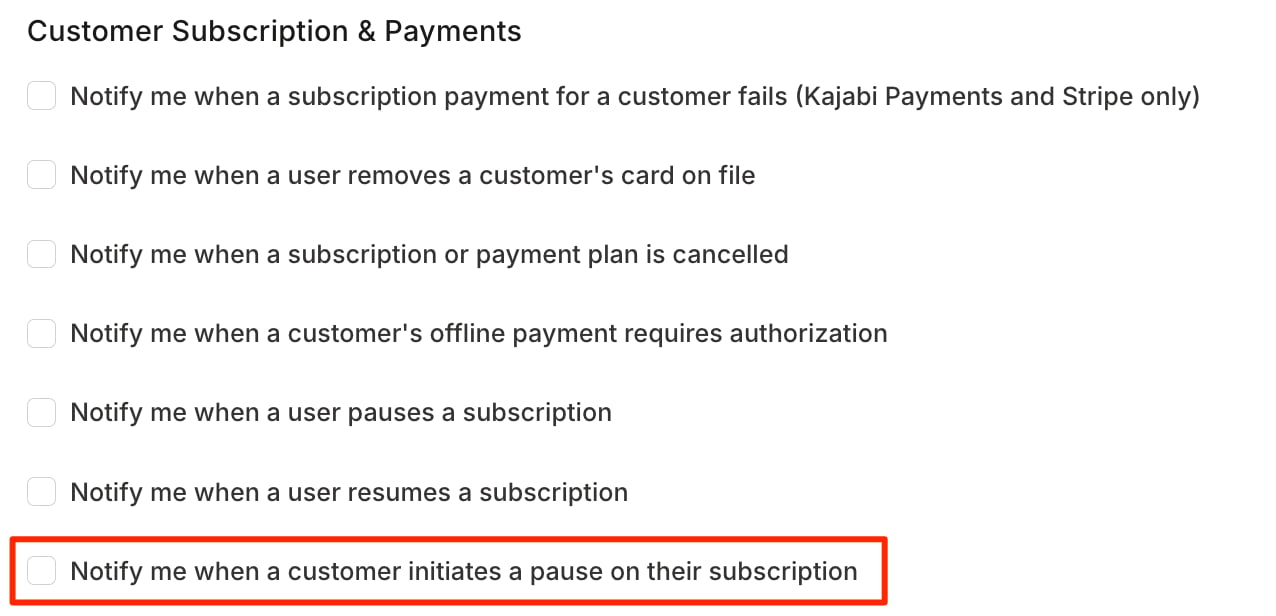
- You can be notified when a customer pauses. Look for Notify me when a customer initiates a pause on their subscription in your Customer Subscription & Payments notification settings. Learn more.