

Custom email templates
An email template allows you to save your design and brand from your beautifully designed Email Campaign and use it again and again with ease. With an email template, you can save time, recreate successful Email Campaigns, and create branded emails faster than ever before.Note:
You can create up to 25 custom email templates.
Which email support custom templates
Custom email templates work with Email Broadcasts, Email Sequences, and Event Emails built in the Email Visual Editor. They do not apply to other email types in Kajabi:- Automated email notifications (purchase receipts, course access emails, community alerts) — these use a separate template system under Settings > Email Templates. You can edit their text, add a logo, and customize button colors there, but the template is fixed. Learn more about automated email notifications.
- System emails (password reset, double opt-in confirmation, unsubscribe confirmation) — these are compliance-controlled and cannot be customized.
Create a custom email template
With Kajabi’s Email Visual Editor you can create custom email templates with your brand and design.Note:
Creating an email template requires the Email Visual Editor. If you are using the Classic Editor, your email cannot be saved as an email template.
Create an Email Campaign to use as a custom template
- Open the Marketing tab from your Dashboard.
- Click + New Email Campaign.
- Select Email Broadcast or Email Sequence.
- Then, select the design you wish to use for your Email Campaign.
- Add your Email Title.
- Click Create.
- In the email editor, design your email to use as a template. Learn more
- Then, click Save as a template.
- Complete the prompt to include a Template name and Template description.
- Click Save to keep and apply your changes.
Create an email template in the template manager
- Open the Marketing tab from your Dashboard.
- Click Manage Templates.
- Click + New Template.
- Enter your Template Name and Template Description.
- Then, click Create.
- Select an existing template to use as the starting point for your new custom template.
- Customize your new template as desired in the editor.
Use and manage email templates
Email templates can be used to help you quickly build your Email Campaigns with your desired branding and design. When you create and save a custom email template you’ll be able to choose between your custom email template or one of Kajabi’s templates when creating a new Email Campaign: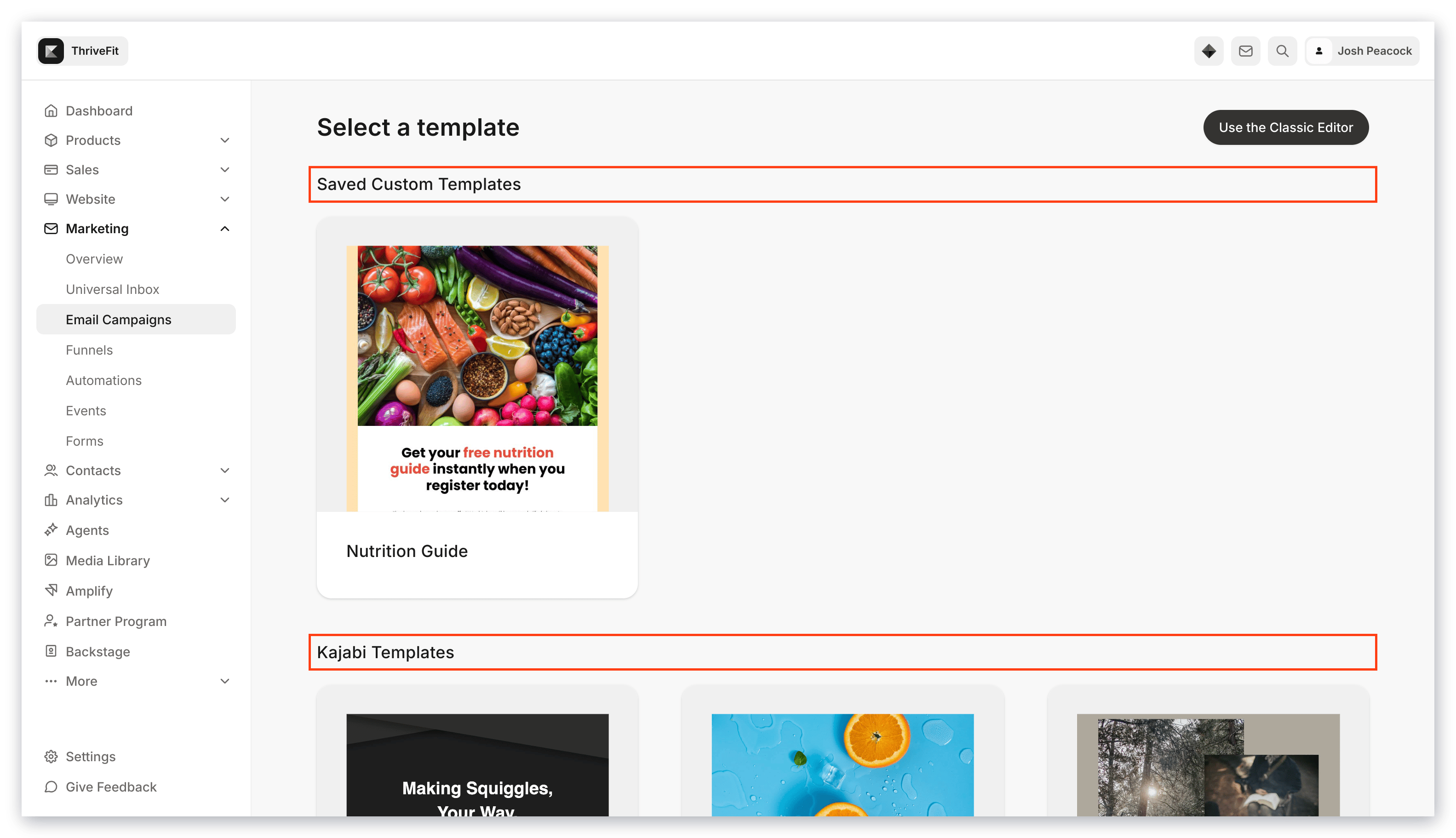
Create an Email Broadcast with a custom email template
- Open the Marketing tab from your Dashboard.
- Click Manage Templates.
- Select the Template you wish to use.
- Click Create a broadcast.
- Enter your Email title.
- Click Create.
Update a custom email template
Your email templates may receive updates to fix bugs or include additional features. If you have created a custom email template, you can update it to gain access to the latest version.Update an email template
- Open the Marketing tab from your Dashboard.
- Click Manage Templates.
- Locate the Template you wish to update.
- Click the
…icon to access more actions. - Select Update template.
Note: Updating a custom template does not retroactively change emails that have already been sent, or existing Sequence emails that were built from that template. To apply template updates to an existing Sequence email, open the email in the editor and re-select the updated template manually.
Delete a custom email template
If you no longer need a custom email template, you can delete it.Delete an email template
- Open the Marketing tab from your Dashboard.
- Click Manage Templates.
- Locate the Template you wish to update.
- Click the
…icon to access more actions. - Select Delete.
- A popup will ask if you really want to delete this template. If so, select Yes, Delete.