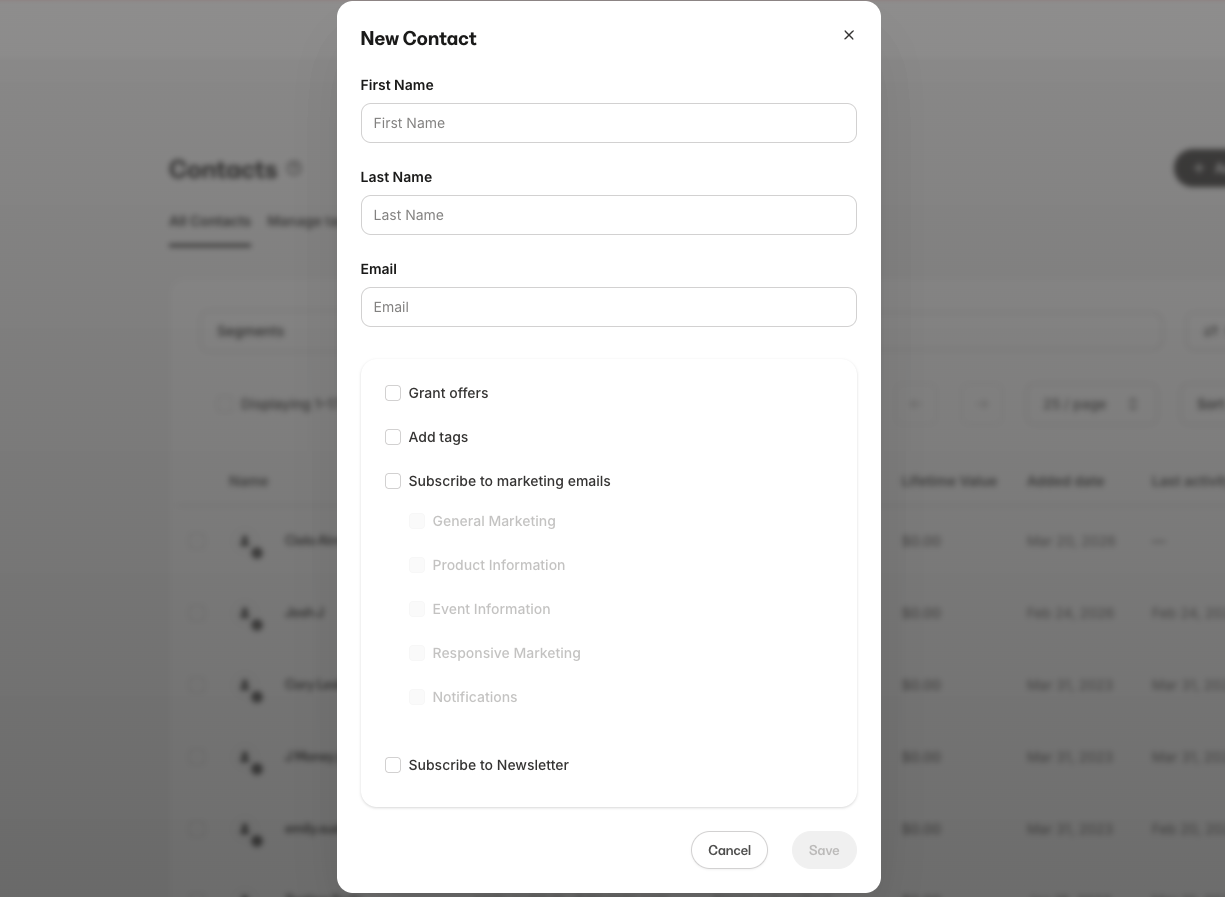
These five categories are the only available types and cannot be customized or renamed. Every Email Broadcast and Sequence you send must be assigned to one of these categories. They are not examples, they are the actual groups your contacts use to manage their email preferences.
Enable Email marketing categories
Note: If you created your account after this feature launched, Email marketing categories are already active — no action is needed.
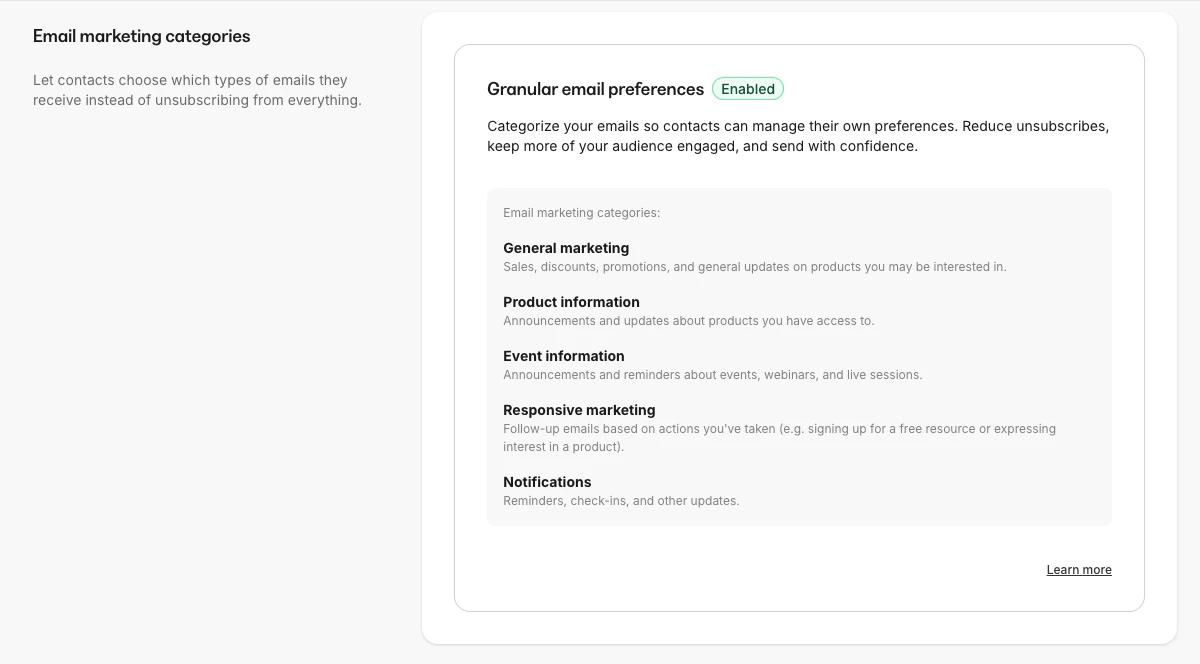
- From the Dashboard, navigate to Settings, then click Marketing settings.
- Locate the Email marketing categories section.
- Review the description and click the toggle to enable.
Assign a category to an email
Email Broadcasts
- From the Dashboard, navigate to Marketing, then click Email Campaigns.
- Click + New Email Campaign to create a new Email Broadcast or open an existing one.
- On the Select recipients screen, locate the What type of email marketing is this? section.
- Select a category. General Marketing is selected by default.
- The subscriber count updates to reflect only contacts subscribed to that category.
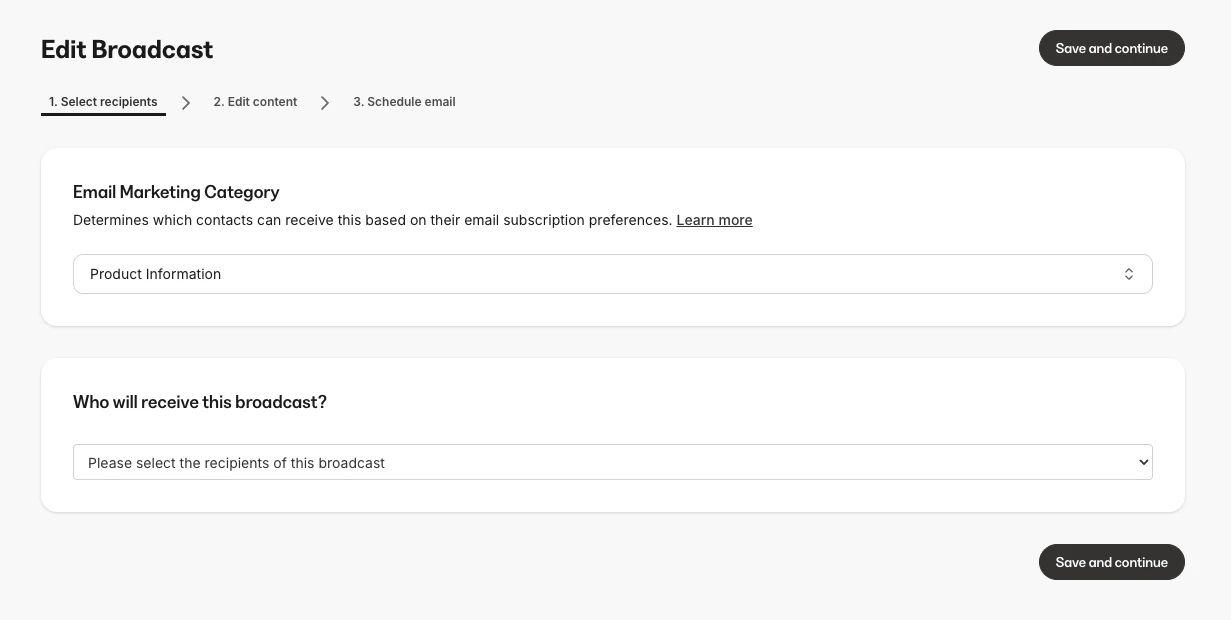
Note: Once an Email Broadcast has been sent, its category is locked and cannot be changed.
Email Sequences
- From the Dashboard, navigate to Marketing, then click Email Campaigns.
- Click + New Email Campaign to create a new email sequence or open an existing one.
- On the email sequence home page, locate the What type of email marketing is this? section. This section also appears on the Subscribers tab.
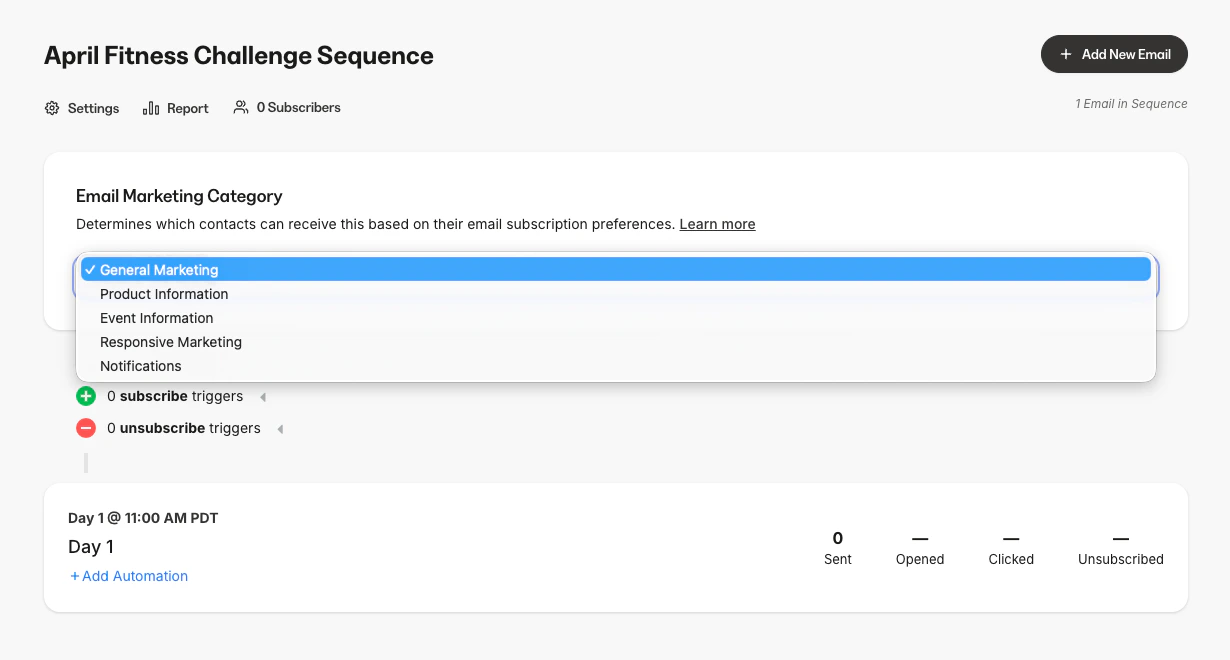
Note: The category can only be set before any email in the Sequence has been sent. After the first send, the category is locked.
How contacts manage their preferences
Email footer link
Marketing emails will contain either an Unsubscribe or a Manage your email preferences link in email footers depending on the editor used. When a contact clicks it, they see a preference page where they can:- Toggle individual categories on or off
- See which category the email they clicked from belongs to
- Unsubscribe from the individual Email Sequence
- Unsubscribe from all marketing emails at once using the master toggle
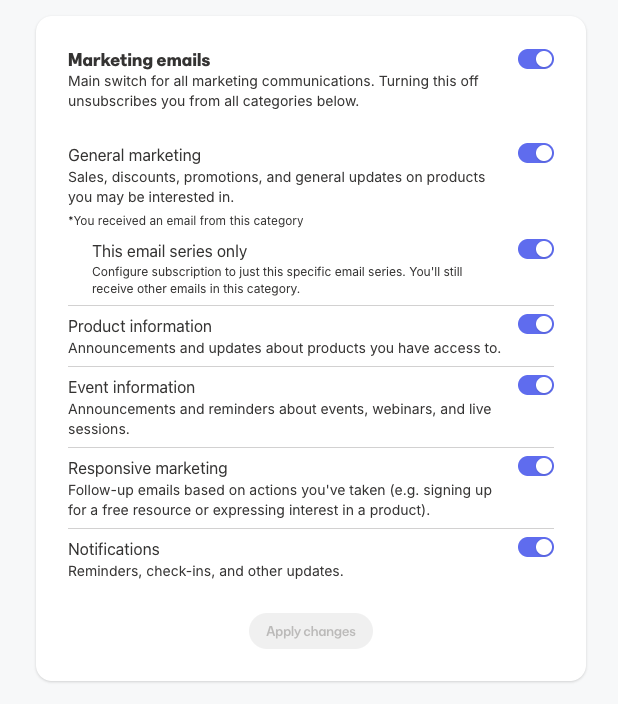
Note: Unsubscribe appears in emails that use the Visual Editor. Marketing emails that use the Classic Editor have a link that says Manage your email preferences.
Member settings
The Member settings page, where contacts manage notification preferences, also includes the marketing email category toggles, giving contacts another way to manage their subscriptions.Note: The notification preferences page is automatically translated to match the language your site is configured to use.
Contact profile and Marketing status changes
Marketing status
With Email marketing categories enabled, a contact’s marketing status can display as:Contact profile detail
To view a contact’s category subscription status:- From the Dashboard, click Contacts, then click All Contacts.
- Click the contact’s name to open their profile.
- In the Info section, each of the five categories is listed with its individual subscription status and the date the contact initially subscribed to marketing updates.
Filter and segment by category
Contact segments
The Email Marketing Subscribed segment includes both fully and partially subscribed contacts.Contact filters
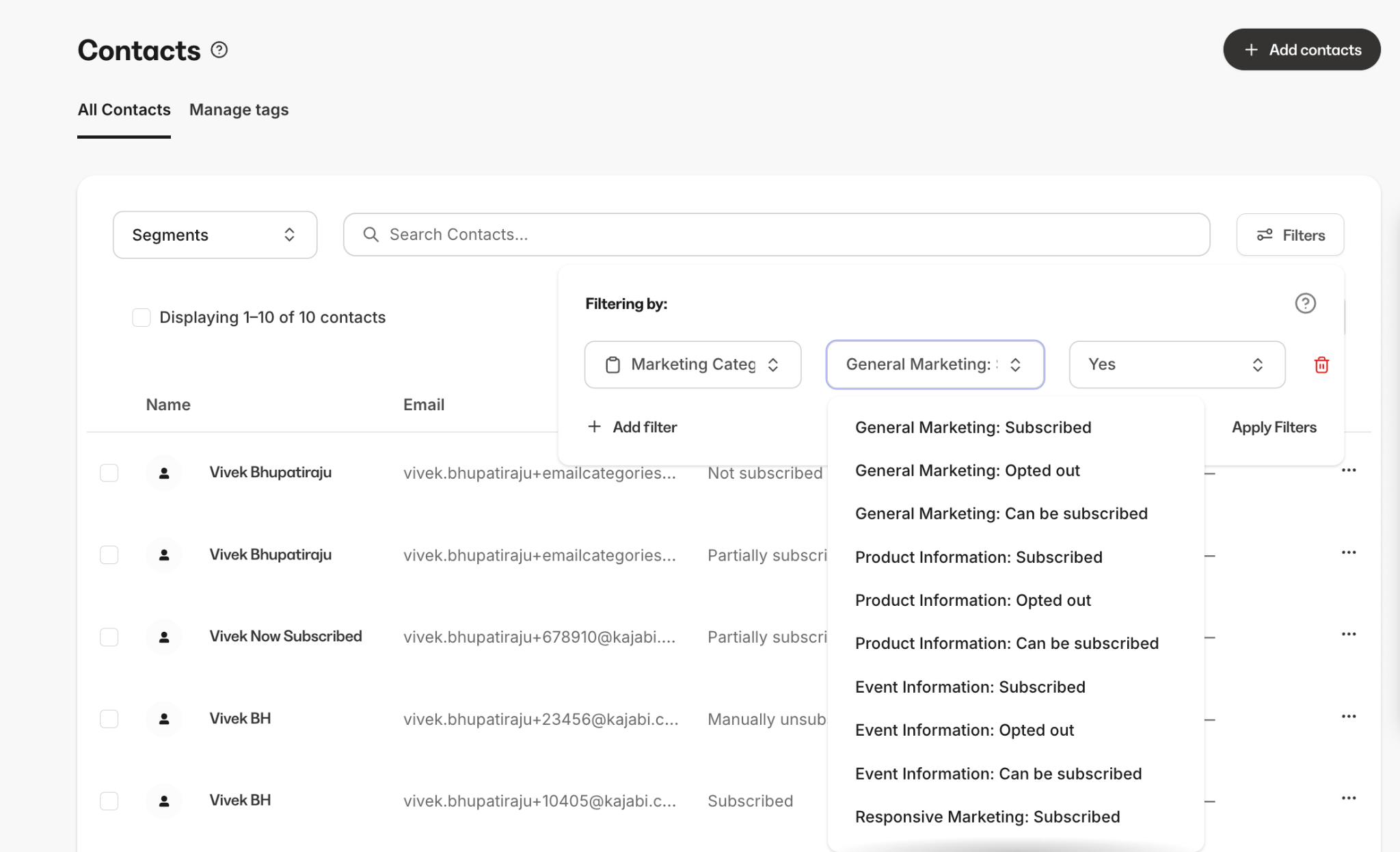
Filter by Marketing Category Status to see the contacts within a given category. The options per category are:- Subscribed: Contacts currently subscribed or not subscribed to that category.
- Opted out: Contacts who opted out of that category within the selected time frame.
- Can be subscribed: Contacts who are eligible to be subscribed to that category.
Bulk actions for category unsubscribes
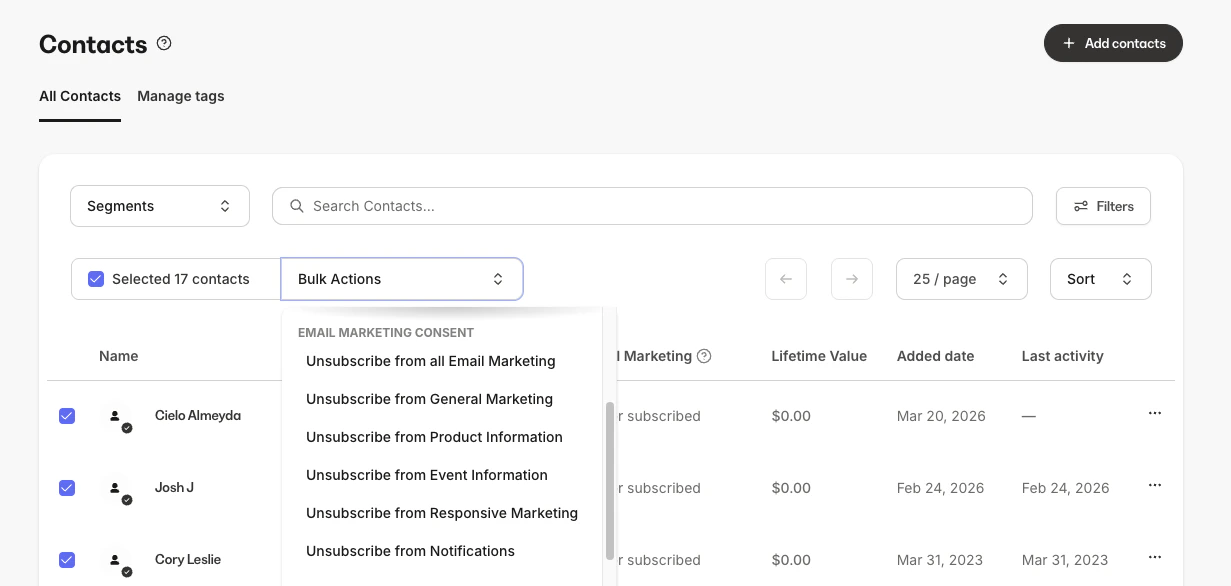
- From the Dashboard, click Contacts, then click All Contacts.
- Select the contacts you want to update.
- Open the Bulk Actions menu and locate the Marketing Consents section.
- Select Unsubscribe from [category name] for the desired category.
Upload contacts with category preferences
When uploading contacts via CSV, the upload flow includes subscription options for each of the five categories in addition to the overall marketing email subscription. If the Subscribe to marketing emails checkbox is unchecked, all five category checkboxes are automatically unchecked and disabled.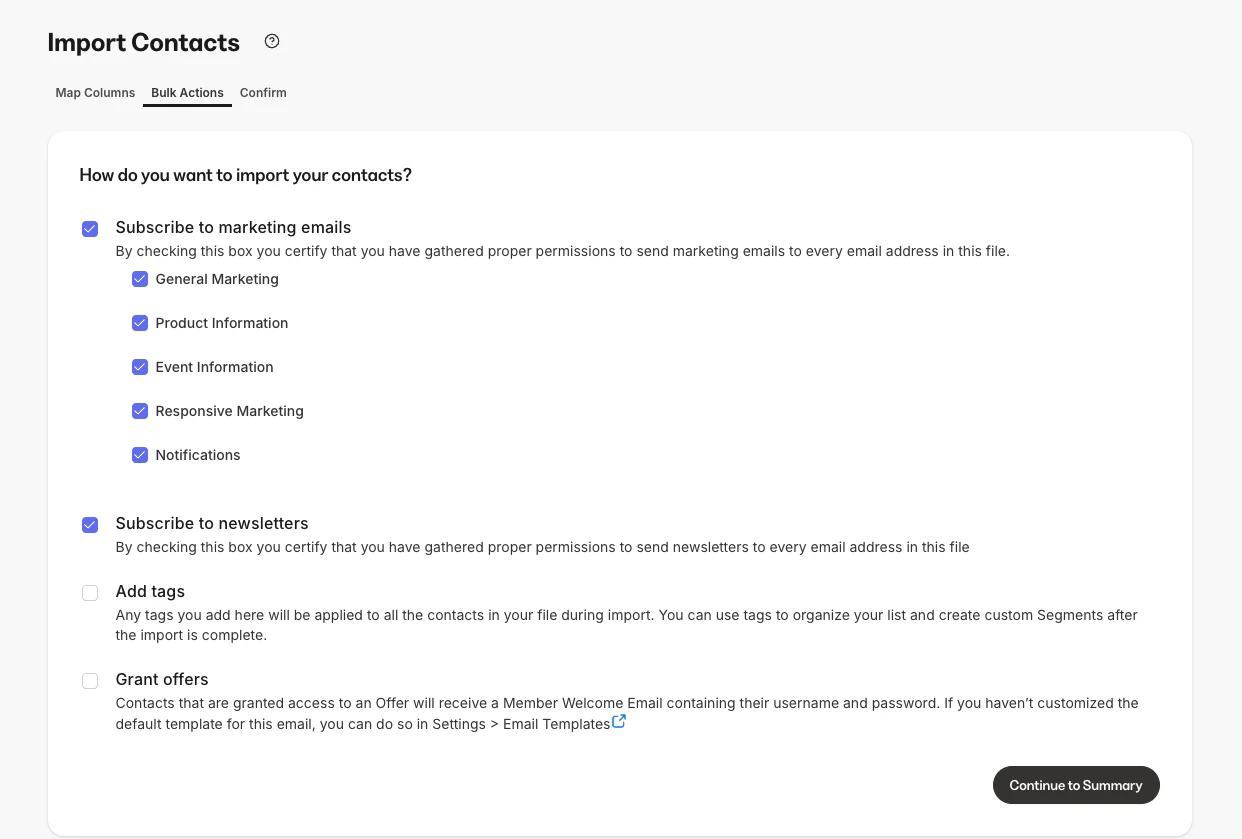
Add a single contact with category preferences
When adding a single contact from the Contacts page, you can set their subscription status for each of the five categories individually.