Marketing contact address
Your marketing contact address will be displayed in the footers of your emails to comply with international spam laws.Customize the Marketing Contact Address
- From the Dashboard, click Settings.
- Then, under Site settings, click Marketing Settings.
- Complete all applicable fields under Marketing Contact Address:
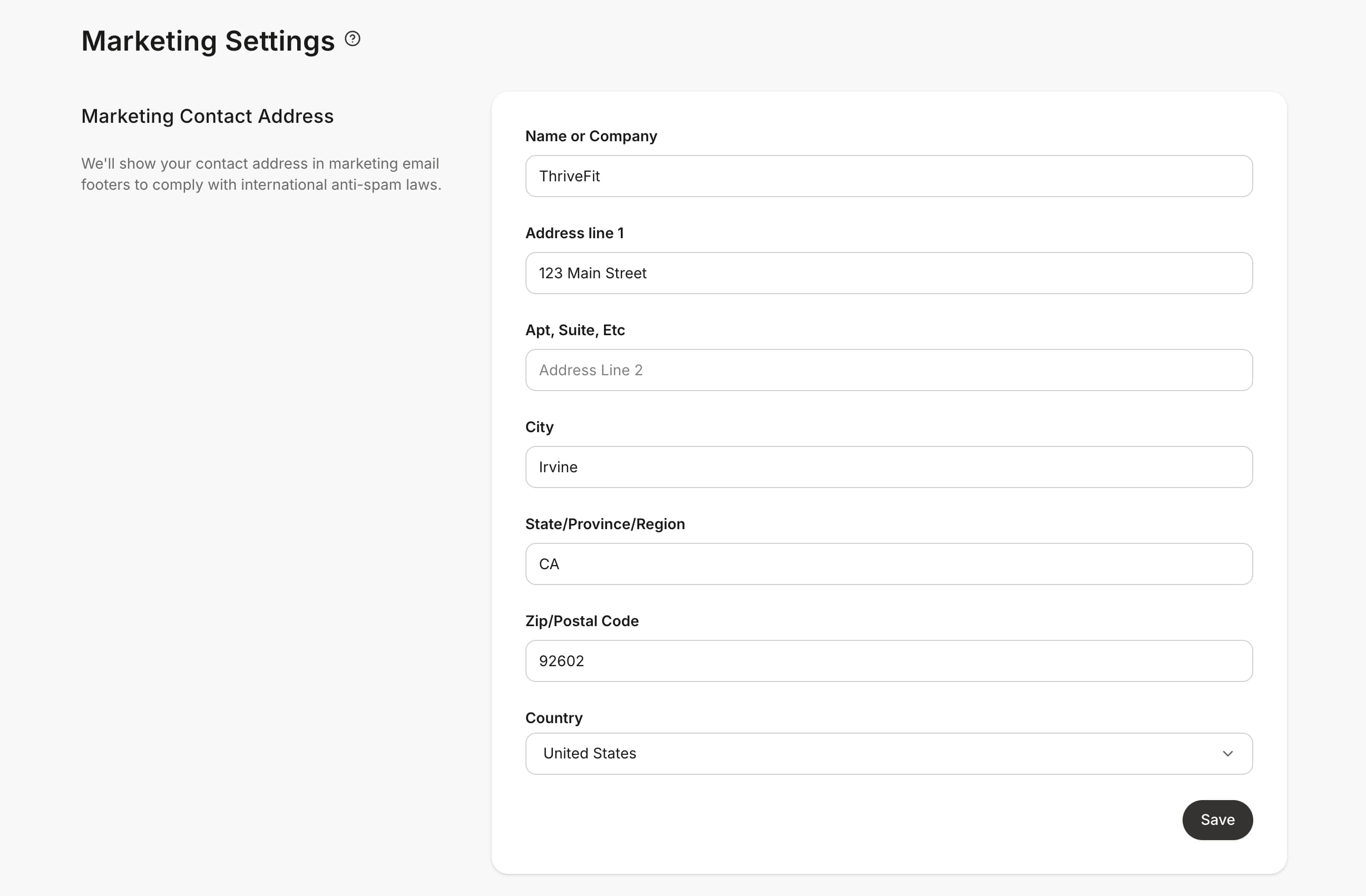
Note: A complete Marketing Contact Address is required before marketing emails (e.g. Email Sequences & Email Broadcasts) and Offer-related emails (Offer Grant Confirmation email & Member Welcome Email) will send. If any field is left blank, these emails will not send, even to fully subscribed contacts, and no error or warning will appear anywhere to flag this. Standard transactional emails such as purchase receipts are not affected.
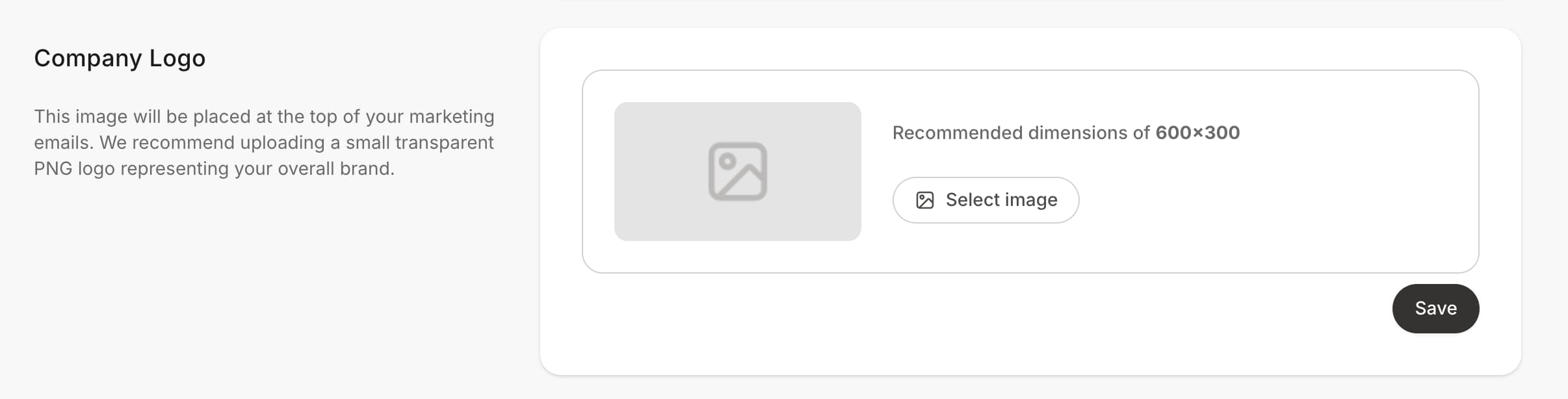
Company logo
Include your company logo in every marketing email sequence you send through Kajabi by uploading it in your Marketing Settings. The image will display at the top of your marketing emails. (Recommended dimensions are at least 150 x 100 px in PNG format.)Upload a Company Logo to Email Sequences
- Open the Settings tab from the Dashboard.
- Select Marketing Settings.
- Under Company Logo, click Select Image.
- Click Upload, then Upload images.
- Drop a file into the modal, or browse and import a file.
- Click Select media.
- Click Save.
Email Settings
With Kajabi, you are automatically granted an email address through our email server (e.g., kajabihelpcenter@c.kajabimail.net) to send your marketing emails. If you do not have a custom email domain, and you wish to change the “From” information for marketing emails, update Email Settings within your Marketing Settings.Note: Leave the From Email section blank to use the default Kajabi email address that has been personalized for your account or use a custom email domain. If you wish to use an address owned by an email service provider such as Gmail or Outlook, please use this as your Reply-to address.To protect the reliability of your marketing emails, Kajabi makes a small behind-the-scenes adjustment to any personal email addresses added to the “From Email” section. For example, if your email was “person@example.com” it will change to “person=example.com@a.kajabimail.net.” This will not change any content in your emails.
Change the From Name, From Email, and Reply-to email address
- From the Dashboard, click Settings.
- Under Site settings, select Marketing Settings.
- Customize the From and Reply-to information:
Note: This only applies to Email Broadcasts and Email Sequences. All transactional or support emails are sent from your Support Email Address. Learn to update your support email address
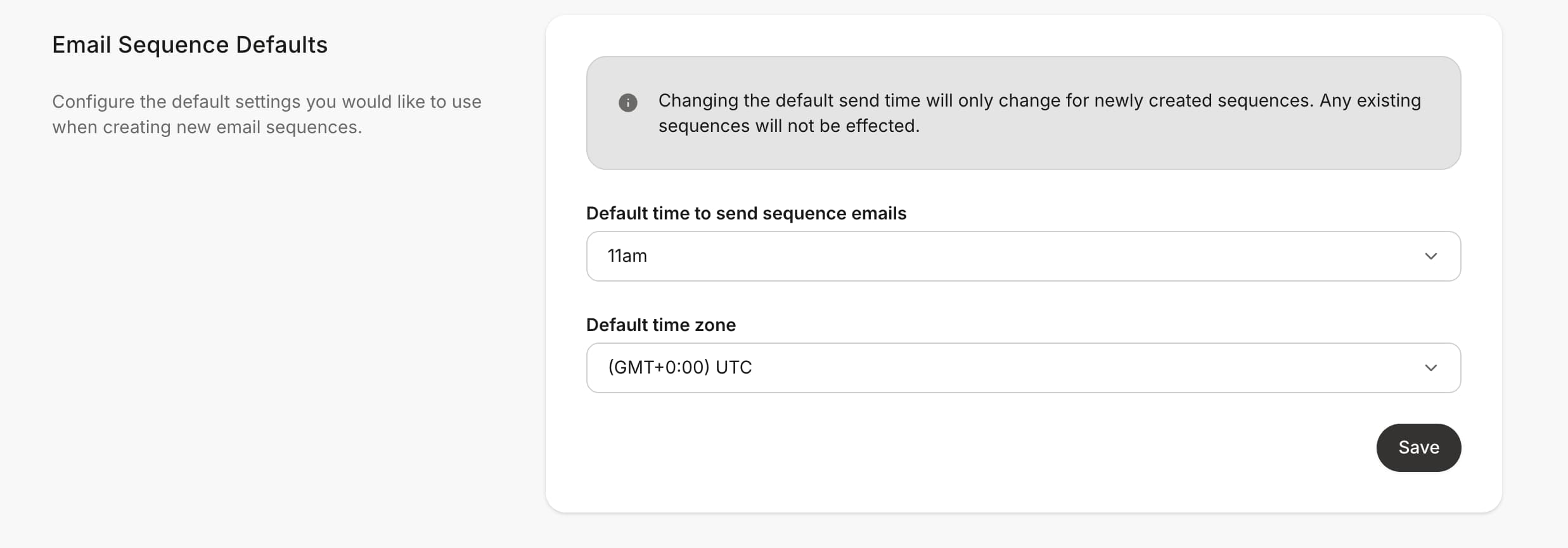
Email Sequence Defaults
Configure the default settings used when creating new Email Sequences, including the Default time to send sequence emails, and the Default time zone. Customizing the Default time zone will sever the connection between the time zone set in your Marketing Settings. If you set the time zone in your Marketing Settings, ensure that the emails in your Email Sequences are set to your intended time zone.Configure the default send time for automatic emails
- From the Dashboard, click Settings.
- Under Site settings, select Marketing Settings.
- Scroll to the bottom of the page to locate Email Sequence Defaults.
- Select the Default time to send sequence emails and the Default time zone: